Unlimited access to all our tools


How does it work?
Edit your PDF file online in 3 steps:
- 1
Upload your PDF file.
- 2
Add comments, highlights, notes, or drawings.
- 3
Download your annotated PDF file.
Our tool lets you leave notes, marks, and highlights in any PDF file. It’s fully browser-based, meaning that you don’t have to download specialized apps – simply upload your file via a browser and take notes without having to print or edit the document.
How to annotate a PDF
Our tool lets you annotate a document in three quick steps: upload the file, add marks, and download. It supports any PDF up to 100 MB, text or scanned.
Here’s how it works step by step:
Step 1: Upload your document
Choose the file to which you want to add PDF comments. You can upload it from your device or use the drag-and-drop feature.
Step 2: Add your marks
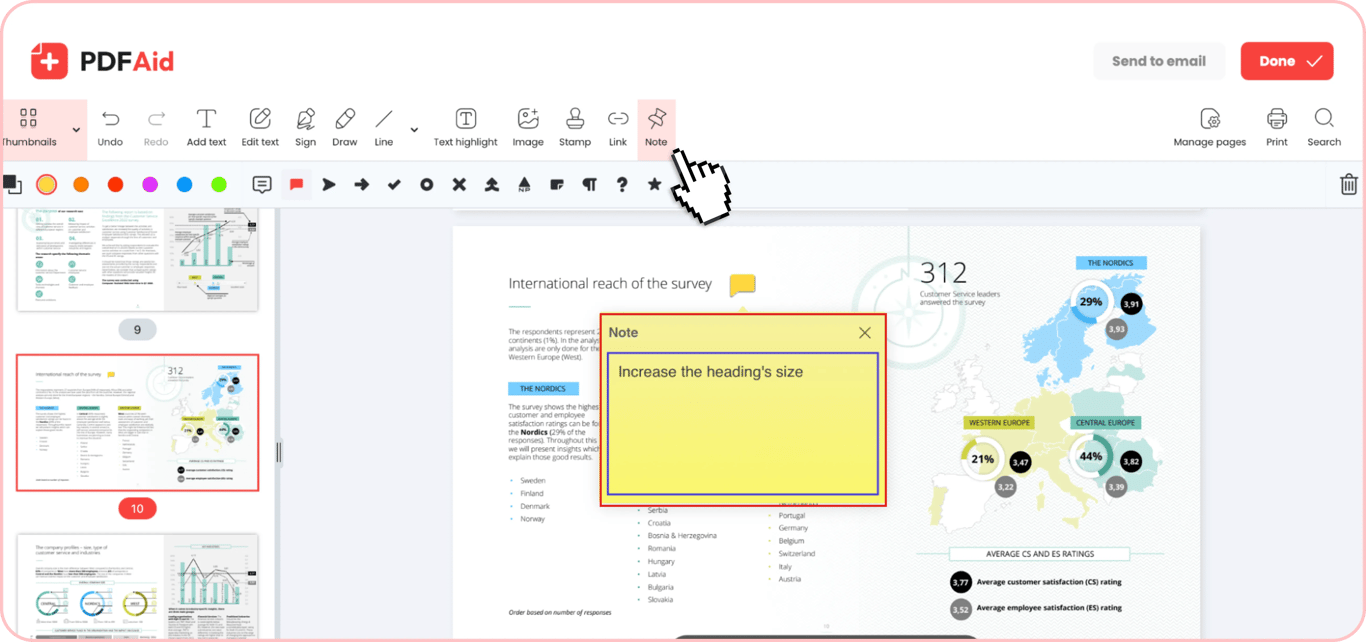
Add and customize the PDF annotation to your needs. Click on the Note button in our editor’s menu, pick the type (e.g., a comment, right pointer, right arrow, checkmark, etc.) and color of the mark, place the note wherever you want on the page, and type the comment in the note’s box. After you add a comment and click elsewhere on the page, it will hide. Anyone who opens the exported PDF can click the note marker to read the comment that appears back as a sticky note.
Step 3: Save or send the document
After you annotate a PDF, click Done in the upper-right corner and save it to your device in the chosen format. If you prefer to share it via email, click on the Send to email button instead and insert the needed email address. The following are the formats our tool supports for export: PDF, DOCX, DOC, PPT, PPTX, JPG, PNG, TXT, XLSX, and XLS.
Common use cases
When you need to take notes or leave comments on an existing PDF file, one way to do this is to print the document and leave handwritten marks. Our tool offers you an alternative solution – you can add customizable annotations to your file digitally and right from the browser. Below are some common cases when this can be helpful:
A draft you review for a colleague
When your colleague sends you a draft of a report, contract, or another document that needs a review before finalization, printing the document, adding written notes, and further editing can take too much time. Our tool makes adding comments to PDF files faster and simpler – you don’t have to provide handwritten notes or draft a list of the necessary edits, and the author of the document instantly sees where in the text your comments belong.
A contract that several people must approve
When you have a document that must go through several rounds of approval by different people, it’s possible that every stakeholder will have some comments or edits to suggest. Our document annotation tool lets you collect every round of remarks in one file, pass it on for the next approval, and clear all marks at once when the edits are agreed.
A textbook chapter you study from
Students can benefit from our tool when studying a new topic from a textbook. With it, you can write notes on a PDF instead of taking them by hand. This way, you will have all your highlights, marks, and comments in one document, which simplifies learning. Importantly, since the comments you leave using our tools are hidden when you don’t interact with them, they don’t affect the readability of the document.
Annotate a PDF on any device
Every tool you will find on our platform works from the browser with no need to download and install additional software. Hence, they are all cross-platform. You can annotate a PDF on an iPad using a stylus pen or do it on a Mac or Windows computer with a mouse or touchpad. Our platform is also mobile-friendly, so if you need to annotate a document on the go, you can as well do so on your iPhone.
Your files stay private and secure
All documents you upload to our tools are processed over a secure connection and remain accessible only to you. You can find the uploaded, created, or edited documents in your personal account, where no third parties can access them.
Similar tools
Our platform has 50+ tools for simple creation, editing, and management of different files, including PDFs, images, and more. If your work or studies require you to frequently work with PDF files, in particular, here are 6 additional tools that you may find helpful:
Highlight PDF: Highlight important words, sentences, and passages in existing PDF documents with any color.
Draw on PDF: Use the drawing tools in our PDF editor to add customizable checkmarks, shapes, and arrows to your documents.
Edit PDF: Use a complete set of editing tools to add or change text, insert images, and make other changes to your PDFs.
View PDF: Easily view PDF files from any device, without downloading any viewer apps.
Stamp PDF: Use ready-made or custom status stamps, such as Confidential or Approved, to instantly mark your documents.
Redact PDF: Black out sensitive or confidential data before you share a file.
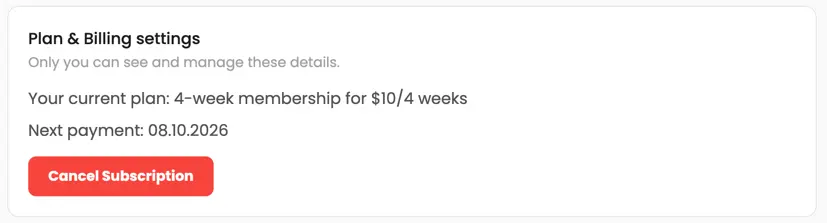 We’re sorry to hear that you want to cancel your subscription. If you no longer need our service, you can click Cancel plan in the Membership tab of your account. You can also contact us via live chat, at billing@pdfaid.com, or by calling +44 808 501 2541 for help with canceling your subscription.