Unlimited access to all our tools


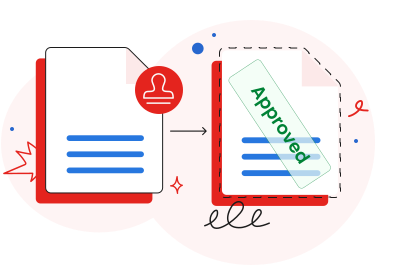
How does it work?
Stamp a PDF file in 3 steps
- 1
Upload your PDF file.
- 2
Choose a built-in stamp or create your own.
- 3
Download your stamped PDF.
Approve, add a status, and mark your documents as confidential by using the PDFAid stamp maker in your browser. Keep original document quality on any device while using templates or custom stamps.
How to create a stamp
Complete the following steps to add a stamp to a PDF on our platform:
Step 1. Click Upload file or drag it to the drop area.
Step 2. Choose from existing designs or create a custom stamp.
Step 3. Place it in the preferred spot on your document, rotate it, and adjust its size.
Step 4. Use the dropdown near the round icon in the top-left corner to adjust the stamp's opacity.
Step 5. Press Send to mail or Done and download.
Ready-made PDF stamp templates: PAID, RECEIVED, APPROVED, COPY
Use our tool with 28 stamp templates for your business and personal needs:
Approved – an authorization to move forward with a document.
Not approved – a rejection, indicating mandatory changes or further cancellation.
Draft – informs that it's not an official version but a work in progress.
Final – a confirmation showing a document is ready.
Completed – no additional changes or actions needed; the work is done.
Confidential – a warning restricting unauthorized readers from opening a document with potentially sensitive data.
Paid – a notice that a payment has been made for a document, invoice, or service.
Received – confirms that a document, payment, or item has been received.
Copy – indicates that the document is a duplicate or reproduction of the original.
Create your own stamp
Create your designs with our custom stamp maker if there's no suitable template. Type your own text and pick the stamp color from six presets.
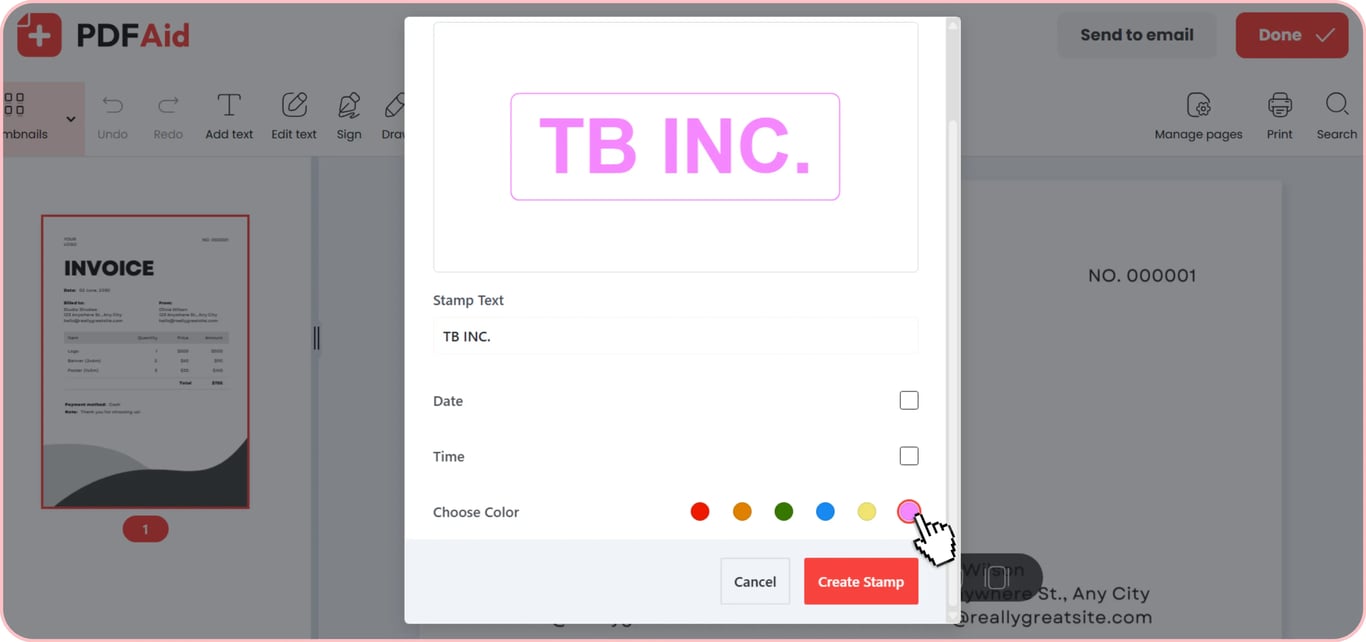
Add a digital date and time stamp
You can add a time and date to your custom stamp. This option is useful if you need to record when a contract is signed, prove a timely document submission, mark when an invoice is paid, and in many other cases.
Stamp with signature
This multifunctional tool lets you add a digital signature with a seal to your PDF. You'll find the Sign button in the toolbar above. You can draw, upload, or type it, picking a font format. Then, adjust the size and put your electronic signature in the right place.
Stamp documents on any device
Add a digital stamp to your PDF document in our online workspace on a computer, smartphone, or tablet. The tool is completely browser-based and available entirely without any setup required. From macOS and Windows to Linux, it works across a range of operating systems. Stamp your documents on iOS and Android; all desktop features are accessible on your phone.
Your document keeps its original quality
The PDF stamp creator puts a stamp over a document without affecting the original content. Text, fonts, spacing, and the whole layout don't shift. You won't have to rearrange your file because it will remain identical to the original.
Your files stay private and secure
All sensitive paperwork is secure here, since you send all files through an encrypted connection. When you сreate digital stamp, documents carrying your company name, details, and signatures stay visible only to you. You keep them privately in your account with restricted access for anyone else.
Similar tools
Improve your workflow with other useful tools on this platform:
Add Watermark to PDF – mark ownership, indicate a file status, and place a branding element.
Annotate PDF – add comments, highlight phrases, draw a line, and use other options.
PDF Editor – make changes in your document by editing text, inserting images, and adding new information.
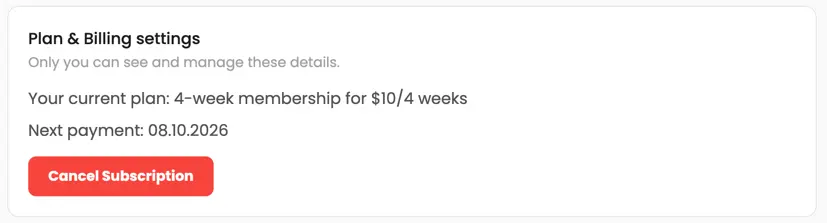 We’re sorry to hear that you want to cancel your subscription. If you no longer need our service, you can click Cancel plan in the Membership tab of your account. You can also contact us via live chat, at billing@pdfaid.com, or by calling +44 808 501 2541 for help with canceling your subscription.