Unlimited access to all our tools


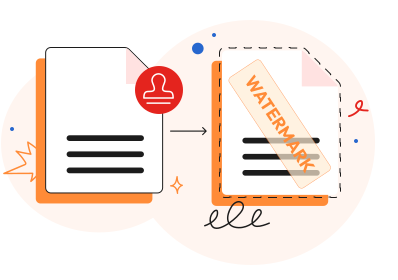
How does it work?
Add a watermark in 3 easy steps:
- 1
Upload your PDF file.
- 2
Add text to use as your watermark.
- 3
Preview and download your watermarked PDF.
Our tool lets you watermark PDF documents. You can protect your files, mark copyright details, or add confidentiality stamps to your pages in seconds without installing extra software.
How to add a watermark to a PDF
Use our editor to put a watermark on PDF files:
Step 1. Upload your document
Drag and drop your file into our workspace or upload area. You can also select the document directly from your computer or phone.
Step 2. Enter your text
Create a custom message for your pages and enter it in the designated text box. You can use status labels like "Confidential," "Draft," or "For Internal Use Only." You can also enter your company name or brand details.
Step 3. Customize the appearance
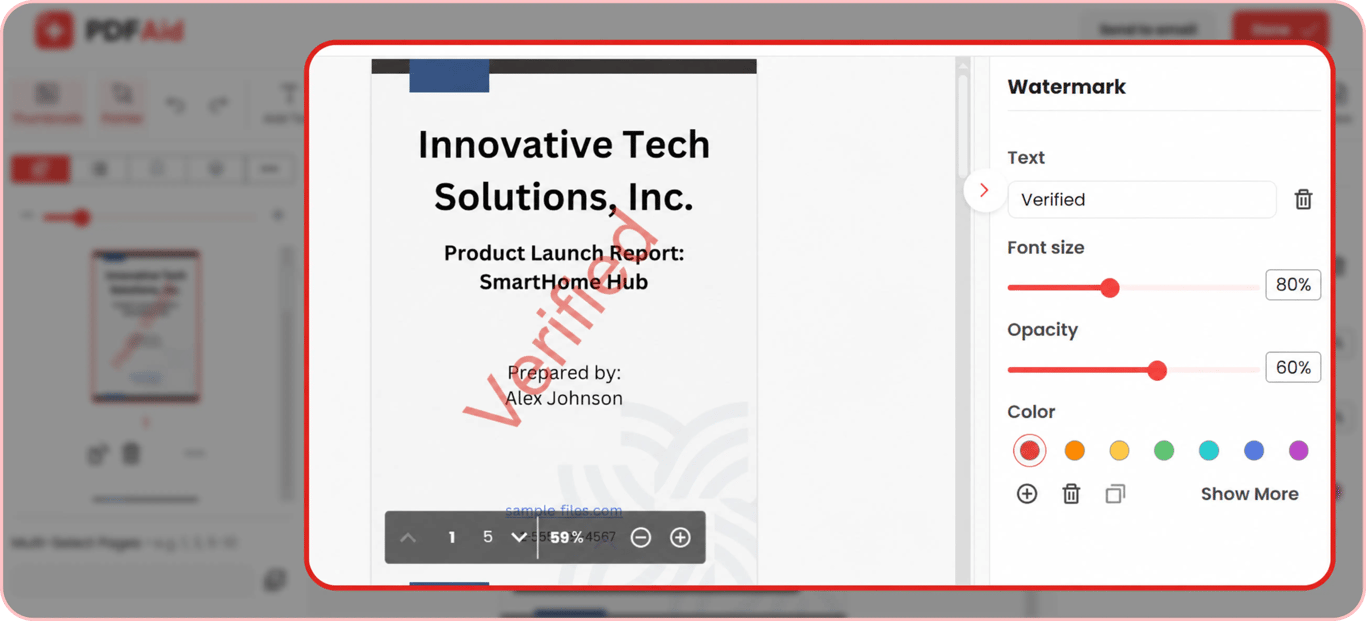
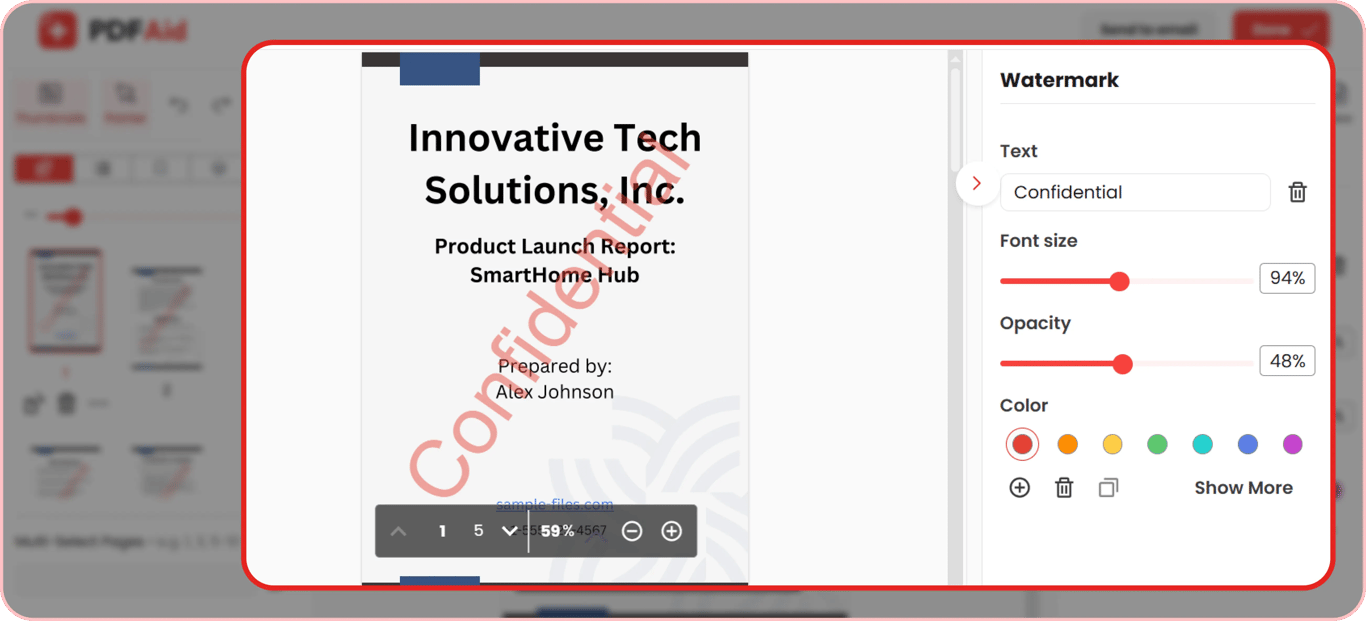
Adjust the visual settings. Choose the font style, text size, and color that you want. Make the text semi-transparent with opacity controls. That way, your main content stays readable.
Step 4. Apply and download
Check the preview to see how the text looks on your pages. Add the watermark to your document. After that, you can download the final version of the PDF to your computer or phone.
Draft & confidential watermarks
Our editor displays "Hello World" as the default text. You can replace this phrase with any custom label.
Adding a draft watermark or the word "Confidential" helps manage document status in standard business workflows. For example, you may share early document versions with the "Draft" watermark. This one word helps prevent team members from using unfinished content. The "Confidential" watermark flags sensitive information.
You can also type custom notices, author names, or even dates.
Customize font size, opacity, and text color
Our platform allows you to edit watermark in PDF files, so the text fits your layout. Here are several visual settings that you can modify directly inside our editor:
Opacity and transparency: Lower the opacity level to make your text semi-transparent. This keeps your background text and original graphic images clear and understandable.
Font size and scaling: Increase or decrease text size to fit small document pages or large technical drawings.
Text color: Choose any color you like. It is better to use dark shades on light pages and a lighter tone for dark backgrounds to keep your label prominent.
Why add a watermark to a PDF
A watermark on a document gives more context before you share files with your clients and other teams. Here are the main reasons to use them:
1. Protect intellectual property and branding
Adding a logo, company name, or copyright text helps protect your work from copying. It shows ownership across reports, presentations, and guides. Readers can instantly identify your content when they see those documents.
2. Indicate document status
Labels like "Draft," "Pending Approval," or "Sample" clarify the stage of your project. This helps your team members avoid accidentally sending early versions to clients. It also prevents your team from mixing up temporary notes with final files. Everyone can quickly tell if a document is ready for use by looking at the watermarks.
3. Mark sensitive material before distribution
Stamps like "Confidential" or "Internal Use Only" warn readers about sensitive data. Adding these markers before emailing contracts or financial sheets helps protect private information.
4. Prevent content misuse and unauthorized sharing
Adding recipient names, project dates, or specific identifiers helps manage file distribution. Clear visual overlays discourage readers from copying, printing, or sharing your files without permission.
Watermark a PDF on any device
You can add watermark in PDF files online from any standard web browser, so you do not need to install software, apps, or extensions.
Our watermark maker works across all major operating systems and browsers:
Windows PCs: Access our tool through Chrome, Edge, or Firefox on any Windows desktop or laptop.
macOS Computers: Edit your document in Safari, Chrome, or Firefox on MacBook and iMac devices.
Linux Systems: Upload and process documents in your browser on any Linux distribution.
iPhones and iPads: Stamp your documents using Mobile Safari or Chrome on iOS and iPadOS.
Android Phones and Tablets: Apply custom text overlays using Google Chrome or any other browser on Android.
Your files stay private
We prioritize your privacy whenever you create or add a PDF watermark in our workspace. Every file is processed through secure, encrypted connections to protect your data.
Your documents remain strictly private and accessible only to you inside your session. These privacy protections apply to all your content, including corporate reports, legal agreements, and personal records.
More PDF tools
Adding text watermarks is just one way to update your files. If you want to add logo to PDF pages instead of plain text, use our Add Image to PDF tool. This feature lets you place logos, visual stamps, or digital signatures onto any page.
Watermarks show document ownership and status, but they do not cover up the text underneath. When you work with sensitive data, a text overlay might not be enough. People often ask how to protect the watermark in PDF files, so readers cannot see private details behind the stamp. If you need to hide account numbers or personal records, use our PDF Redactor. It permanently removes confidential text and images from your pages so no one can access them.
 We’re sorry to hear that you want to cancel your subscription. If you no longer need our service, you can click Cancel plan in the Membership tab of your account. You can also contact us via live chat, at billing@pdfaid.com, or by calling +44 808 501 2541 for help with canceling your subscription.