Unlimited access to all our tools


How does it work?
Rotate your PDFs in 3 simple steps:
- 1
Upload or drag and drop your PDF.
- 2
Select the pages you want to rotate.
- 3
Download your rotated PDF.
The PDF rotator is a PDFAid feature that offers a fast solution to turn single pages or entire files by 90 or 180 degrees.
The tool only changes how the page is displayed. Your file's actual content stays untouched. Your text and high-resolution images stay sharp, and nothing else in your file gets altered.
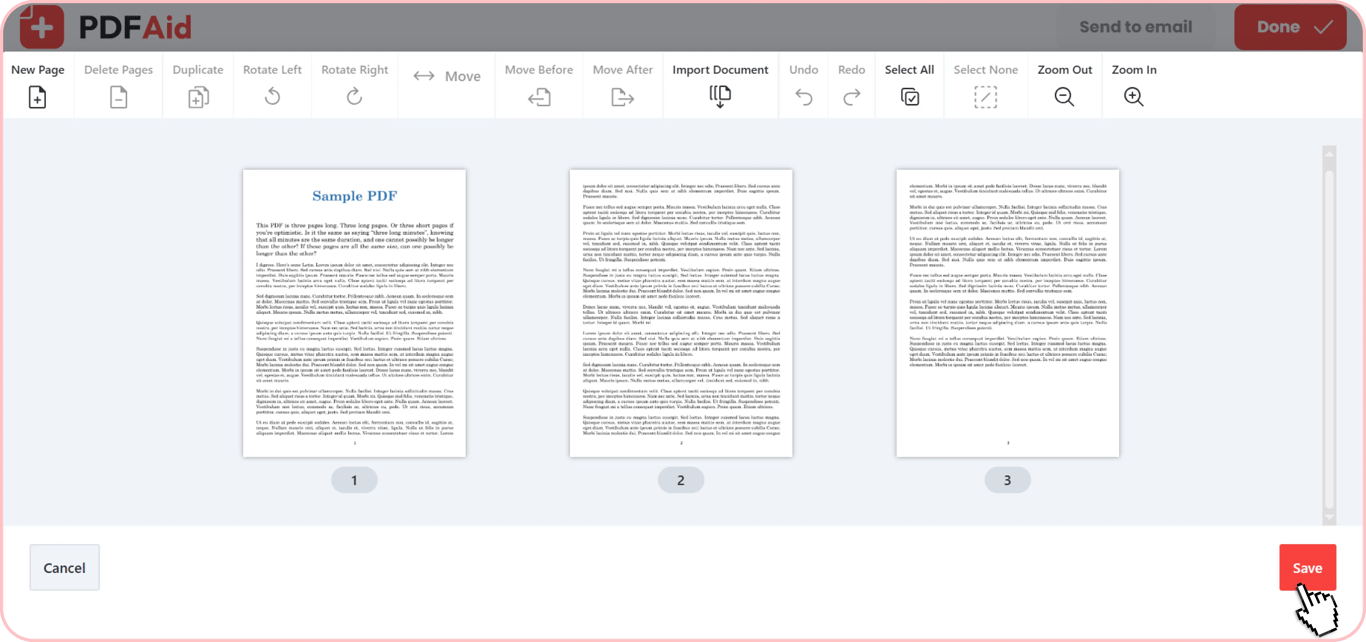
How to rotate a PDF
Rotate PDF pages online in seconds with PDFAid:
Upload your PDF: Drag and drop your file directly into the editor.
Select pages: Choose the specific pages you need to turn.
Set orientation: Click to rotate your pages 90 or 180 degrees clockwise or counterclockwise.
Download the file: Save your changes and download your updated PDF.
Rotate all pages in PDF or a single page
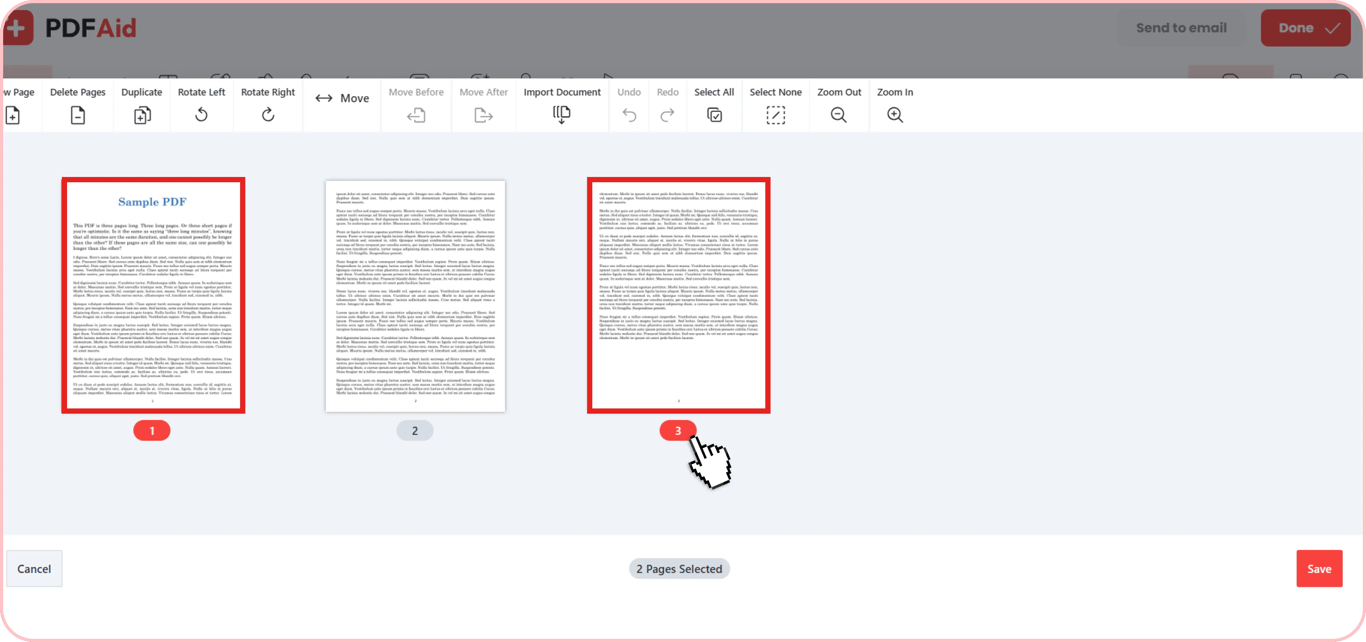
Our tool lets you fix page orientation for a single page or your entire file. If your document has mixed page layouts, like a landscape table inside a portrait report, click the thumbnail of that specific page to turn it. To fix every page, click Select all and rotate the whole document at once.
Rotate a PDF and save permanently
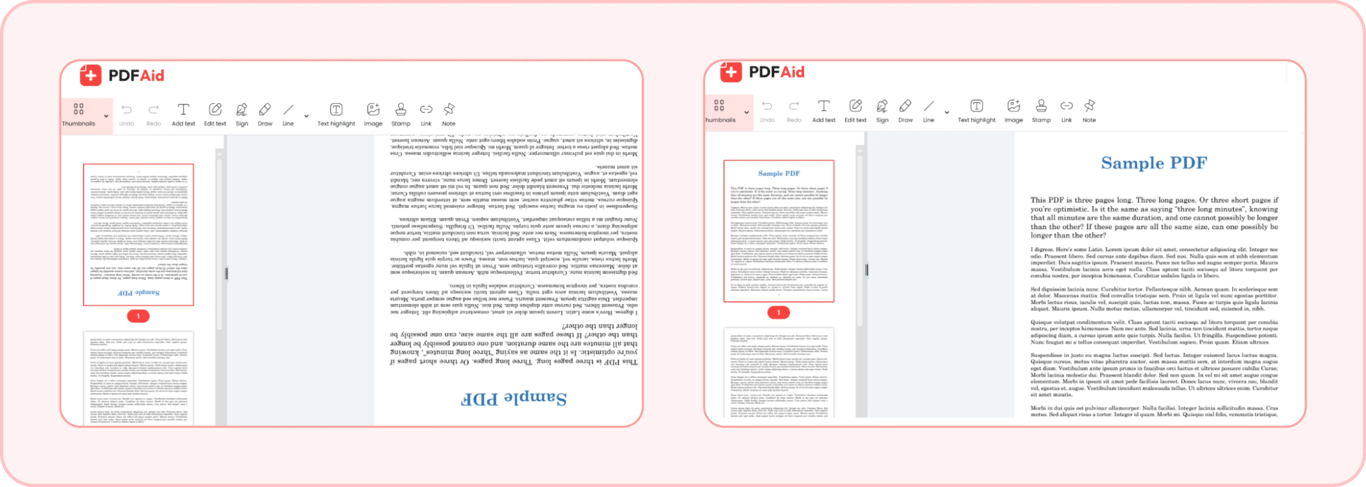
If you rotate a file in a normal web browser or a simple preview tool, it will only change how it looks on your screen. As soon as you close the file, the pages flip back to their original position. When you use PDFAid to permanently rotate PDF pages, the tool updates the actual file structure. Just turn your pages, click Save, and download the file to keep the new orientation on every device.
Flip PDF pages
Scanned pages often come out upside down. Our tool makes it easy and quick to flip a PDF. You can turn upside-down scans right side up without re-scanning the original pages. Simply select the flipped pages, rotate them twice, and save your corrected file.
Rotate a PDF on any device
Our tool runs directly in your web browser. You do not need to download or install any extra software. The tool works on every operating system and delivers the same clean results across all devices.
Windows: Rotate files in Chrome, Edge, or Firefox without installing desktop apps.
Mac: Fix document layouts using Safari or Chrome.
iPhone & iPad: Turn pages on iOS or iPadOS inside your mobile.
Android: Adjust upside-down PDF files on your phone or tablet.
Rotate PDF without losing quality
Doing a PDF rotation with PDFAid will not ruin your file quality. The tool only changes the page direction setting. It never changes text, alters your fonts, or shrinks your images. It keeps all of its original resolution, so your document stays sharp and clear.
More PDF tools
Explore other useful tools to help you manage your files:
Edit PDF: Change text, add your signature, edit, and rotate PDF files directly in your browser.
Crop PDF: Trim wide margins, remove extra borders, crop, and rotate PDF pages to clean up your layout.
Merge PDF: Combine several files into one document, or rotate and merge PDF pages to organize your files fast.
 We’re sorry to hear that you want to cancel your subscription. If you no longer need our service, you can click Cancel plan in the Membership tab of your account. You can also contact us via live chat, at billing@pdfaid.com, or by calling +44 808 501 2541 for help with canceling your subscription.