Unlimited access to all our tools


How does it work?
Compress images in 3 simple steps:
- 1
Upload your image or drag and drop it.
- 2
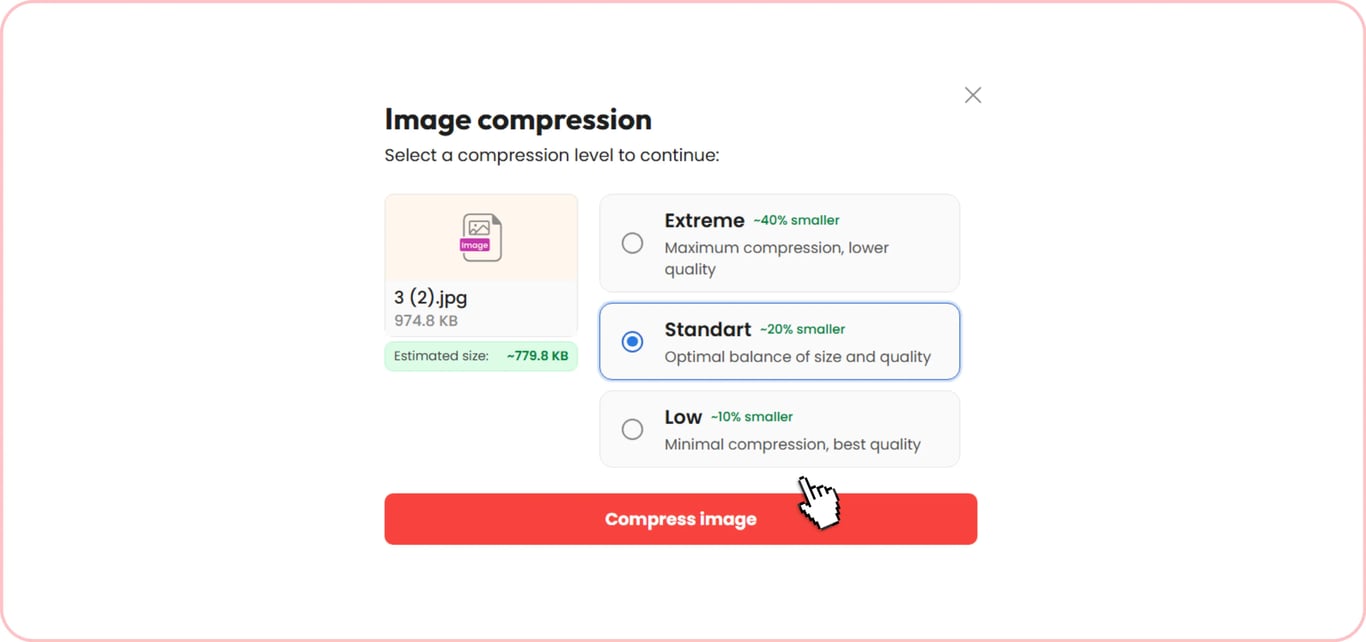
Select a compression level.
- 3
Download your compressed image.
Our image compressor can reduce picture size in just a few clicks. Your file becomes smaller by kilobytes and megabytes, while the dimensions in pixels don't change.
How to compress an image
The way to perfect visuals suiting your requirements exists, and here's how to reduce image file size online:
Start by uploading a picture or dragging it to the upload area.
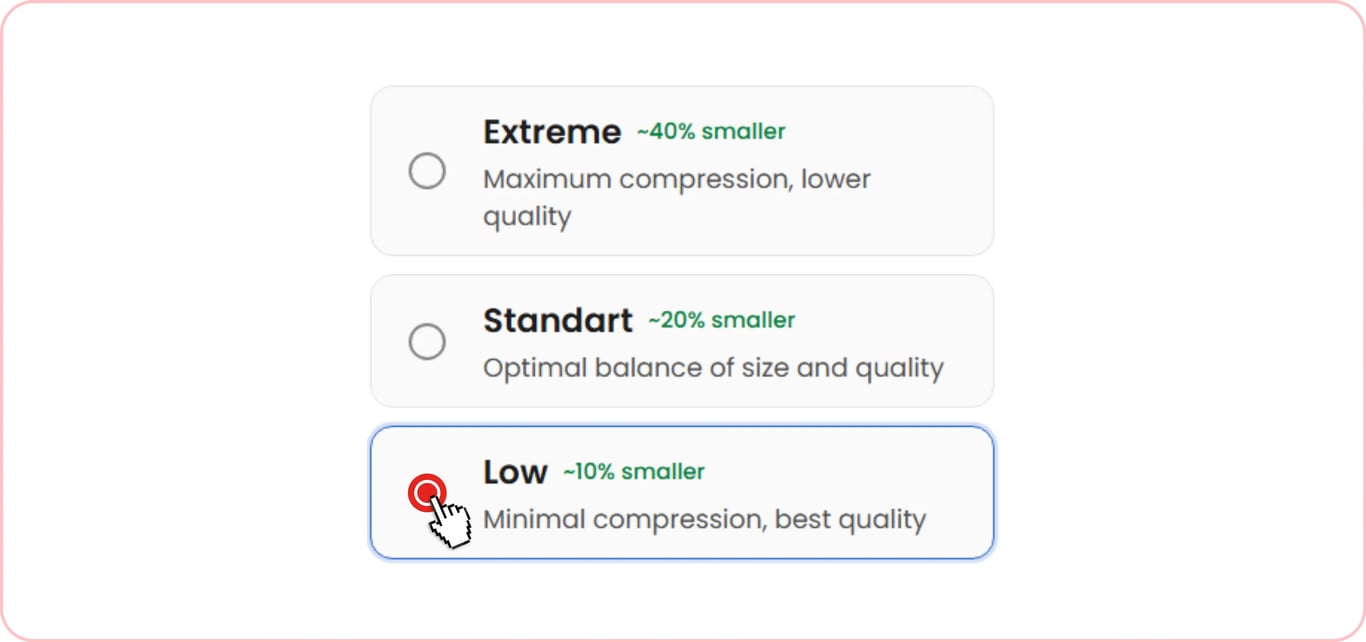
Pick a processing level: Low, Standard, or Extreme.
Download your file in a preferred format.
Keep the picture sharp when the file gets smaller
Our platform is an ideal fit if you need to compress an image without losing quality and expect a well-optimized, non-blurry file. Three levels of processing are available to work on your picture. Low and Standard options remove extensive data that doesn't have significant visual value, while keeping important details. That's why the difference between the original and the after-compression version is unnoticeable.
If you want to reduce the image size in KB significantly, you can choose the Extreme level. Applying this option may cause a slight sharpness loss, but it's not critical and doesn't mean that changes will be immediately visible. Keep an original picture for comparison to see if there's any obvious difference in the result.
Supported image formats for compression
If you need to customize your pictures for personal or professional use, this tool can compress JPG and 9 other formats (PDF, DOC, DOCX, PPT, PPTX, PNG, TXT, XLS, and XLSX). Also, you can shrink a JPEG image by adjusting the intensity of compression. Don't worry if your file is slightly larger because our PNG compressor will take care of your picture. In addition to images, our tool can process PDFs and reduce their size without compromising readability.
Compress images on any device
So, how to change the size of a picture on a particular device? Our image compression tool runs smoothly on a phone, computer, or tablet, and you won't have to deal with installation. It's not bulky software taking valuable space, but a platform available in your browser. You can reduce the size of a photo from your gallery on your mobile, whether it's an iPhone or a Samsung running on Android. You won't have any trouble making images smaller on a Mac, Windows, or Linux computer.
Whatever device you use, the result will be the same in terms of quality. This tool will compress your image instantly; only an Internet connection is needed.
Practical cases of image compression
Large-sized pictures aren't always acceptable. Many platforms, including social media networks and email services, have their own file-size limits for uploads and attachments. These limits can change over time, so it's worth checking the platform's current requirements before uploading or sending an image. In many cases, you may need to compress your files to meet these limits. Find out the most common scenarios below.
Compress image for website
The upload speed can be much slower if your image is too large. This task is often challenging for a mobile connection. A large file carries more data, which increases the loading time. The content appears on a site later and makes you wait. It affects the Largest Contentful Paint (LCP) metric, one of the Core Web Vitals used to measure loading performance.
Reduce photo size for email
If you struggle sending a letter because it contains an image and its size is too large, you may benefit from our tool. Another scenario is when your attachment is cut, and important details are missing. Popular email services like Gmail and Outlook have preset limitations for file sizes of around 25 MB.
Compress image for Instagram
Although the platform compresses the image itself when you upload it, the result may look unsatisfying. Therefore, it's better to shrink a picture for Instagram here beforehand, controlling the outcome rather than letting it process a large file. Anyhow, you should check your picture and pay attention to such details as small text, logo, and smooth color transition to make sure everything looks good after the change.
Compress image for LinkedIn
Business graphics on LinkedIn require special and thoughtful preparation. A LinkedIn profile banner should be 1584 × 396 px and no larger than 8 MB. Profile photos should be at least 400 × 400 px and no larger than 8 MB. For post images, 1200 × 627 px works well for landscape posts, while 1080 × 1350 px is recommended for portrait images; LinkedIn's current upload limit for photos is 5 MB. Compress these pictures carefully so as not to reduce quality, as they often contain text, schemes, and numbers. Make sure all captions are readable when you shrink files for LinkedIn.
Reduce the size of a Pinterest image
Pins come in a vertical format, so an image is typically large. They often contain loads of information, captions, and different visuals, which increases their size compared to an average picture. Usually, infographics with text lose quality most of all after compression. That's why you should pick a Low or Standard level to prepare a pin and check small captions.
Image compressor for Discord
Compression is the step you can't skip when using Discord because there are fixed rules for members. A subscription type defines the image size, so it's necessary to consider your account requirements. Those are 10 MB for free membership, 50 MB for Nitro basic, and 500 MB for full Nitro. Discord also has stricter requirements for smaller graphics – custom emojis must be smaller than 256 KB and can be uploaded at up to 128 × 128 px, while they are displayed at 32 × 32 px. Stronger compression may remain unnoticeable because these images are small. Anyway, you should reduce the size of screenshots with text gradually.
Compress image for YouTube thumbnail
Typically, YouTube thumbnails have a large pixel size, and there are strict requirements for them. That's when image compression must take place. The recommendations are 1280 × 720 pixels, 2 MB. These images are sensitive to changes connected with size because they often contain text, logos, and graphics. All of these may look blurry if compression is too strong. Select Low level and check the edges of letters. You can repeat the process once again if necessary.
Compress photo for a US Visa
Your photo may be rejected if it doesn't meet the required dimensions and size when you apply for a US visa. It must be square, between 600 × 600 and 1200 × 1200 px, no more than 240 KB in JPEG. Your face should not be blurry, so compress the image carefully to meet the rules. Use the same approach when you need to reduce passport photo size or prepare images for other applications.
Safe image compressor – your files stay private
Your files are uploaded through a secure connection once you want to reduce the size of your images with our tool. All data and processes are secure on this platform. Besides, you're the only one who can see and edit your private files. No one else gets access to your account or your pictures.
Similar tools
Our workspace includes over 50 helpful tools to edit and process your files. You can use the following ones for images:
Tool | |
|---|---|
Functionality | Combine a few pictures to create collages, put screenshots together, or prepare a presentation. |
Tool | |
|---|---|
Functionality | Save images from your PDF to reuse or edit them. |
Tool | |
|---|---|
Functionality | Improve a document with visuals. |
Tool | |
|---|---|
Functionality | Change text or customize it to make your document look more informative or personalized. |
Tool | |
|---|---|
Functionality | Delete the unnecessary numbers, descriptions, or marks from pictures. |
Tool | |
|---|---|
Functionality | Type or paste your text, adjust the font, size, and position, and download the finished file. |
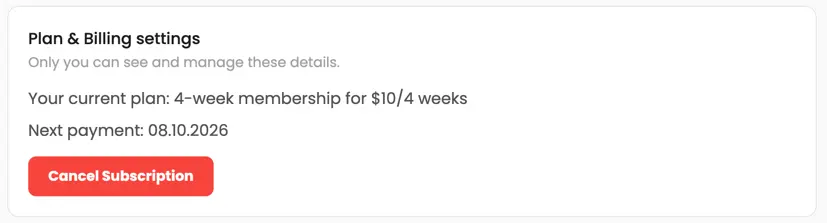 We’re sorry to hear that you want to cancel your subscription. If you no longer need our service, you can click Cancel plan in the Membership tab of your account. You can also contact us via live chat, at billing@pdfaid.com, or by calling +44 808 501 2541 for help with canceling your subscription.