Unlimited access to all our tools


How does it work?
Upload your image and add custom text in 3 simple steps:
- 1
Upload or drag and drop your image.
- 2
Type your text, adjust size, font, and position as needed.
- 3
Download your image with the new text.
Reliable text adder to image
Our PDF editor brings 50+ tools into one browser-based workspace. You can access it from any device and edit your files without installing any additional software.
One of the many things you can do inside our editor is add text to an image. To do this, click on the Add text tool in the editor’s menu and type the text directly or paste it from your clipboard. So whether you need to overlay a short quote or create a large block with text on an image, our editor handles it all.
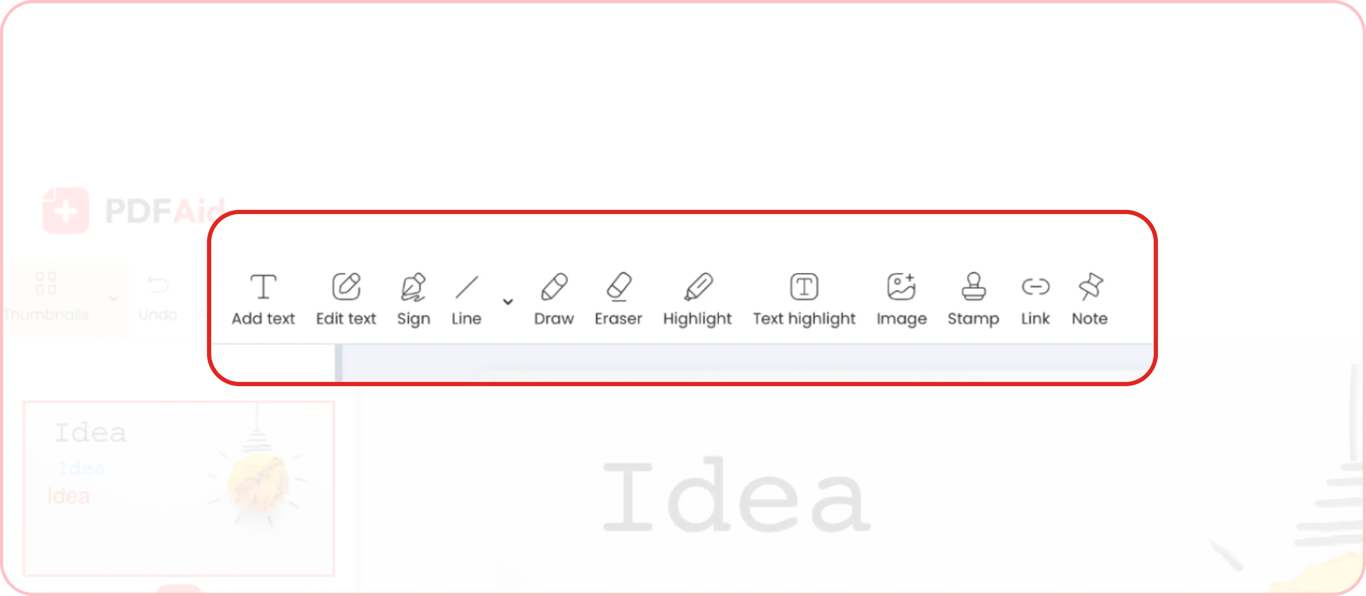
Add text to image online
Our tool lets you add text to any image type, including:
Illustrations
Screenshots
Vectors
Mockups
Background images
Icons
Charts/diagrams
And more
Getting started only takes 3 steps:
Step 1. Drag and drop your image or upload it from your device.
Step 2. Click the Add text tool to type or paste your text.
Step 3. Adjust the font, size, color, and placement, and download your file.
Adjust text font and style to your needs
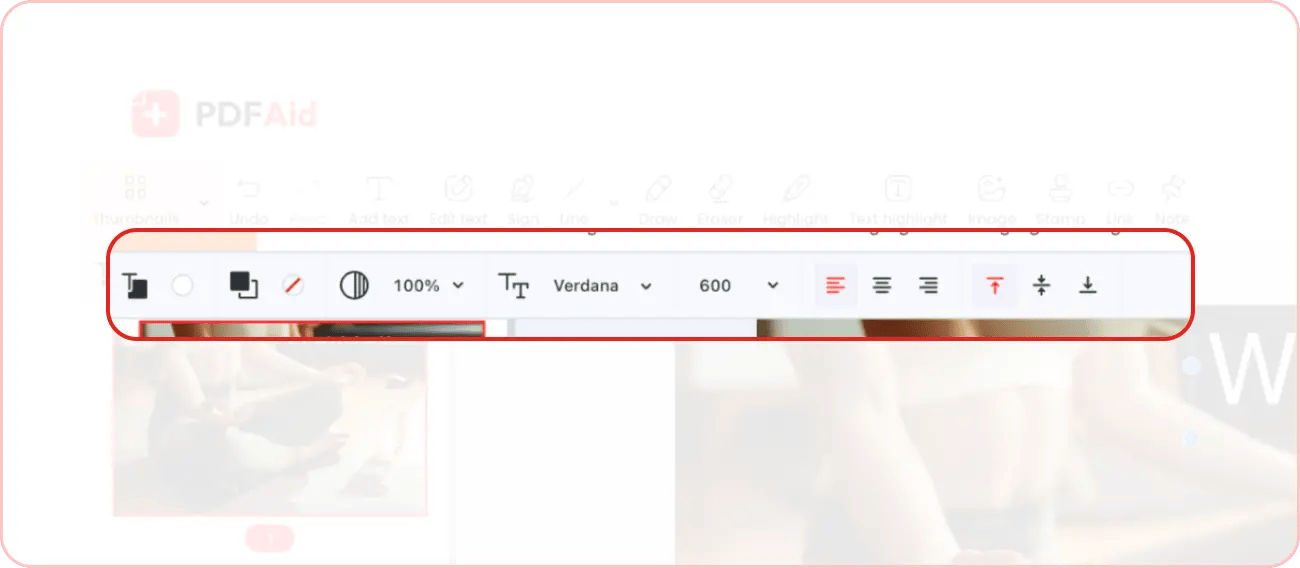
After you insert your text, you can use multiple editing tools to adjust its style to your needs. You can choose between 11 different fonts. Set the font size by choosing from the menu or entering it manually. You can also change the font color and text block fill, and adjust opacity to make your text more prominent or transparent.
Add text to image online without a watermark
When you overlay text on an image with our tool, you can save and download the ready image as is. Our editor doesn’t add watermarks to edited files, so you can use them right after editing.
If you do need to add a watermark to protect your image, you can do it later with our PDF editor. You will need to convert your image into a PDF format and use our Watermark tool.
Add text to image with same font
If you have an image with text that you want to edit, our tool lets you add new text using the same font — so everything stays consistent. Upload the image to our editor and write text on the image using the same font, without changing the existing style.
Add text to a screenshot online
If you have a screenshot that you need to add text to, simply upload it to our editor and add your notes in a few simple clicks.
Best way to add text to a photo
PDFAid stands out for its versatility. With our editor, you can both add text to a picture and a photo. The steps remain the same:
Go to our Add text tool and drop or upload a photo you want to edit
Inside the editor, click Add text and write it from scratch or paste it
Adjust the font, size, color, and placement of the text to match your needs
Save the file in the preferred format
Add text to JPG/JPEG and other formats
When you need to superimpose text on an image or a photo, our tool is a quick and simple solution. You don’t need to install any additional software.
Most importantly, our tool supports all common image/photo formats, including:
JPG/JPEG
PNG
TIFF
GIF
PDF
And more
You can upload any of these formats to our editor. Each file size should be up to 100 MB.
Add quotes to pictures
Sometimes, you might want to add more than a single word or plain text to your images/photos. You might want to add a beautiful quote instead. You can upload a background image or photo, paste a quote of your choice, and style it to your taste – all quickly and easily.
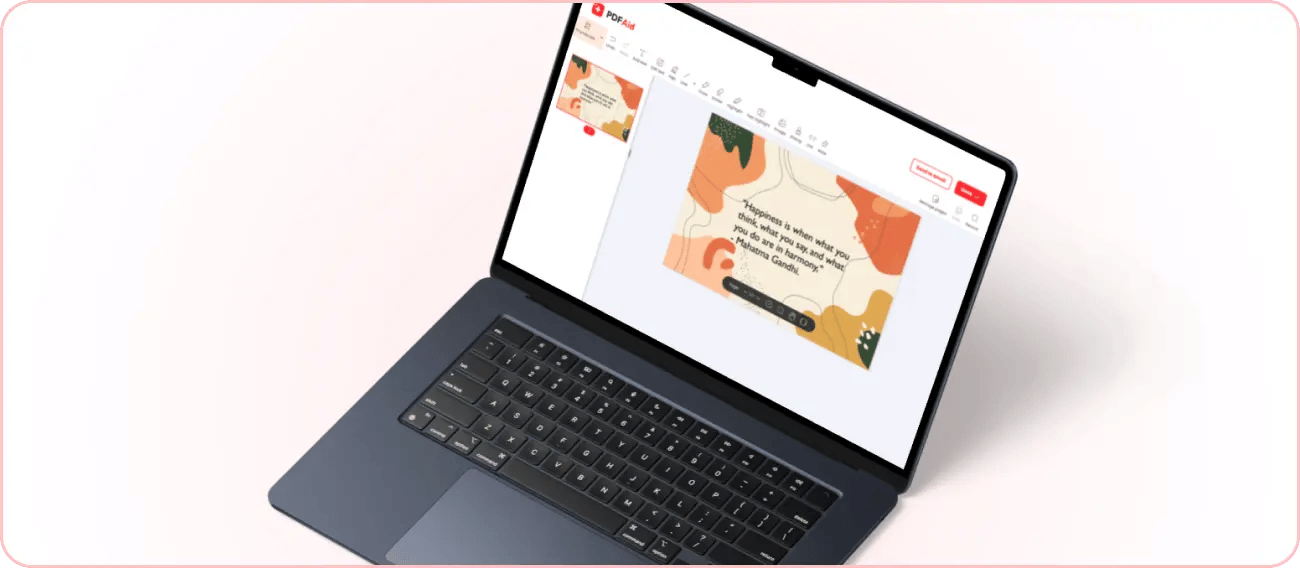
Add tips to a picture
PDFAid is your go-to solution for adding any kind of caption to an image or photo. You can create short, one-word captions, overlay quotes, and craft original pictures with tips, too. Prepare the content for your image in advance. You can keep it a single tip per image or make a numbered list with tips and add your text to the selected picture.
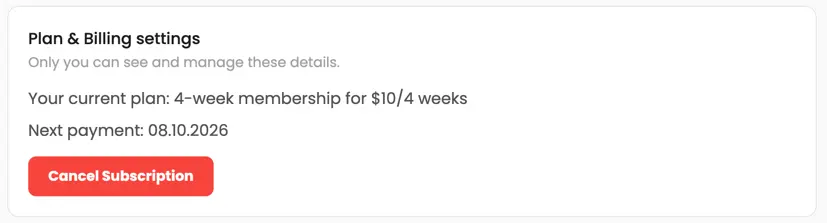 We’re sorry to hear that you want to cancel your subscription. If you no longer need our service, you can click Cancel plan in the Membership tab of your account. You can also contact us via live chat, at billing@pdfaid.com, or by calling +44 808 501 2541 for help with canceling your subscription.