Unlimited access to all our tools



How does it work?
Add images to PDF in 3 simple steps:
- 1
Upload your file or drag and drop it.
- 2
Select the Image tool in the top toolbar.
- 3
Place your image and resize it if needed.
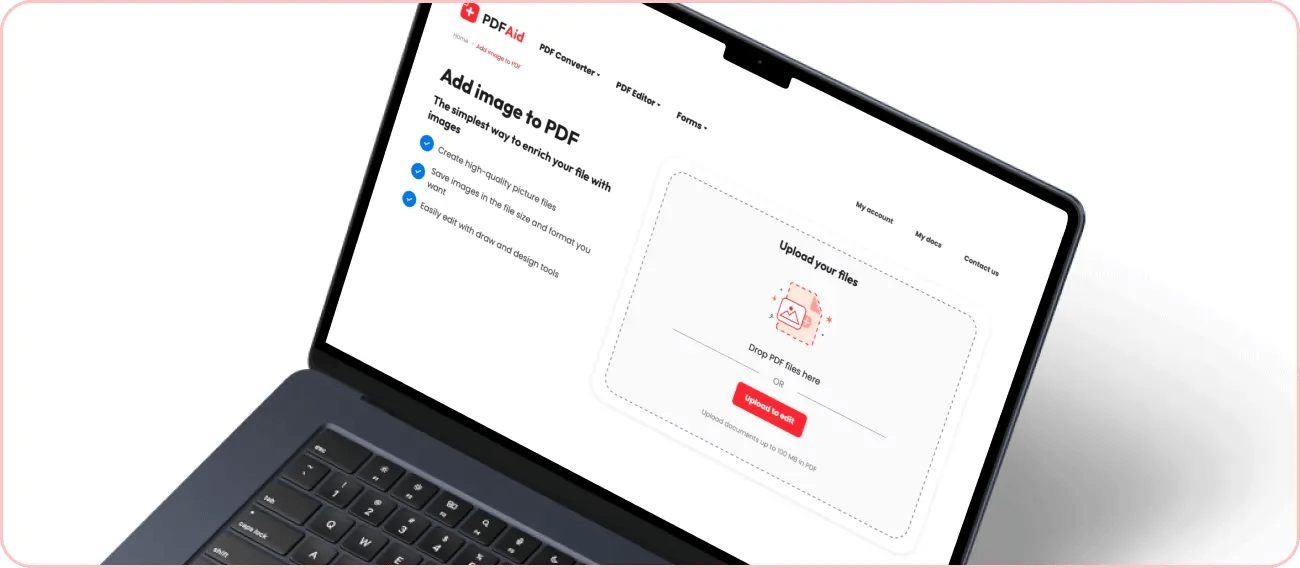
Add image to PDF
Our PDF editor offers you 50+ tools in one place. It works both on mobile and desktop, including Windows, Mac, Linux, iOS, and Android, and doesn’t require installation — just open our editor from the browser and get started.
Add any image directly to your PDF in a few clicks. This feature lets you embed all types of images, including photos, logos, and more, directly in your documents in several clicks.
To add image in PDF, you simply need to upload your file, select the needed image, and customize its placement in your document — all intuitive and fast.
Add photo to PDF
Our editor lets you insert photo into PDF, not only images. It supports all common formats, including:
Standard phone camera files
Common web and screenshot formats
Everyday photo formats used across most devices and platforms
With this feature, you can add photos of your products, events, and others into PDF files without losing photo quality.

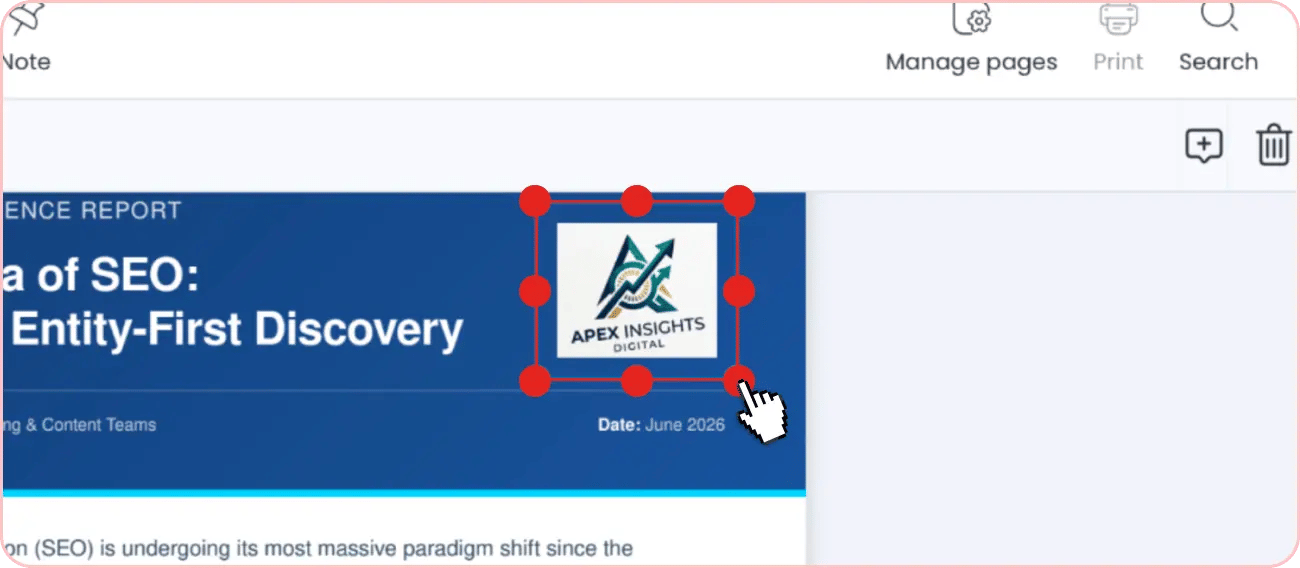
Add logo to PDF
Business documents, like customer-facing materials, marketing collateral, internal document templates, and official corporate documents, require branding. PDFAid lets you easily add a logo to your PDF file for this purpose.
All image formats supported
Our tool supports all common image and photo formats. In particular, you can do the following with PDFAid:
Add JPG to PDF
Add PNG to PDF
Add JPEG to PDF
and more
If your image is in a different format, our Image Converter handles the conversion. It supports 2K formats.
For large-size images, especially when you care about the final size of your PDF document, we also have a Picture Compressor. This tool lets you reduce the size of your pictures with adjustable quality settings.
How to insert image in PDF online
Insert image into PDF in 5 steps:
Step 1. Drop or upload your PDF into the upload area.
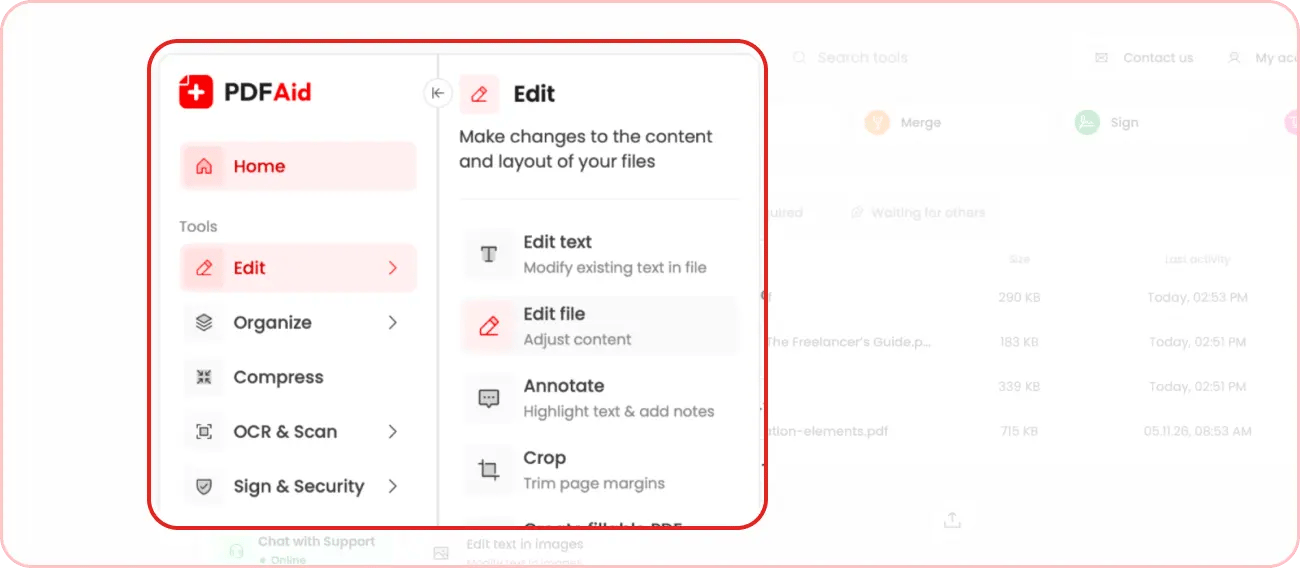
Step 2. If you are an existing user, navigate to Edit → Edit file in the side menu of your workspace and either upload a new file or use one of your recent ones.
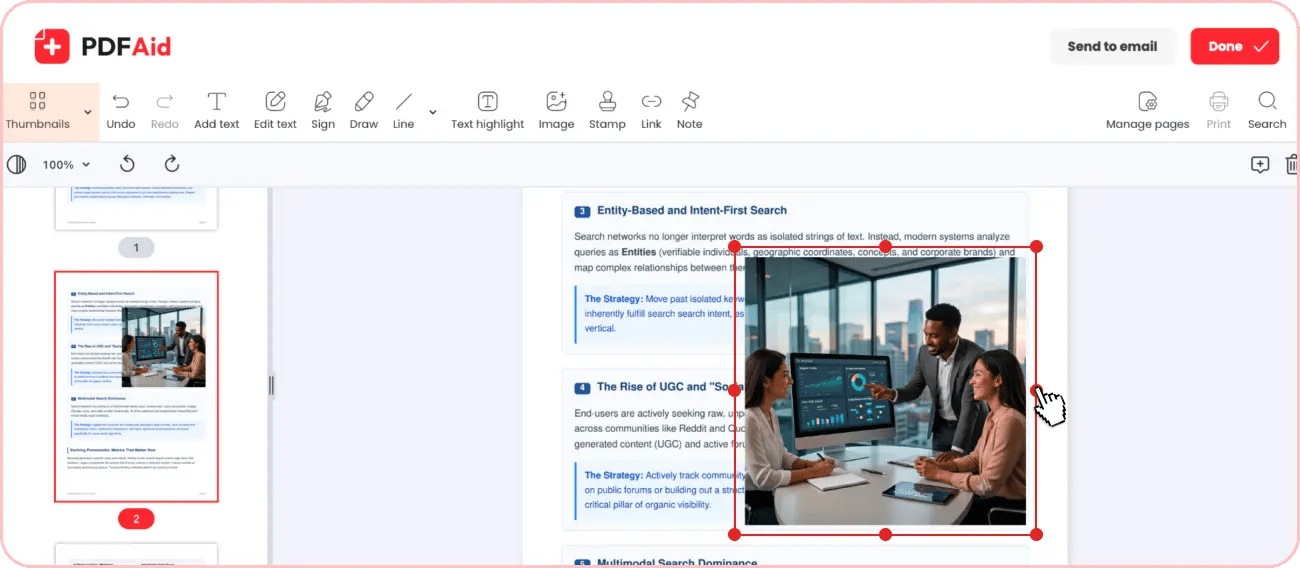
Step 3. Click on Image in our editor’s menu and select a file from your device. You can also copy an image from an external source and simply paste it into your file.


Step 4. Adjust the size and placement of your image according to your needs.
Step 5. When ready, click Done and choose the desired format for export. You can also change the file name or send your edited document via email.
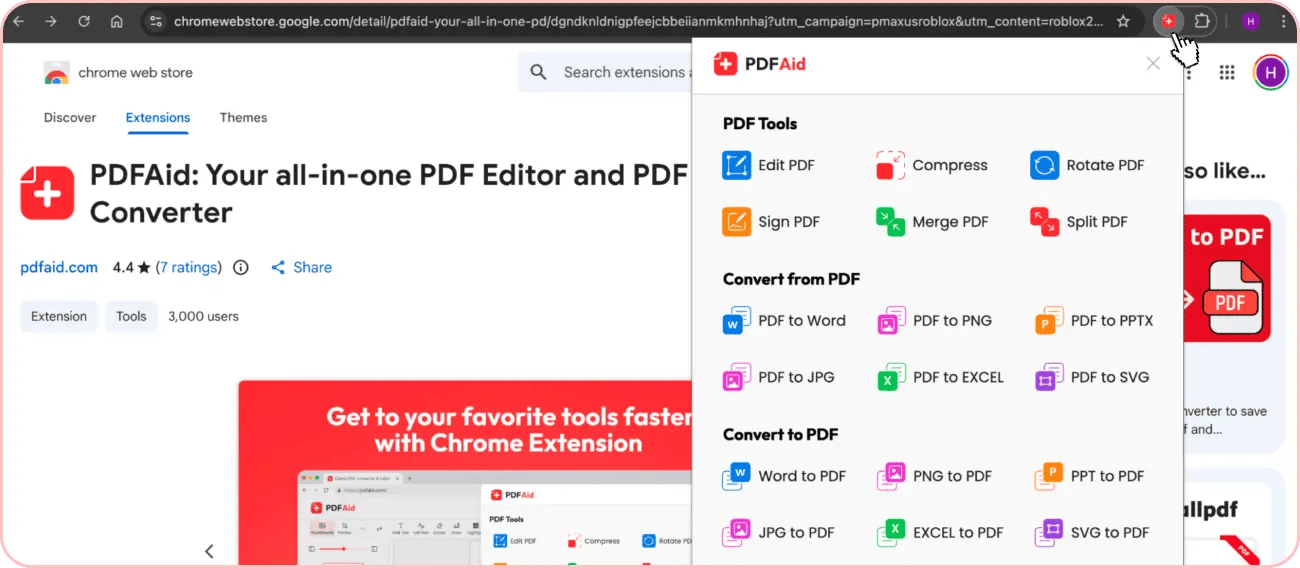
For faster access, install the PDFAid extension from the Chrome Web Store and instantly access its features from the upper panel of your browser.
Add multiple images to PDF
To add multiple images to one document — for a portfolio, report, or catalog — follow the same steps for each image. You can upload multiple images and place them in your file as you need. Use the steps described above for each image.
Insert image in PDF for every use case
PDFAid’s insert photo tool comes in handy for users across different fields, from students and teachers to real estate agents, writers, and business professionals.
Here are a few of the many use cases for our tool:
Insert process photos, diagrams, and infographics into reports.
Add high-quality product images to client proposals and catalogs.
Embed employee photos into HR documents.
Add logos and signatures to business documentation.
Insert professional photos into resumes and CVs.
Integrate photos of your projects and artwork into a portfolio template, etc.
These and other tasks can be solved with our editor in several intuitive steps.
 We’re sorry to hear that you want to cancel your subscription. If you no longer need our service, you can click Cancel plan in the Membership tab of your account. You can also contact us via live chat, at billing@pdfaid.com, or by calling +44 808 501 2541 for help with canceling your subscription.