Unlimited access to all our tools


How does it work?
Delete pages from your PDFs in 3 simple steps:
- 1
Upload or drag and drop your PDF.
- 2
Select the pages you want to delete.
- 3
Download your updated file.
Our online PDF page remover lets you delete extra pages from your files. You can update your layout in seconds without downloading extra software.
How to delete pages from a PDF
To delete pages from a PDF in our editor, follow these steps:
Upload your document: Drag and drop your file into the upload area or select it from your device.
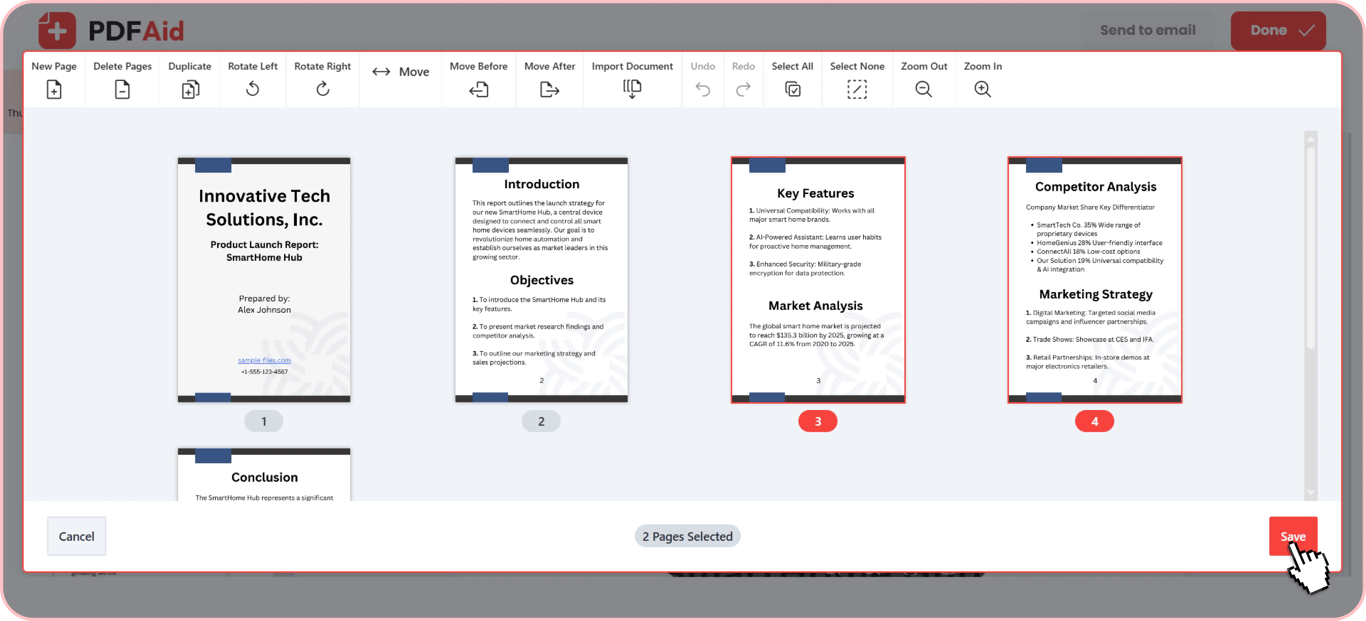
Select extra pages: Check the page thumbnails and click the specific pages you want to remove.
Delete selected pages: Click the Delete icon to remove those pages from your layout.
Save and download: Save your edited file and download the updated document to your computer or phone.
Delete a single page or a range
If you only need to remove one page from PDF or a few pages, our editor makes this simple right from the preview screen. Click a thumbnail to remove an individual page. If you need to clear a section, select a continuous range of pages and remove them at once. The remaining pages will stay untouched.
Delete the first, last, or a specific page
If your documents come with unnecessary title pages, blank titles, or trailing advertisements, you can cut them off. Remove the first page from PDF files to start directly with your main content. The same applies to back covers and ending credits. Select the final thumbnail to remove the last page from PDF documents. With our editor, you can also target any specific page number in your layout to delete unwanted pages.
Cut unwanted pages in bulk
Removing outdated chapters or blank sheets one by one would take too long. If your large files contain dozens of unnecessary pages, our editor lets you cut pages from PDF files in bulk. Select multiple unwanted thumbnails in your document. Once you highlight every extra section, click Delete to clear them all at once. This PDF cut pages feature helps you trim down long manuals, reports, and e-books in seconds.
Remove empty pages from PDF
Blank pages frequently appear when you scan physical documents or print double-sided files. Scanners often add extra empty pages between chapters or at the end of a print job. These unnecessary pages waste paper during printing, create awkward pauses during digital presentations, and increase your overall file size.
Blank pages are easy to spot as you scan the document. When you look over your document thumbnails, blank pages stand out immediately on the screen. You can select them with a single click to remove blank pages from PDF files before sending them to clients or colleagues. Clearing out these leftover pages keeps your final document neat and organized.
PDF slides or sheets remover
When you export slide decks or spreadsheets to PDF format, each presentation slide or sheet tab turns into an individual page. Hidden Excel tabs, extra slides, or blank financial sheets often end up in your exported document by mistake.
Our PDF slide remover treats these pages just like standard document files. You can view every slide or sheet as a page thumbnail on your screen. Select the unwanted slide or spreadsheet page, then click the Delete icon. This lets you quickly trim unneeded pages, keeping your final file clear and simple.
Delete pages without losing quality
Our editor preserves the quality of your remaining content when you remove PDF pages and updates the document structure without re-encoding any file data. Your original layouts, crisp fonts, and high-resolution images remain unchanged.
Delete PDF pages on any device
You can delete PDF pages online using any standard web browser without installing extra software or plugins. Our editor works across desktop and mobile devices. It offers the same tools on every operating system.
Windows: Open Chrome, Edge, or Firefox to edit your files on any PC.
macOS: Remove unwanted pages directly inside Safari or Chrome on your Mac.
Linux: Upload and process documents in your browser on any Linux distribution.
iOS: Delete extra pages from your iPhone or iPad using Safari.
Android: Manage document pages directly from your Android phone or tablet.
Your files stay private
Using our PDF remover helps to preserve the security of your files. We process all uploaded files through encrypted connections to protect your data. Your documents remain accessible only to you inside your personal account. These protections apply to all files in our workspace, including business contracts, personal records, and confidential reports.
Do more than delete pages in one place
Our workspace lets you modify your document structure without switching tools. Right from the preview screen, you can insert new files, add pages, duplicate template layouts, flip sideways pages, or adjust your page order in a single session.
Reorder PDF Pages: Drag and drop page thumbnails to rearrange your layout.
Rotate PDF: Turn upside-down or sideways pages right-side up.
Insert Blank Pages: Add blank pages directly into your file.
Duplicate Pages: Copy existing pages to duplicate forms and repetitive templates.
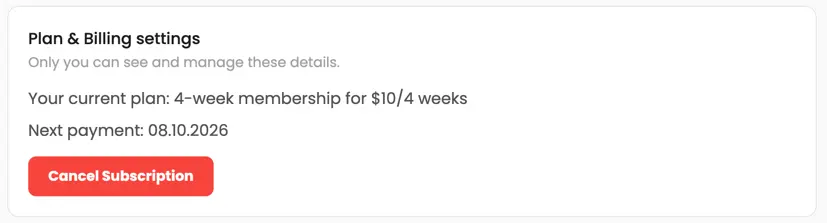 We’re sorry to hear that you want to cancel your subscription. If you no longer need our service, you can click Cancel plan in the Membership tab of your account. You can also contact us via live chat, at billing@pdfaid.com, or by calling +44 808 501 2541 for help with canceling your subscription.