Unlimited access to all our tools


How does it work?
Upload your image and edit the text in 3 easy steps:
- 1
Upload or drag and drop your image.
- 2
Use the editing tool to change or remove text.
- 3
Download your updated file.
Fix a typo, swap a word, or update a caption directly on an image. Our tool lets you edit text in an image in a few simple steps and fully online. No need to install additional software, just open our tool in your browser, modify the text, and save the result.
How to edit text on an image
Edit text on a photo using our tool in four steps:
Step 1: Upload your image
Upload the image you want to edit from your device or drop it into the upload area. Our tool allows you to edit text on any image, including a photo, scan, or screenshot. It supports files up to 100 MB in JPG, PNG, and JPEG formats.
Step 2: Choose text language
After you upload the file, our photo text editor will instantly open a pop-up with a dropdown menu of supported languages. Select up to 3 languages that appear in your image and click Apply OCR.
Step 3: Edit the text
Inside our editor, select the Edit Text tool to see all the detected text boxes in your image. Go through all the text boxes that require changes. You can replace words, fix mistakes and typos, add more words to the inscription, and otherwise edit the text on a picture based on your needs.
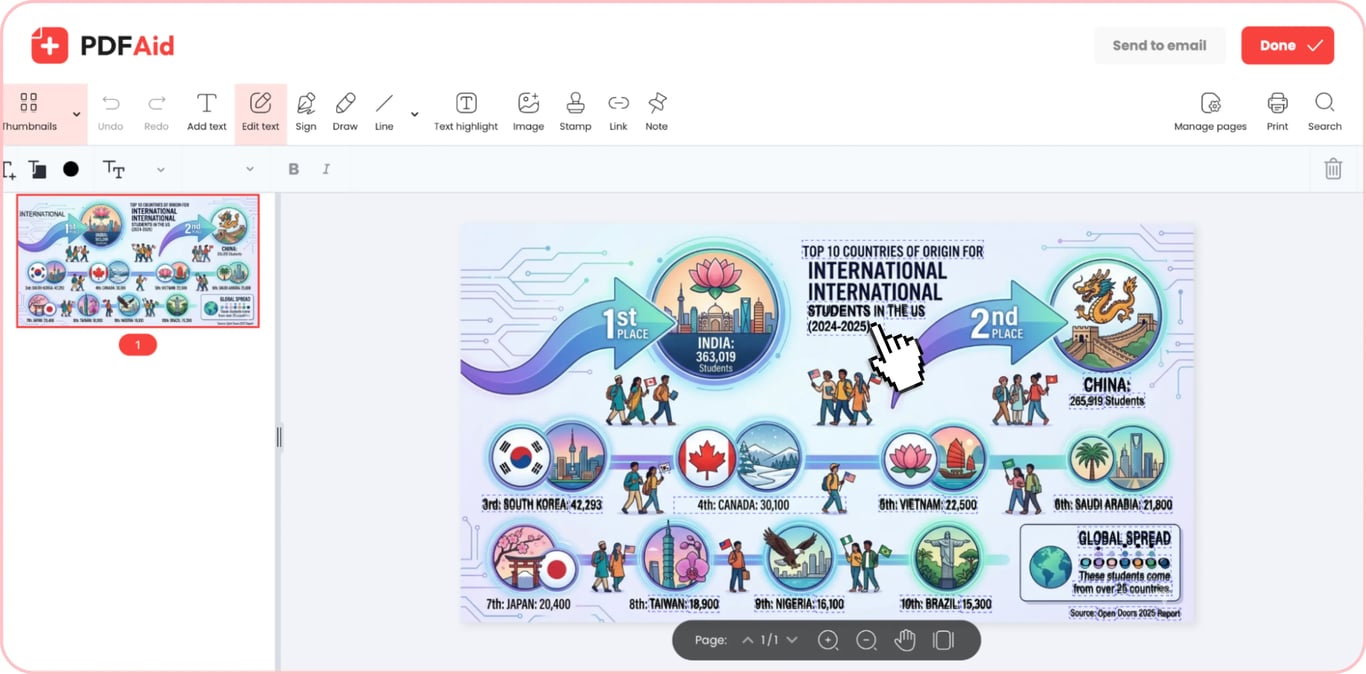
Step 4: Save your image
Once you finish working with our image text editor, click Done to save the finished file to your device or Send to email to deliver it straight to your or someone else’s inbox. In the export process, you can rename your file and select a format in which you want it to be. Our editor supports the following formats:
PDF
DOCX
DOC
PPT
PPTX
JPG
PNG
TXT
XLSX
XLS
Common use cases
The need to change the original text in an existing image often appears when there is an error, outdated information, or sensitive data, and no access to the source file. Below are a few possible use cases in which our text changer tool can come in handy:
A banner with a typo and no source file
When you make a marketing banner with a contractor, they usually hand over a finished mock-up and keep the source file, which makes it hard to fix a typo or mistake in the text. Our photo editing text tool lets you make the needed changes directly on the finalized image with no need to use specialized software. It’s always recommended to save a copy of the original file before making any changes.
A screenshot where you need to hide real data
When you use screenshots for an instruction or ticket, you typically want to hide sensitive data such as real names, dates of birth, and contact details. Covering this data with color is one option, which, however, can affect the visual appearance of a screenshot. Our screenshot text editor lets you replace real data with fictional information, which looks more polished than color blocks placed over the text.
A price or date that changed on a photo
Marketing materials like product shots and posters stay usable for a long time. What goes out of date are the small details on them, such as a price, a date, or a promo period. Editing these bits of data is usually faster and simpler than redesigning the entire material. With our tool, you can quickly edit photo text to replace outdated information. Look out for the font type and size to keep your materials visually appealing.
Text on a photo in another language
When you have a text-containing image that needs to be translated to a different language, you can use our text editor in an image to replace the caption with the translated version. Upload your file into our tool and replace the entire text with its translated version. If you don’t have the translation yet, use our image translator first.
Your image keeps its original quality
When you modify the text in the image using our editor, it doesn’t affect the file’s quality. Our text changer only edits the text – the resolution, color, and layout remain the same. Our tool also doesn’t add any watermarks to your image, so you can edit it without any worries. However, keep an eye on the export format you select before saving your image or sending it via email, as exporting to a different format can change the quality.
Edit text in an image on any device
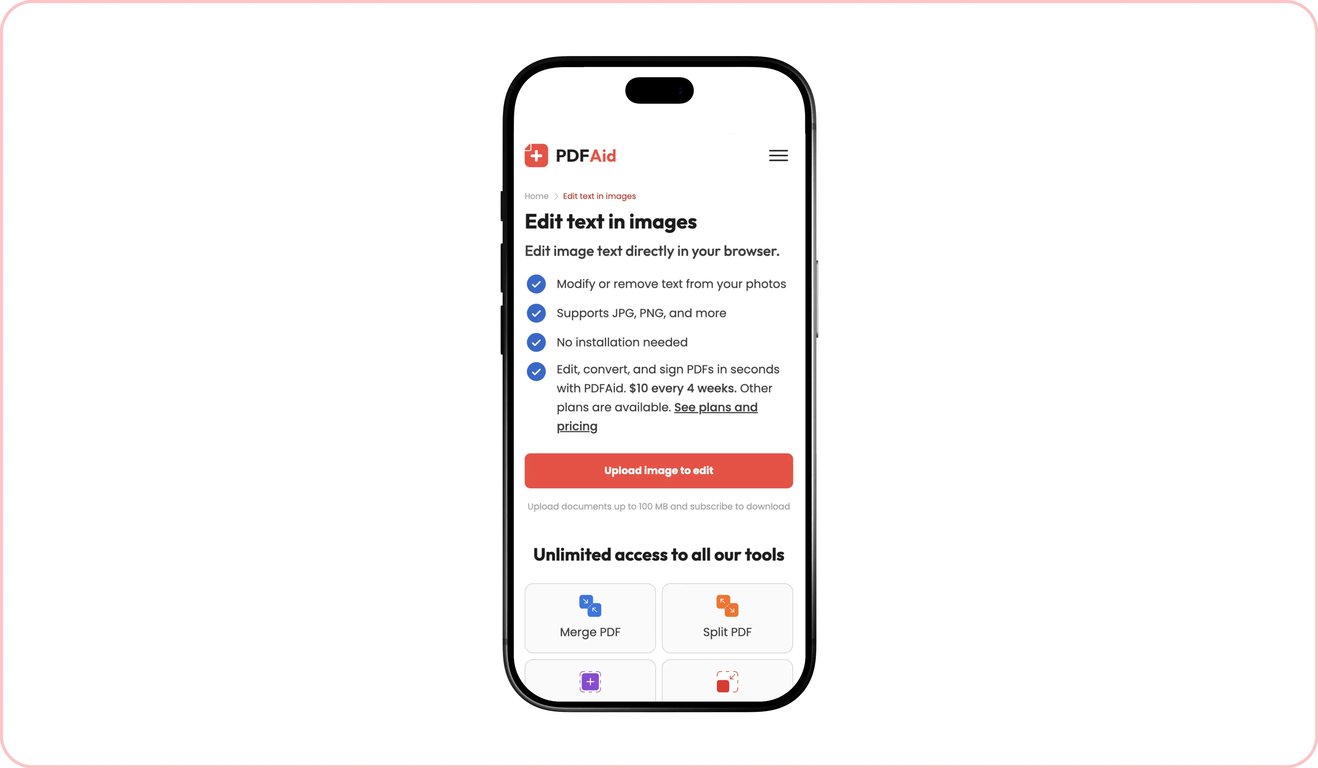
Our platform works in any browser. You don’t need to download and install additional software or apps – just go to our website from your browser and use the tools you need. Due to being fully browser-based, our platform also works on all devices. You can edit text in images or work with your PDF files from a computer, or simply grab your iPhone or tablet and use our tools on the go.
Your files stay private and secure
Editing an image that contains personal or commercial data is worth being careful about. With our platform, you can leave these worries behind – all files you upload to our website are transferred over a secure connection. They can be accessed only by you, through your personal account on our platform.
Similar tools
If you frequently work with images and text, our platform gives you access to a range of tools that make different editing and file management tasks simple and convenient:
Remove Text from Image: Delete unwanted parts of text from existing images.
Add Text to Image: Type or paste text to a photo or background picture.
Image to Text: Detect text in an image and pull it out as a separate file for editing or repurposing.
Translate Image: Translate the text in your images or photos from and to nearly any language.
Compress Image: Reduce image size before sharing or publishing without losing quality.
Image to PDF: Convert images into editable PDF files in a few moments.
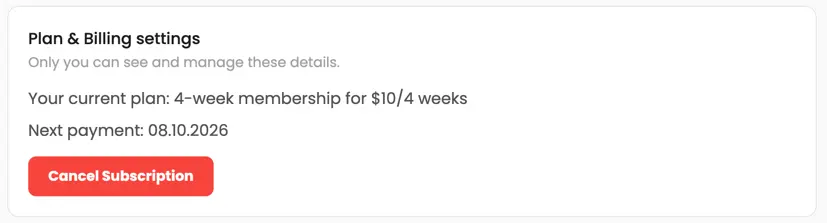 We’re sorry to hear that you want to cancel your subscription. If you no longer need our service, you can click Cancel plan in the Membership tab of your account. You can also contact us via live chat, at billing@pdfaid.com, or by calling +44 808 501 2541 for help with canceling your subscription.