Unlimited access to all our tools


How does it work?
Draw on your PDF in 3 simple steps:
- 1
Upload or drag and drop your PDF.
- 2
Edit your document according to your needs.
- 3
Download your edited file.
Draw on PDF with our tool to avoid losing important details or simply add a little bit of personalization. Place lines, arrows, boxes, and other shapes anywhere in your document.
How to draw on a PDF
Here's what you need to upload and start editing your file:
Drag your PDF to the upload area or choose the file on your device.
Pick one of three tools, the thickness of the line, a color, and start drawing.
When your drawing is done, send it to email, print, or download your document in a preferred format (PDF, DOCX, DOC, PPT, PPTX, JPG, PNG, TXT, XLSX).
How to draw on a document with PDFAid
You can draw on a document of any origin and with any specifics using our service. Whether you have a scanned paper, a page image, or textual content, upload it and keep working. It will become a PDF, and you'll be able to add the necessary shape there. A marker and a highlighter are available in the toolbar. You may choose one of the pre-defined colors or create your own. Once you're done editing your paper, save it in the required format and download or send it to your email.
How to edit a PDF drawing
No worries if you put a line in the wrong place or if it's not straight. This tool has two ways to edit your drawing or even remove it. You can use an eraser to get rid of an unwanted detail or press Undo to cancel the last action. Start over and place a markup again. The number of times you can edit your file is unlimited, and the text in it won't disappear or change. You can also highlight or strike out a phrase.

How to draw a line in a PDF
On this platform, you can draw a line in a PDF freehand according to your preferences. It can be sort of an arrow to show a direction, or a method to separate information, and it's possible to do everything here. Choose a thickness in a tab to underline your text and change colors to mark different details. However, if it's necessary to make a straight line, you can press the Line button next to Draw in the toolbar. Pick the length and stop drawing. Circles, boxes, and arrows are also available in this section.
Draw on a PDF on any device
Our service is accessible on all popular devices, so you can draw on your PDFs conveniently. Everything happens in your browser, so you won't have to install anything or guess how the software works. Only a smooth Internet connection matters. So, edit your documents on gadgets with different operating systems:
Mac, iPhone, iPad
Windows, Linux, and other systems
Android phones and tablets, etc.
Drawing is especially comfortable on a smartphone or tablet compared to using a computer and mouse.
Draw over PDF pages without changing the original
Our tool is a strong match when you need to draw over a PDF and preserve its authentic look. Your markup won't change the text position or fonts, as it will only be a valuable addition to your paper. Layouts and pages will remain exactly as they were before you uploaded them. You don’t have to spend an hour trying to undo the changes – get the original file back, with your markup on top.
Your files stay private and secure
This PDF drawing tool is completely safe for you and your files. The platform receives your documents via a protected connection. No one can access or get control over your documents or personal data. Only you can access and change them in your account.
Similar tools
There are 50+ services here, so you can deal with your papers conveniently in one place. Consider the following tools when editing PDFs as well:
Add Image to PDF – place one or more pictures of different formats in your document.
Change Text Color – make your written content stand out or draw attention to important points.
Black Out PDF – hide sensitive details in a few clicks.
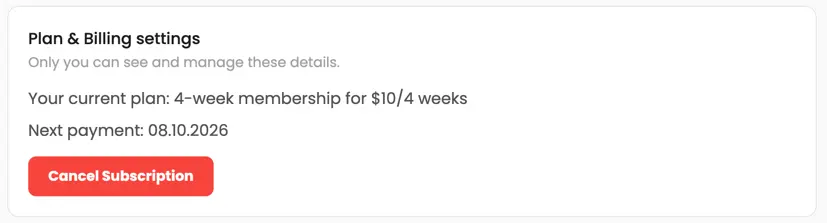 We’re sorry to hear that you want to cancel your subscription. If you no longer need our service, you can click Cancel plan in the Membership tab of your account. You can also contact us via live chat, at billing@pdfaid.com, or by calling +44 808 501 2541 for help with canceling your subscription.