Unlimited access to all our tools


How does it work?
Edit text color in a PDF in 3 simple steps:
- 1
Upload your file or drag and drop it.
- 2
Select the text you want to update and choose a new color.
- 3
Download your updated PDF with the new font color applied.
Customize or update your document with our PDF color changer. You can use PDFAid to modify any part of your text, whether it's a heading, a separate phrase, or a full paragraph. The tool is at your disposal at any time in any popular browser.
What is a PDF color editor?
Whenever you need to highlight important ideas, add some character to your content, and improve readability, you may just change the color of the text in a PDF. Our service allows you to work with your document without modifying it entirely. The original quality and structure remain the same. You'll edit directly in the area – only the text you select changes.
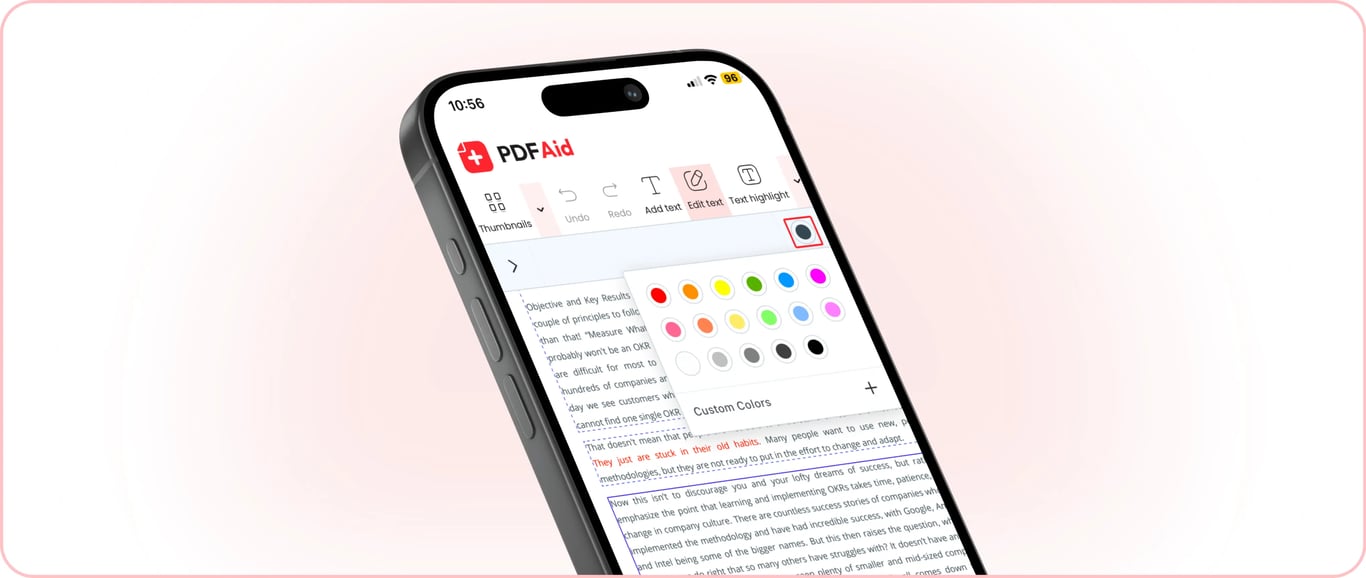
There's a great palette on our platform, which allows you to choose from 17 default colors and apply a custom one. Pick a color and apply it to the selected text. Save the PDF to your device and use it anytime.
How to change the color of a PDF?
Here are a few steps to update the text in your papers with a different color:
Click the Upload to edit button to start working on your document.
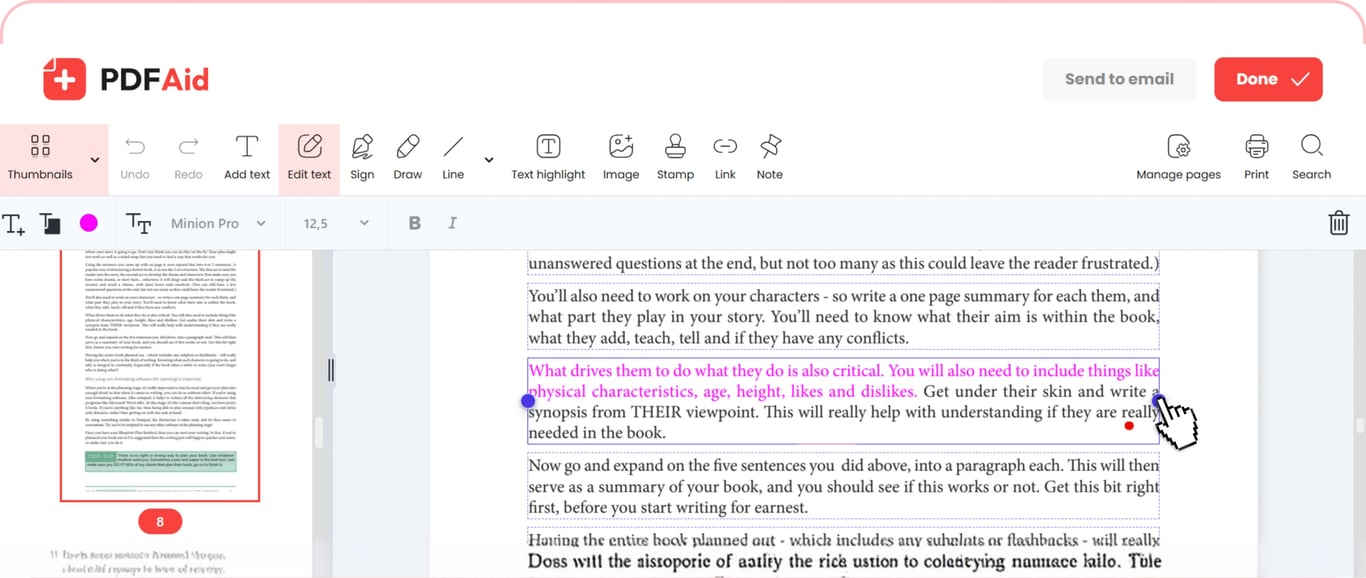
Open the Edit tab and select the section where you'd like to change color.
Click on a color and see how your text changes.
Press the Done button and download your PDF.
How to darken text in PDF
It's hard to read on screen and worse on paper when the text in your file is too light or faded. There's not enough contrast between a pale text and a white background, and that's why you'll find it difficult to interpret the content. Papers often look like this because of poor scanner settings, low resolution, or worn originals.
However, you can make PDF text darker online on our platform and get a more readable version. Replace light grey with black, and you'll see the improvement. Check your file before downloading to make sure that all sections are clear.
How to change color in PDF for printing
Our tool allows you to download your papers or print them directly from the workspace. Using dark font on a white background reduces ink usage, while light text on a colored background has the opposite effect. Here's how to change PDF text color for printing:
Select the written content and apply a dark color.
Remove color images using our Delete Image tool, if needed.
Check pages before printing.
Change PDF text colors on any device
You can change the PDF color and access all the other features on any device that you prefer. We don't ask you to install any confusing apps and spend time trying to find the necessary tool. Our editor is available in all popular browsers, including Chrome and Safari. Whether you work on Windows, Linux, macOS, Android, or iOS, our platform is easy to navigate. Change text color on iPhone, iPad, or Mac – the steps are the same.
Your document keeps its original quality
Don't worry about your PDF quality after you change the text color. When you edit your text, applying the palette, be sure that everything remains as it was except for the parts you modified. The structure, fonts, images, pages, spacing, and the overall layout will be preserved.
Your files stay private and secure
No one else will have access to your files or see them anywhere on our platform. Whatever editing tasks you complete here, all your actions are absolutely private. Files are transferred over a secure connection and are stored in your account.
 We’re sorry to hear that you want to cancel your subscription. If you no longer need our service, you can click Cancel plan in the Membership tab of your account. You can also contact us via live chat, at billing@pdfaid.com, or by calling +44 808 501 2541 for help with canceling your subscription.