A black rectangle drawn over text in a PDF doesn't delete the text: anyone can still select, copy, or search for it. So, what does redacting a PDF mean? It means cutting content out of the file itself, not covering it. Below you'll find what to hide, which method actually works, and what to check before you send the file.
What counts as sensitive content in a PDF
Learning how to redact sensitive information on a PDF starts with finding all of it, and the obvious items are rarely the whole list. Before you mark anything, go through the document with three things in mind.
Personal details
This is personally identifiable information: anything that points to one specific person.
Full names, including the ones hidden inside email addresses
Home address
Date of birth
Phone number and personal email
Passport, driver's license, or ID card number
The danger is rarely one detail on its own. A date of birth plus a home address is often enough to narrow a search down to one person, so when you redact names in a PDF, look at what's left around them too.
Numbers that open accounts
Social Security number
Bank account and card numbers
Insurance policy number
Taxpayer ID
The rule for how to redact numbers in a PDF is short: hide the whole number, not half of it, because fragments add up. Social Security numbers in a PDF are the most obvious case. Those issued before June 25, 2011, follow a pattern, with the first three digits tied to a state, and the Social Security Administration says random assignment makes it more difficult to reconstruct an SSN using public information. A visible last four next to a birth date gives away more than it seems, so whenever you redact an SSN in a PDF, cover every digit.
Signatures, photos, and faces
A handwritten signature, a company seal, the photo from an ID card, faces in a group shot, a client's logo: all of these are images, not text. Images are hidden separately from text: selecting text won't work on a picture. In our test, selecting across a line printed on top of a photo marked only the words. To hide part of a picture, you draw a box over it instead (the how-to below shows where).
If you don't need any of the pictures in the file, it's simpler to remove every image from the PDF and keep the text.
There's also a layer that never shows up on the page at all. We'll come back to it at the end.
Blacking out, whiting out, blurring: what each one really does
Most tips on how to black out text in a PDF or how to hide text in a PDF describe covering it. Covering and removing look the same on screen. Here's what stays in the file.
Method | Black rectangle |
|---|---|
What the reader sees | A black block |
What stays in the file | The full text, still selectable |
Safe to share | No |
Method | White text or a white box |
|---|---|
What the reader sees | A clean-looking page |
What stays in the file | The text, still selectable |
Safe to share | No |
Method | Blur or pixelation |
|---|---|
What the reader sees | A smudge |
What stays in the file | Often the original text; on images, weak blur can sometimes be reversed |
Safe to share | No |
Method | Real redaction |
|---|---|
What the reader sees | A black block |
What stays in the file | Nothing: the content is gone |
Safe to share | Yes |
Black rectangle. What the reader sees: A black block What stays in the file: The full text, still selectable Safe to share: No
White text or a white box. What the reader sees: A clean-looking page What stays in the file: The text, still selectable Safe to share: No
Blur or pixelation. What the reader sees: A smudge What stays in the file: Often the original text; on images, weak blur can sometimes be reversed Safe to share: No
Real redaction. What the reader sees: A black block What stays in the file: Nothing: the content is gone Safe to share: Yes
Method
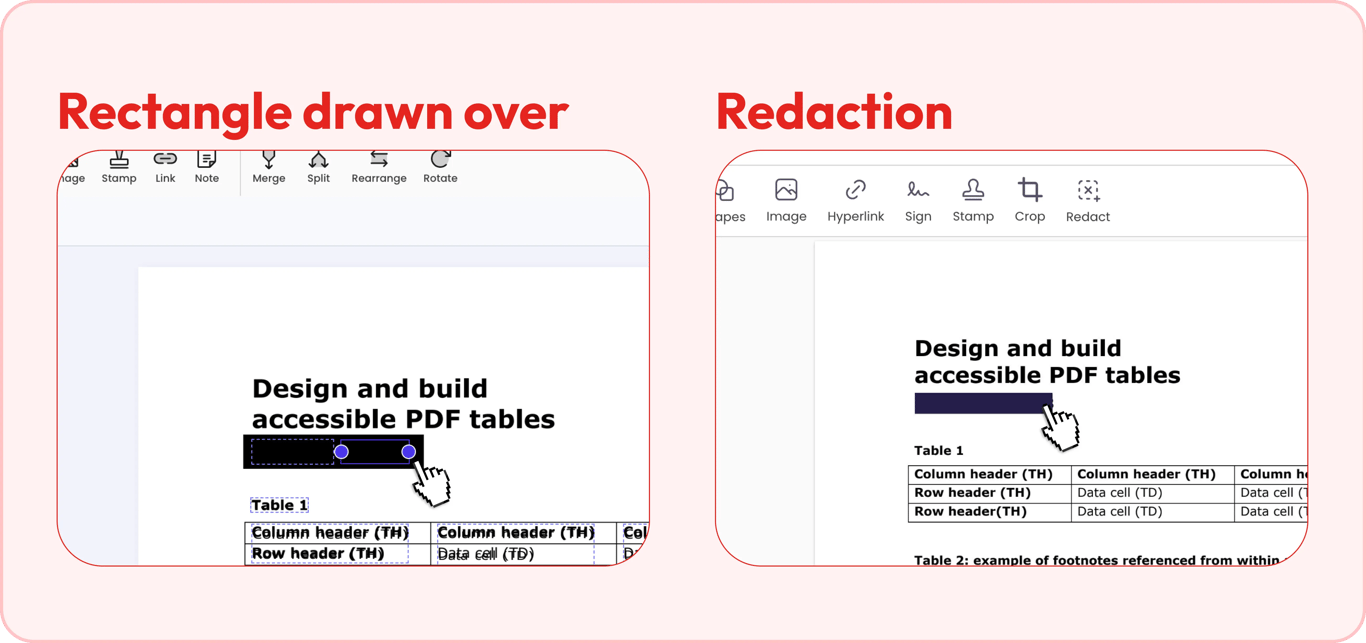
A black rectangle on top of the text
This is the most common mistake. The rectangle is an annotation, a separate overlay sitting on the page, and the text under it stays in the file in full. Someone can drag across it and copy it, find it with search, or simply move the shape aside. Trying to black out text in a PDF without redact tools almost always leads to this exact issue.
There's a trap inside it, too. If a line of text sits on top of an image and you black out only the image, the text in front stays selectable. That's why "I colored over everything" doesn't hold up. If you want a black block that actually cuts the content out, black out the PDF with a redaction tool instead of a drawing tool.
White text or a white box
The same problem, only harder to spot. The page looks clean, so nobody suspects anything was there. White text on a white background can still be selected and copied, and it can reappear when the file is printed or converted to another format, and the color doesn't carry over. If you've been looking up how to white out text in a PDF, the honest answer is that changing the font color to white isn't a reliable method at all.
Blurring or pixelating
Blur looks tidier than a black block, which is why people pick it for screenshots and slides. It carries two risks. In a text-based PDF, the original text often stays under the blur. On an image, weak blurring or pixelation can sometimes be reversed, and short strings like a six-digit number are easy to guess since there are only a million possible values.
Security researchers at Bishop Fox built a tool that rebuilt pixelated text exactly that way, and their rule is blunt: "the only way to do it securely is to use black bars." So if you blur text in a PDF, keep it for illustrations, not documents.
Real redaction is the last row of the table. When you redact text in a PDF properly, the marked content is permanently removed from the page's content stream (the part of the file that tells a viewer what to draw), and a black box marks where it was, so there's nothing left to select, copy, or extract. The box is only a marker. That's also why redaction can't be undone once it's applied.
How to redact a PDF with PDFAid
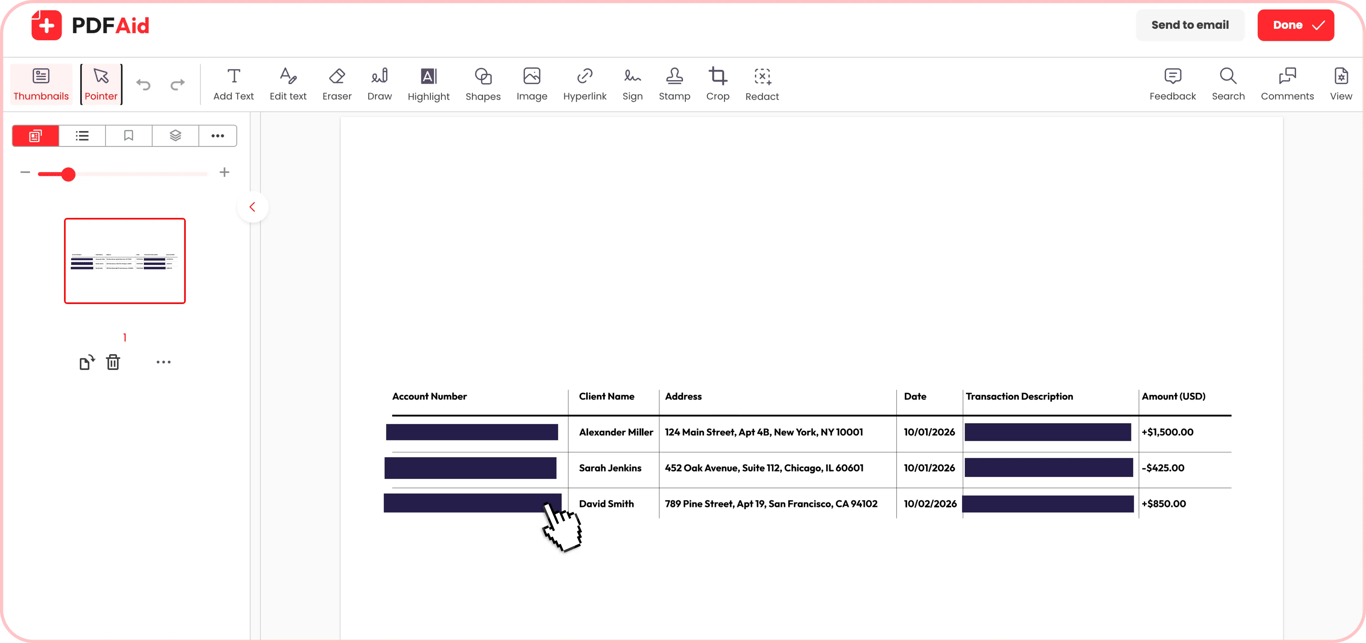
The PDF redact tool removes sensitive content from the file instead of covering it. It gives you three ways to mark what to redact: select text or drag a box over any area by hand, pictures included; mark whole pages; or search for a word across the document. That covers everything from one word to twenty pages. Here's how to redact in a PDF with it, step by step.
Upload the document
On the tool page, drag your file onto the upload area or click Upload to redact and pick it from your device. The tool accepts PDFs up to 100 MB. When the document opens in the editor, click Redact in the top toolbar to open the redaction panel.
Select the text you want to redact
Choose how you want to mark content:
Step 1. Mark for redaction. Select words or lines with your cursor, or drag a box over any area, such as a photo, a signature, or a QR code; a box shows up in the list as a Region redaction. This is how to redact parts of a PDF: a sentence here, a number there.
Step 2. Redact Pages. Mark the Current Page, Specify Pages (for example, 1, 3, 5-10), Odd Pages only, or Even Pages only. Use it to redact whole-page sections, such as an appendix.
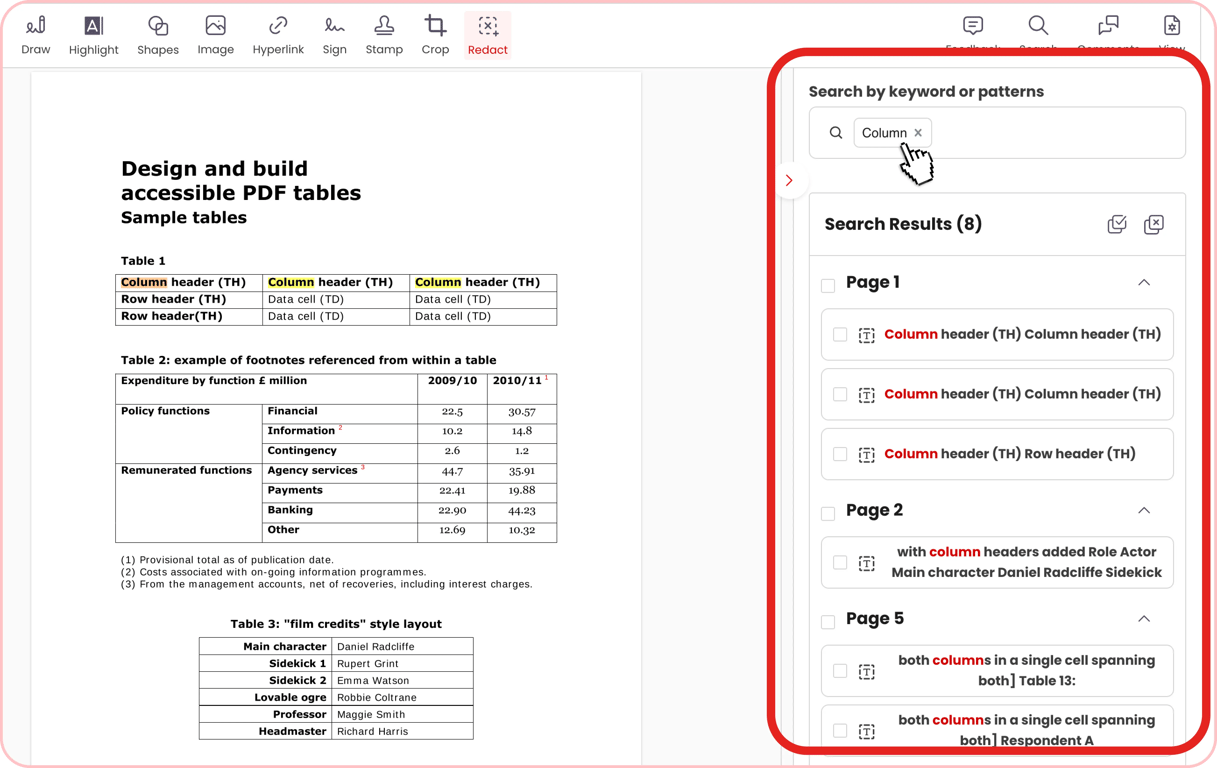
Step 3. Search by keyword or patterns. Type a name or number in the panel on the right. The results are grouped by page; select all of them at once and click Mark. One name on 40 pages is not something to hunt for by hand.
Everything you mark appears in the Marked for Redaction list, and you can drop any item with its ×. Search is the fastest way to redact words in a PDF that repeat, with one catch: it finds every copy of a word, not every spelling of it.
❌ | |
What we searched | "John Sample" only |
What it found in our test file | 3 matches; missed "john.sample@example.com" on page 2 |
✅ | |
What we searched | "John Sample", then "Sample" |
What it found in our test file | 5 matches: all 4 places the name appears, plus the title "Sample Bank Statement," which we unchecked before clicking Mark |
So review the results before you click Mark: a broader search catches the variants, and also words you want to keep.
If you only want to see where a term appears before deciding what to hide, the PDF search tool highlights every match and shows how many there are.
Save the final document
Click Redact at the bottom of the panel. A dialog titled Apply Redaction warns that the action "will permanently remove all items selected for redaction. It cannot be undone." Click APPLY, and the marked text is replaced with dark blocks. When we searched the page again afterward, the redacted words no longer turned up.
Then click Done in the upper right corner. PDF is selected by default; you can also pick DOCX, DOC, PPT, PPTX, JPG, PNG, TXT, XLSX, or XLS. Enter a file name that shows this is the redacted copy and click Download.
To download, sign in with Google, Apple, or an email address. With a subscription, the file downloads right away; for your first document, you can instead have a download link emailed to you, which takes a few hours.
Can redacted text be recovered?
It depends on how it was hidden. If you want to know how to see redacted text in a PDF that was only covered, three things usually work:
Select the area and copy and paste it into any text editor.
Export the document as plain text, or run any text extraction tool, and read what comes out.
Move or delete the shape that sits over the text.
The US Court of Federal Claims describes the first one plainly in its PDF redaction guidance: "Anyone can copy the black box, paste it into a word-processing document, and the information under the black box appears."
With real redaction, there's nothing to recover. The content has been cut from the file, so there's no way to un-redact a PDF that was redacted properly.
The real limit is on the other side. If a file with fake redaction has already gone out, you can't fix it later: the copy is in someone else's hands. That's why the check happens before you send, not after.
Common situations when you need to redact a PDF
Each case below has three parts: what to hide, what people usually forget, and what to check. The middle one is where the mistakes tend to be.
A bank statement or a payslip
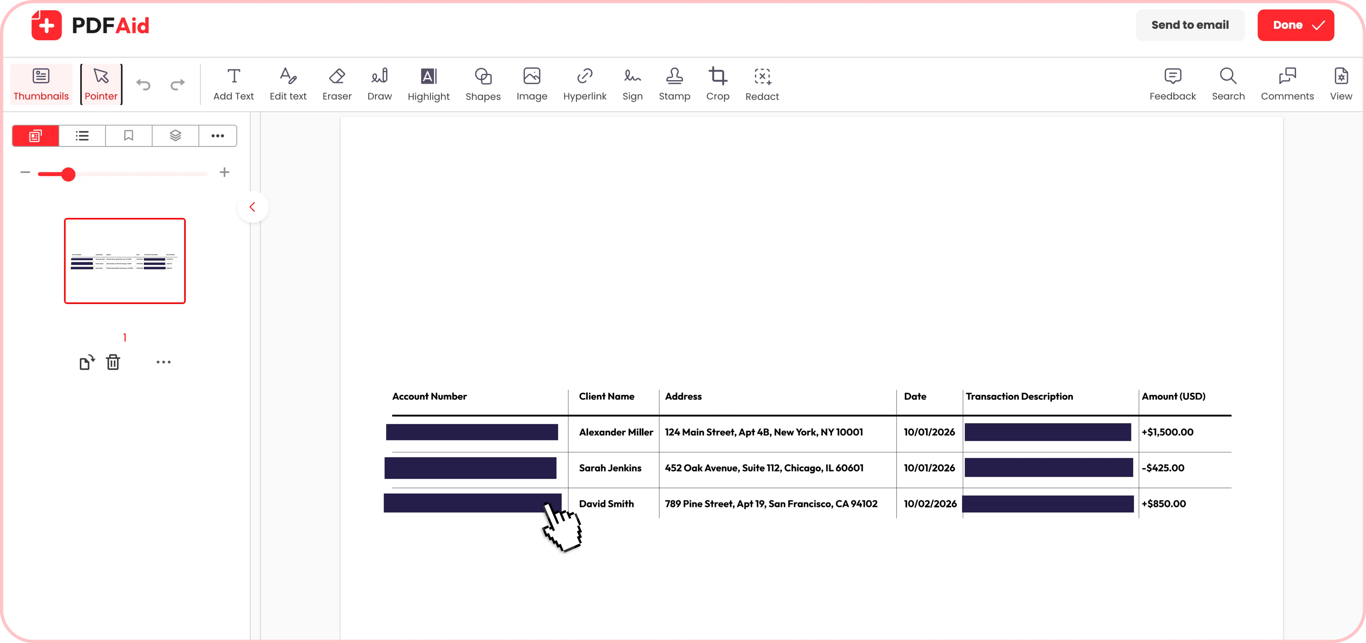
A statement is often requested as proof of income or address, and it shows everything else, too. Here's how to redact a bank statement PDF without defeating its purpose:
Hide: account and card numbers, the balance, and the individual transactions you don't need to show.
Often forgotten: totals at the bottom of the page, which let someone work out what you hid. If an opening balance of $2,410.55 and a closing balance of $1,980.10 stay visible, the hidden transactions net out to $430.45 spent, and anyone can do that subtraction. QR codes and barcodes can carry the same data, and they're images, so text selection won't work on them: draw a box over them.
Check: that the reason for the request stays intact. Your name and address usually need to stay visible.
A contract or a business document
Contracts, proposals, reports, and case studies prepared for publication all carry details that belong to someone else.
Hide: prices and discounts, the other parties' details, internal figures, and signers' personal contact information.
Often forgotten: the client's name in the header, the footer, and the file name; the logo in the letterhead, which is an image; margin comments left over from negotiation.
Check: the clause numbering. If you remove whole paragraphs, the document still has to make sense to the person reading it.
Medical and court paperwork
Here, the rules are set by the institution, not by you.
Hide: whatever the court or provider requires, which typically covers diagnoses and codes, patient IDs, doctor details, minors' names, and case numbers.
Often forgotten: that the list is usually written down separately, and it's worth reading first. It can even differ from the advice above: Rule 5.2 of the Federal Rules of Civil Procedure lets civil filings in US federal courts include "the last four digits of the social-security number" and "the year of the individual's birth." Requirements also get updated, so relying on last year's handout is a risk.
Check: the result against the institution's current requirements.
This section describes the method only. It isn't legal or medical advice.
A scan of an ID or a passport
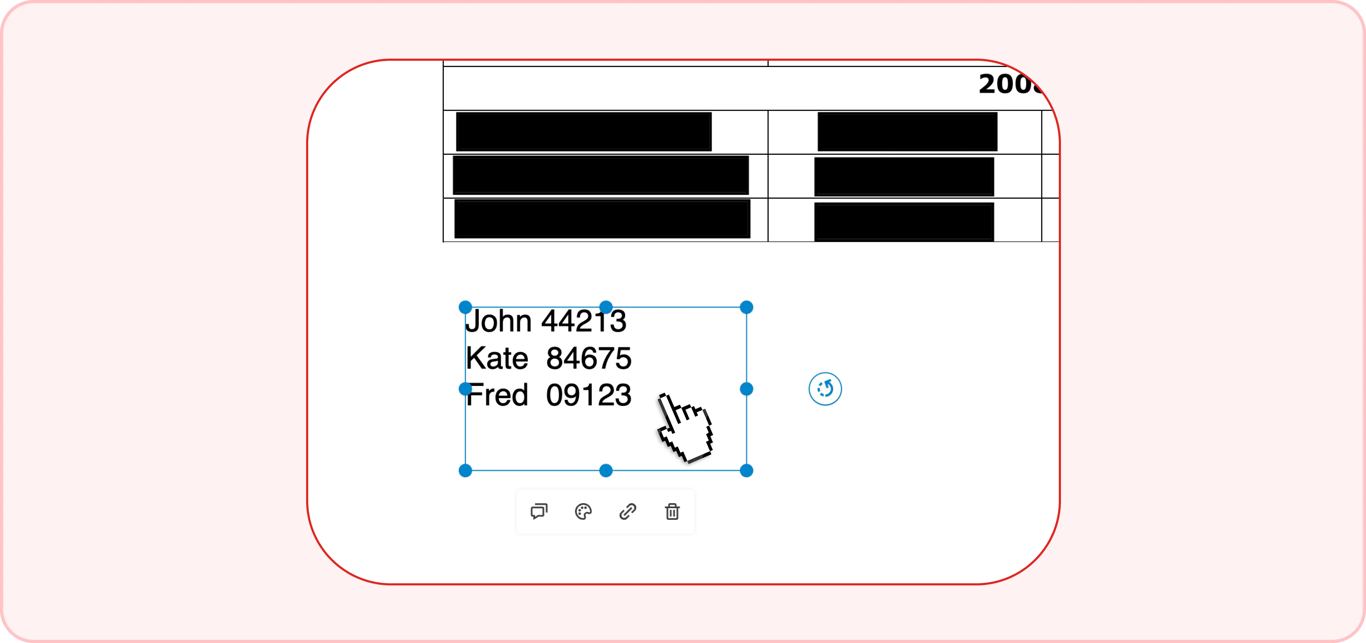
Technically, this is the hardest case. A scan is a picture with no text layer, so search finds nothing, and there's no text to select. Switch to Mark for redaction and drag a box over the number, the photo, or the signature; each box is listed as a Region redaction. With a long stack of scans, you can run OCR on the scan first so that search helps you find what to hide, and still draw boxes over what it finds.
If the scan has already been through OCR, there's a hidden text layer under the picture, and both need hiding. Draw the box over the characters, then double-check that no text under it still copies.
Check: try selecting text over the redacted area, and zoom in to confirm the block covers the printed characters.
A document you're publishing publicly
A report, a study, a work sample, or an attachment to an article: anyone can see it, and nothing can be taken back after it goes live.
Hide: everything from the cases above, plus internal details such as employee names, internal IDs, and file paths.
Often forgotten: that search engines index PDFs. Google lists PDF among the file types it can index, so text left in a public file can end up in search results and web archives.
Check: page thumbnails and previews. If an earlier version was ever uploaded, the site may still show a preview or a cached copy of it.
Redacting a PDF that's already signed or locked
Two states of a file block the usual route: a digital signature and a password. Neither is a fault. Both are doing their job.
The document is already signed
A digital signature certifies that the file hasn't changed since it was signed, so any redaction breaks it. That's the signature working correctly: spotting changes is the whole point of it. A drawn or typed signature is different; it's only a picture on the page and doesn't check anything. So how do you redact a signed PDF? You have three options:
Redact a copy and label it clearly as a redacted excerpt, keeping the signed original.
Redact first, then have the document signed again.
Ask the signer for a version without the sensitive details.
The document asks for a password
There are two kinds of protection. An open password stops the file from opening at all, and without it, you can't do anything. A permissions password lets the file open but blocks editing, which is what usually stops you when you try to redact a protected PDF.
If the file is yours and you know the password, remove the password first, then redact; the tool asks for the password and doesn't guess or bypass it. So, whether a PDF is locked or password-protected, the rule is the same: remove protection only from files that are yours to change.
Redacting a PDF on a Mac, iPhone, or iPad
The markup tools built into Apple devices draw on top of the page rather than edit it. Here's where that matters.
On a Mac
The markup tools in the built-in document viewer (rectangle, highlighter, pencil) add shapes over the text, which is exactly the black-rectangle case from above. It's especially misleading because the file looks finished and saves without any warning. If you're working out how to redact a PDF on a Mac with what's already installed, use the viewer's separate redaction command, not the markup shapes. Apple describes it as "Select text to remove it from view" and adds a caveat worth knowing: "If the PDF has a table of contents, entries in it that link to redacted text aren't removed." Check the bookmarks afterward.
On an iPhone or iPad
Markup on iPhone and iPad works the same way: Apple's own guide says the tools "annotate" PDFs, which means shapes on top. Two more problems come with it. A finger is imprecise, so a sliver of visible text often stays around the block, and when you share straight from a preview, it's easy to send a different version from the one you marked.
When you need to redact a PDF on an iPhone, the Redact tool in the browser is the better option, and on a small screen, searching for a name and clicking Mark avoids the finger-precision problem. We tested the tool on a desktop, so on a phone, run the paste test on the result before you send it.
Check the file before you share it
Knowing how to properly redact a PDF includes the last step most people skip. Here are six checks, a minute or two each:
Step 1. Run the paste test. Drag across a redacted area, copy, and paste into a text editor. If you get selectable text out of it, there was no redaction.
Step 2. Keep two files. Redaction can't be undone, so store the original separately; otherwise, you lose the data you needed along with the data you hid. Put the state in the name: not statement.pdf and statement(1).pdf, but statement_2026-09_ORIGINAL.pdf and statement_2026-09_REDACTED.pdf.
Step 3. Open the document properties. The author, the organization name, and the creation and edit dates are metadata, and they often stay in the file after redaction; many tools don't clear them. Clearing them is a separate step: in Adobe Acrobat Pro, it's the Remove Hidden Information option. Most basic readers only show these fields, so check them there and clear them in an editor that can do it.
Step 4. Check the file name. contract_AcmeCorp_final.pdf reveals exactly the name you hid inside. contract_2026-09_redacted.pdf doesn't.
Step 5. Go through comments and attachments. They're a separate layer that page redaction doesn't touch.
Step 6. Scroll every page and thumbnail. The same details often repeat in a header, an appendix, a bookmark, or a preview image. Open the result in a PDF reader and page through all of it before it leaves your hands.
Conclusion: Remove it, don't cover it
A black rectangle, white text, or blur changes what the page looks like. Redaction changes what the file contains, and only the second one offers real protection.
Key Takeaways
A box over text hides nothing from someone who can select, search, or move it.
Search finds every copy of a word, not every spelling: search for the variants too.
Text selection won't work on a picture: draw a box over photos, signatures, QR codes, and scans.
Metadata, file names, comments, and attachments sit outside the page and need their own check before the file is sent, because afterward it can't be fixed.
Before the next PDF with personal data leaves your outbox, run the paste test on one redacted line. It takes ten seconds and tells you whether the redaction is real.
FAQ
What's the difference between redacting and deleting?
Redaction removes the content itself while leaving the page and its layout exactly as it was. Deleting removes the entire page, layout, and all.
Does redaction change how the page looks?
No. Aside from the redacted area itself, the rest of the page stays exactly as it was.
Can I undo a redaction?
Yes, but only before you save. Once the file is saved, the redacted content is removed for good, so it's worth keeping a copy of the original if you might need it later.
Is a scanned document redacted the same way?
Not quite. A scan has no text layer, it's really just an image, so redacting it covers or removes that part of the image directly rather than stripping out underlying text.