You drag the cursor across a scanned lease, and nothing turns blue. If the words won't select, the page isn't text at all; it's a picture of a page, so there's nothing to copy yet. One step fixes that: OCR adds real text to the scan, and then the PDF works like any other.
Below, you'll see how to copy text from a scanned PDF online, from a photo, on Windows and Mac, and on a phone, and how to keep the numbers accurate.
First check which kind of PDF you have
Use the select-the-text test. Drag the cursor over one word, or press Ctrl+F (Command+F on a Mac) and search for a word you can see on the page. If nothing highlights and the search finds zero matches, the PDF is image-based: a scanner or a phone saved each page as a picture.
There's a second case that looks similar. If the text selects but Copy is grayed out or pastes nothing, the file isn't a scan. Its author set permissions that block copying, and OCR won't change that. If the text pastes as garbled symbols instead, the file isn't restricted; its font encoding is broken, and running OCR on it may give you readable text.
What you see | Nothing highlights; Ctrl+F finds 0 matches |
|---|---|
What the file is | An image-based scan |
What helps | OCR |
What you see | Text highlights and pastes normally |
|---|---|
What the file is | A text PDF |
What helps | Nothing; just copy |
What you see | Text highlights, but Copy is grayed out |
|---|---|
What the file is | A text PDF with copy restrictions |
What helps | The owner's permission or password |
What OCR actually does
OCR (optical character recognition) reads the shapes of the letters in the picture and turns them into characters. In a searchable PDF, it doesn't redraw the page. The scan stays where it was, and the recognized words go into a separate, invisible text layer above it. The Tesseract OCR documentation describes its searchable PDF output the same way: the image plus a separate text layer.
So the signature, the stamp, and the handwritten notes look the same as before. What changes is that you can now select, search, and copy the words.
Copy text from a scanned PDF online
The simplest way to copy text from a PDF image online is to run recognition in the browser, then work with the result. To run OCR on the scanned PDF with PDFAid, click Upload PDF for OCR and pick a file up to 100 MB. A dialog titled OCR PDF opens, and under Select a format to download your file: you choose what you want back.
PDF, labeled "Selectable and searchable text," keeps your document as a PDF, allowing you to highlight, search, and copy its text. WORD, labeled "Editable text with original formatting," exports the text to an editable document, and TXT, labeled "Unformatted editable text," gives you plain text, ready to paste. Click Apply OCR. To download the result, sign in with Google, Apple, or an email address.
If the words are all you need, you can also start from the page to extract text from a PDF. It opens the same dialog, so the choice works the same way.
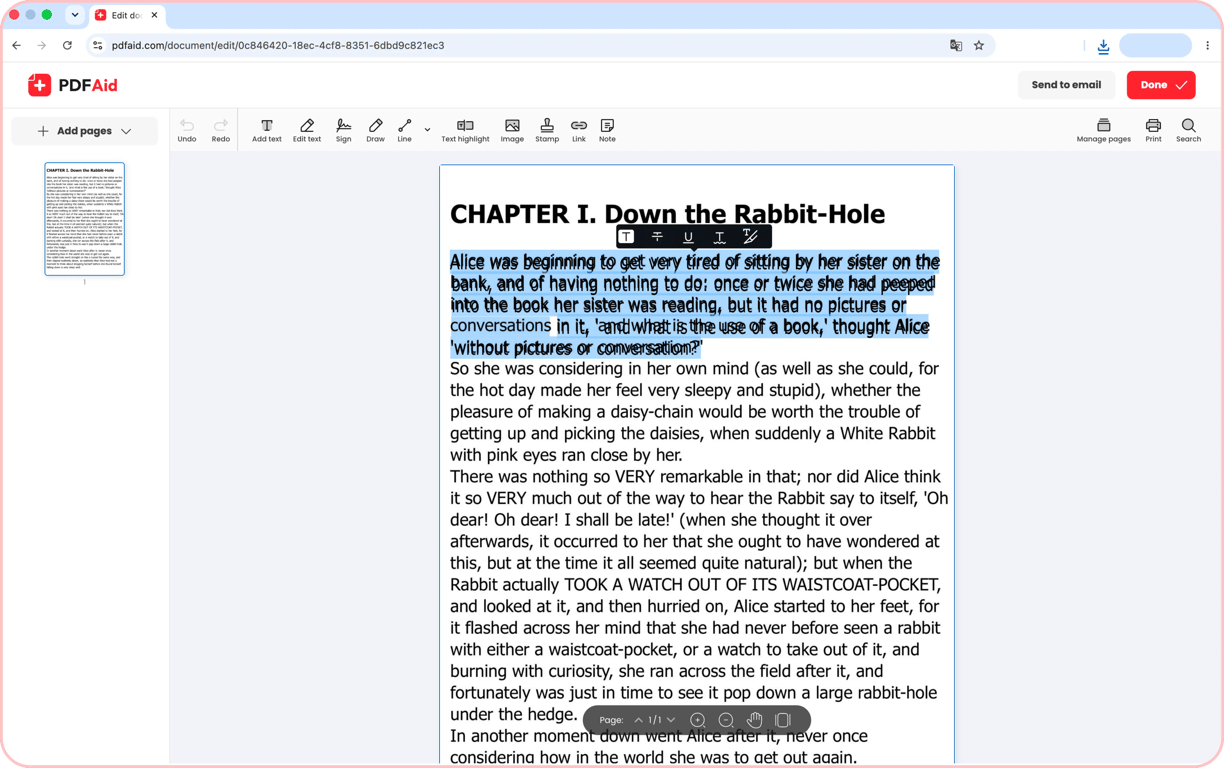
Copy text from a single photo of a page
If the page is a photo in your gallery rather than a PDF, recognition still works. Upload the JPG or PNG to extract text from an image, and you'll get the same WORD, PDF, and TXT choice.
A five-page letter shot as five photos is easier as one file. Combine the photos into a single PDF first (up to 12 images at a time). Then download that PDF and upload it to OCR PDF, so recognition runs once instead of five times.
Copy text from a scan on Windows and Mac
On a Mac, Preview has Live Text. Apple's Preview guide says you can use it to copy and use the text that appears in a photo: drag over the words, Control-click, and choose Copy Text. Apple's guide covers photos and images, not PDFs, so with a scanned PDF open in Preview, try dragging across a line first. If nothing highlights, use Embed Text or run OCR online. Live Text also isn't available in all regions or languages.
For a whole scanned PDF, Preview can add the text layer itself: open the PDF, choose File > Export, and select Embed Text (macOS Sonoma and later). The option appears only if the document has no recognized text yet. Preview then saves a copy with text you can select and search in any PDF viewer.
Windows has no built-in way to add a text layer to a PDF. On Windows 11, the Snipping Tool comes close: capture the part of the scan that's on screen, select Text actions, and copy the words. Recognition runs locally on your device, according to Microsoft's Snipping Tool guide. It works on one screen capture at a time, so it suits a paragraph, not a 20-page file.
Copy text from a scan on your phone
Phones handle a few lines well. On an iPhone, Live Text works on saved photos and in the Camera app. Apple's guide to copying text from photos says to touch and hold a word, adjust the selection, and tap Copy. On Android, open the photo in Google Photos, use Lens, then tap and select the words you want to copy. On iOS 27, the Preview app can also embed text when you export a scan as a PDF. For a whole document, though, selecting page by page takes longer than recognizing the full file once.
Get better recognition results
These four things affect recognition accuracy the most:
Set the document's language before you start. OCR matches letter shapes against the alphabet and words of the language you pick, so a wrong choice garbles accented letters. For a non-English scan, or one that mixes languages, use Scanned PDF to editable: choose the file's languages from the list, and you can recognize the scan in up to 3 languages at once. A contract in English with a German appendix and Spanish names is read correctly in one pass.
Keep the page straight. Tesseract's guide to improving OCR quality says line detection "reduces significantly if a page is too skewed," so lay the page square on the scanner glass.
Scan at 300 DPI. The same guide says Tesseract works best at 300 DPI or more. A line of 10-point type is 10/72 of an inch tall, so it spans about 42 pixels at 300 DPI but only about 14 at 100 DPI, where 0 and O or 8 and B start to blur together.
Don't rely on handwriting. Recognition of handwritten notes is unreliable. Type them out yourself, or check every word.
Always proofread numbers and names
OCR mistakes are hardest to spot in numbers and proper names, because there's no dictionary word to compare them with. The usual swaps are zero and the letter O, the number one and a lowercase l, and 5 and S. A misread word in a sentence is easy to notice. A misread digit in an account number looks perfectly normal.
What OCR can produce | ❌ Account 0O10 7741 |
|---|---|
What the scan says | ✅ Account 0010 7741 |
What OCR can produce | ❌ Total: $1,O48.5O |
|---|---|
What the scan says | ✅ Total: $1,048.50 |
What OCR can produce | ❌ Jane Samp1e |
|---|---|
What the scan says | ✅ Jane Sample |
For an invoice, a contract, or a tax form, compare every figure with the scan by eye before you paste it anywhere.
Which way to copy
What you need | A few lines from a photo |
|---|---|
Phone camera text | Yes |
Built-in Mac tool | Yes |
PDFAid | Yes |
What you need | A whole document |
|---|---|
Phone camera text | No, page by page |
Built-in Mac tool | No, only with some macOS * |
PDFAid | Yes, files up to 100 MB |
What you need | The same PDF, now with selectable text |
|---|---|
Phone camera text | No |
Built-in Mac tool | No |
PDFAid | Yes, with PDF output |
What you need | Works on Windows |
|---|---|
Phone camera text | No |
Built-in Mac tool | No |
PDFAid | Yes, in the browser |
What you need | Choose the document's language |
|---|---|
Phone camera text | No picker |
Built-in Mac tool | No picker |
PDFAid | Yes, up to 3 languages per document in Scanned PDF to editable |
* On a Mac with macOS Sonoma or later, Preview can also embed text in a whole scanned PDF: File > Export > Embed Text.
Phone tools and the Snipping Tool give you text in pieces. On a Mac, Preview can embed text in a whole PDF. PDFAid gives you the whole document back with text you can select, search, and copy again later on any device.
Conclusion: Test first, then pick the output
A scan needs OCR; a protected file needs permission. After that, the real decision is what you want back: the document with a text layer, or just the words.
Key takeaways
If a word won't highlight and Ctrl+F finds nothing, the PDF is a scan; if it highlights but won't copy, it has copy restrictions.
OCR adds an invisible text layer and leaves the page image unchanged.
Pick PDF output to keep the document, and WORD or TXT when you only need the words.
A straight 300 DPI scan in the right language gives the fewest errors.
Numbers and names need to be checked by eye, especially on financial and legal documents.
Try it on the one scan you were about to retype this week, and check every number in it against the original before you send it.
FAQ
Why can’t I select text in my PDF?
Your PDF is most likely a scan, so each page is an image rather than text. To make the text selectable, run it through an OCR tool.
Does recognition change how the page looks?
No. The recognized text is added as an invisible layer, so the page looks the same. Our tool lets you download a separate file with the recognized text, while your original stays unchanged.
Can I copy text from a handwritten scan?
Sometimes, but handwriting is harder to recognize than printed text, so the results may contain mistakes. Check the copied text carefully before using it.
Is it legal to copy text from a document?
It depends on who owns the rights to the document. Copying text for personal use is usually fine, but publishing or sharing it may require the owner’s permission.