Unlimited access to all our tools


How does it work?
Edit a Word document in 3 easy steps:
- 1
Upload the Word file you want to edit.
- 2
Change content or add notes.
- 3
Download the updated version.
Our Word editor lets you open and edit Word files on the web – no need to install Word or another editor on your device; just open our platform from your browser and start editing. Our tool opens both DOC and DOCX, so the Word version does not matter, and gives you a complete set of editing tools.
How to edit a Word document
Our Word document editor supports files of up to 100 MB. Using it only takes three steps:
Step 1: Upload your document
Drag the file you want to edit to the upload area or upload it from your computer. Since our editor handles files created in different Word versions, you can edit Word documents both in DOC and DOCX formats.
Step 2: Edit the text
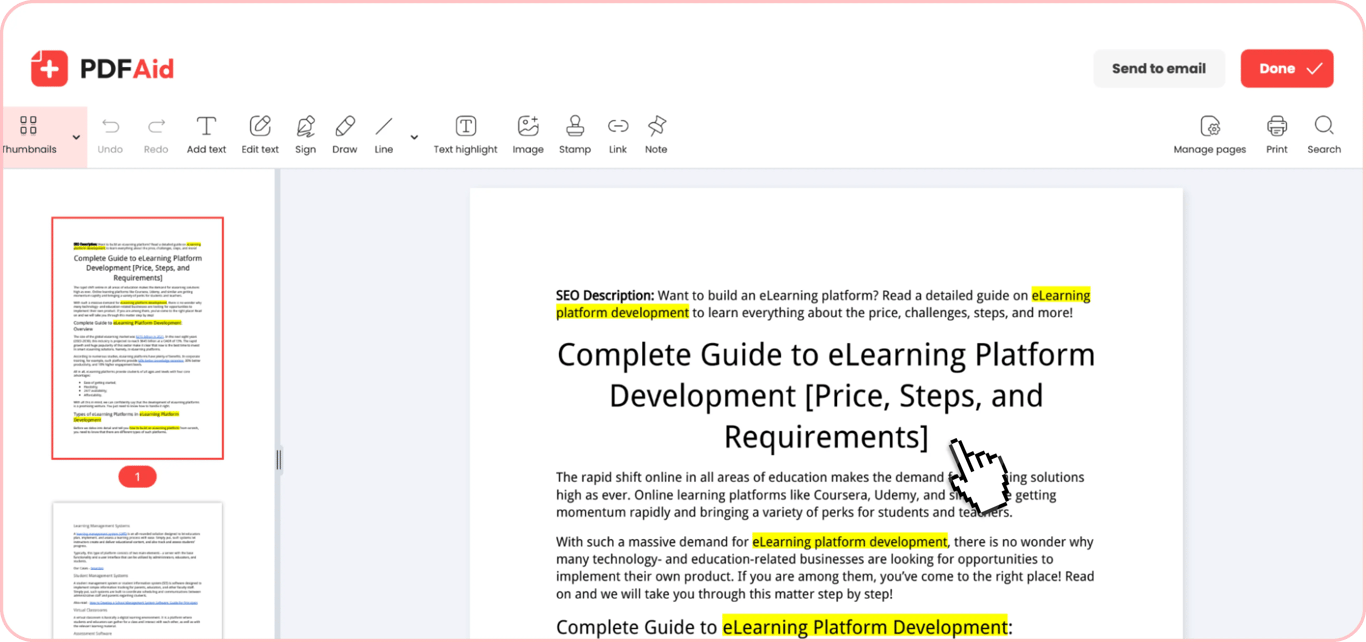
After you upload the file, it will open in our web-based editor. Inside our editor, you will find all the editing tools you might need. You can add, delete, or edit text, add paragraphs, fix errors and typos, highlight parts of text, add notes, add hyperlinks, and even draw directly in your file. Our editor also has undo and redo features, letting you cancel or reapply changes as you make edits in a Word document. Importantly, the layout and formatting of your original file stay in place unless you change them yourself.
Step 3: Save your file
After you edit Word files, you can either save them to your device or send them via email. Click the respective button (Done or Send to email) in the upper right corner, rename your file if necessary, and export it in one of the supported formats: PDF, DOCX, DOC, PPT, PPTX, JPG, PNG, TXT, XLSX, or XLS.
Common use cases
When the file has to be fixed now, and your own computer is somewhere else, editing it in the browser is a simple solution offered by our tool. Here are a few common use cases when it can help:
A document you must fix on someone else’s computer
If you're away from your own computer and without rights to install software, editing your documents can be rather challenging. In this case, a simple solution is to edit a Word document in the browser using our editor. With it, you don’t need to install anything; just open your file, make the necessary edits, and log out of your account once finished.
A CV you update before sending
When you find a suitable opening and need to make a few quick fixes to adjust your resume for a particular job, using our Word file editor is a good choice for three reasons:
Step 1. It works in the browser and can be used on the go.
Step 2. It’s perfect for making quick changes without reorganizing the entire document.
Step 3. It lets you export the edited file in PDF format, which is often preferred for job applications.
A file a colleague sent for a quick correction
When you receive a document from a colleague with a request to fix several paragraphs, our Word text editor lets you do this quickly and without emailing files back and forth. All you need to do is open the file in our tool, make fixes, and send a fixed document version in the same format directly to your colleague’s email.
Your document keeps its original formatting
Editing your files in our tool does not affect their layout. Headings, fonts, indents, lists, tables, and other formatting elements remain as they were unless you change them in the process of editing. If keeping the original formatting matters to you, our tool is your go-to choice.
Edit Word documents on any device
Our tool is accessible right from the web – all you need is a stable Internet connection and a browser to make your Word files editable. Since it doesn’t require you to download additional software and apps, our editor also works on all types of devices and operating systems. You can easily edit a Word document on an iPhone, iPad, a Windows desktop, or a Mac laptop.
Your files stay private and secure
No matter if you need to work with an everyday file or a document that contains any sensitive or confidential data, editing it with our tool is safe. All files are uploaded via a secure connection and are only accessible via your personal account. Third parties don’t have access to your uploaded documents.
Similar tools
Our platform gives you many other opportunities apart from editing Word documents – it features 50+ tools for editing, converting, and organizing documents. Here are 6 other tools that you can find useful for working with Word and PDF documents:
Word to PDF: Convert existing Word documents into PDF files for simplified sharing.
PDF to Word: Turn PDF files into editable Word documents.
Merge Word Documents: Combine multiple Word documents into one organized file for storage or sharing.
Merge PDF and Word: Combine multiple Word and PDF documents into a single file in one format.
DOC to DOCX: Convert documents created with one version of Word into another.
Edit PDF: Edit the text, pages, images, and other elements of your PDF files right from the browser.
 We’re sorry to hear that you want to cancel your subscription. If you no longer need our service, you can click Cancel plan in the Membership tab of your account. You can also contact us via live chat, at billing@pdfaid.com, or by calling +44 808 501 2541 for help with canceling your subscription.