You have a document, a web page, a photo, or an idea. Each of them can become a starting point for making a PDF. Each case has its own fastest method, and most take under a minute. The method depends not on the device you use but on what you're starting with: a document, a web page, or images. Get to know how to make a PDF for different scenarios in our guide.
Pick the method that matches what you're starting from
Here's how to create a PDF from different files and formats, including Word, Excel, and PowerPoint, and even a blank page.
What you have | Word, Excel, or PowerPoint |
|---|---|
What to do | Export it straight to PDF or convert your document to PDF online. Usually, it takes less than a minute. |
What you have | Image or a scanned document |
|---|---|
What to do | Convert a file in a browser. It's a 1-2 minute process. |
What you have | Web page, letter, or anything printable |
|---|---|
What to do | Choose a Print to PDF option, which is typically less than a minute. |
What you have | No document for now |
|---|---|
What to do | Create a PDF in a browser from a blank page or use a template. You may spend from 5 to 15 minutes. |
What you have | The same document you use every week |
|---|---|
What to do | Create a file and store it as a template. Use it whenever you need. |
To be prepared for different paperwork situations, let's take a closer look at each method separately.
How to make a document a PDF
If you're looking for how to make a PDF document from a text file or spreadsheet, opt for exporting. No extra tools needed.
Word, Excel, and PowerPoint
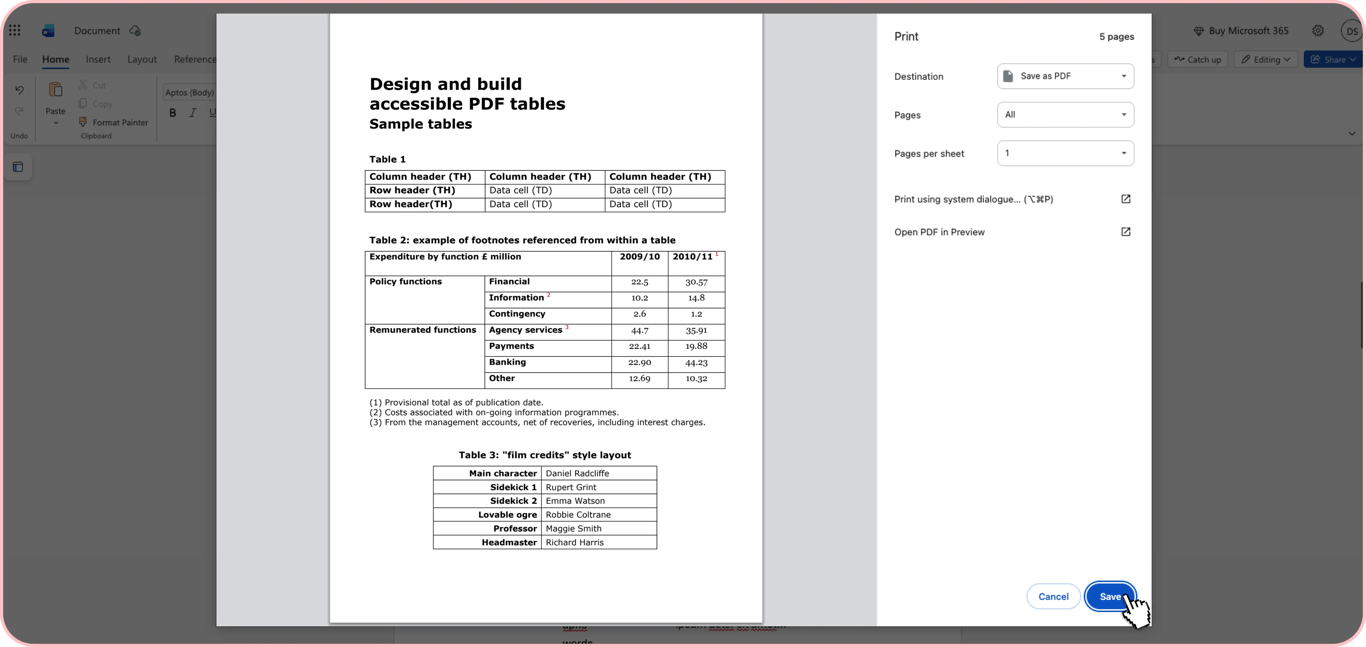
The process is similar in all cases, for Windows Word: File > Save As > File format: PDF, or Print > Save as PDF for Word Online. If you don't have access to this software and can't use this method, convert Word to PDF or Excel to PDF online.
Google Docs and Apple Pages
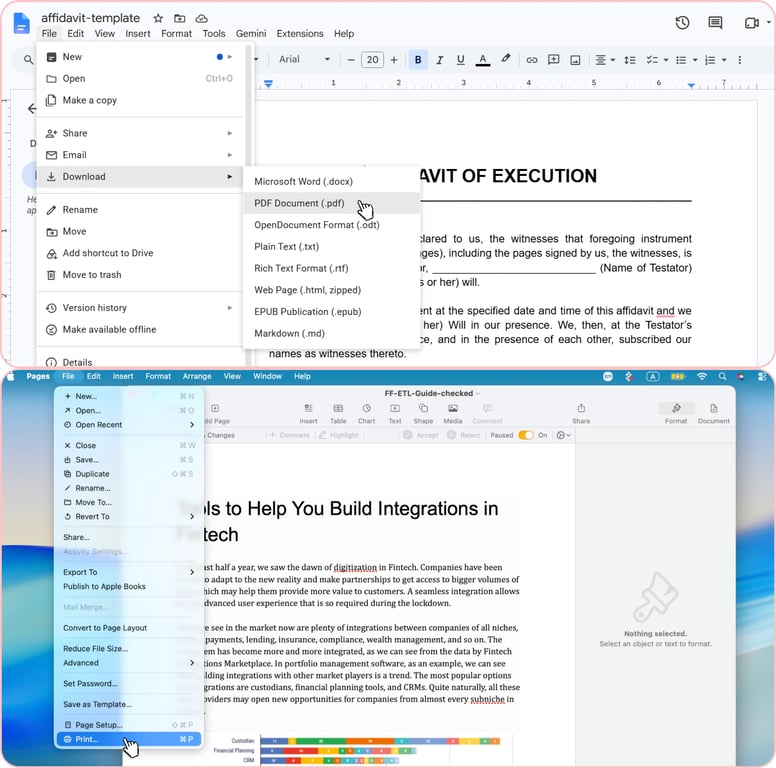
Looking for how to make a Pages document a PDF, open Pages, choose File > Export To > PDF. In Google Docs, click File, Download, and PDF document. The layout with its characteristics, including page size, spacing, text, formatting, and images, should be preserved. However, check pages with tables, columns, or images before you send the file.
Photos and scans
If you want to know how to make something into a PDF, like an image or a scanned page, convert it using our Image to PDF tool. In this case, a page remains an image, and you can't search or edit the content there until you use OCR. If you convert your file with the OCR tool, you'll have selectable text you can search and copy. To combine several documents that are already PDFs, merge PDFs on our platform. For photos, there's a shorter path: our Merge images tool builds one PDF from up to 12 images in one go, with up to a 100 MB file size limit for each. Reorganize page order or remove whole chapters to get the document version you actually need.
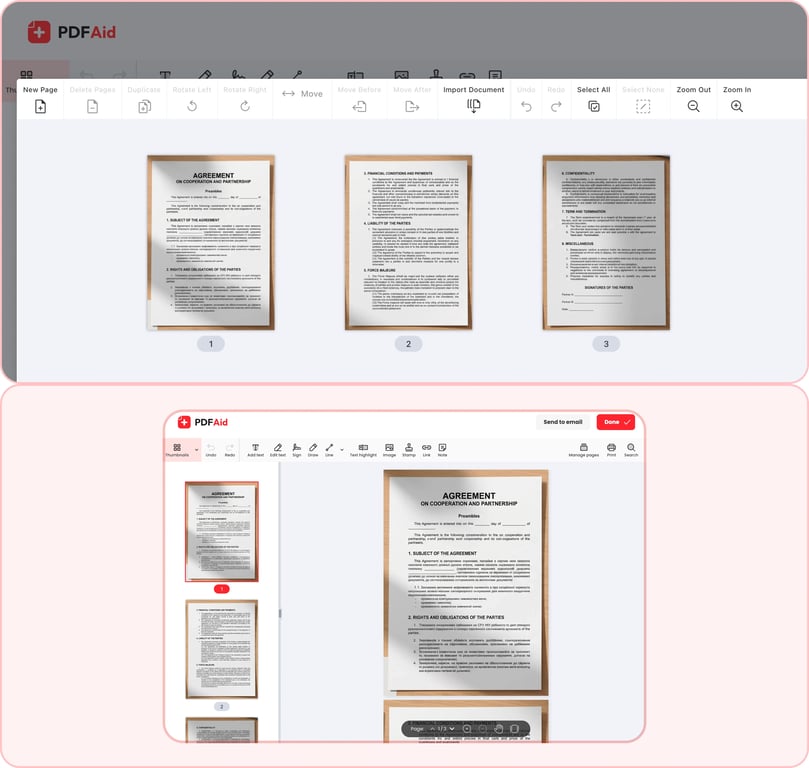
Photos combined into a single multi-page PDF.
PDF from scratch
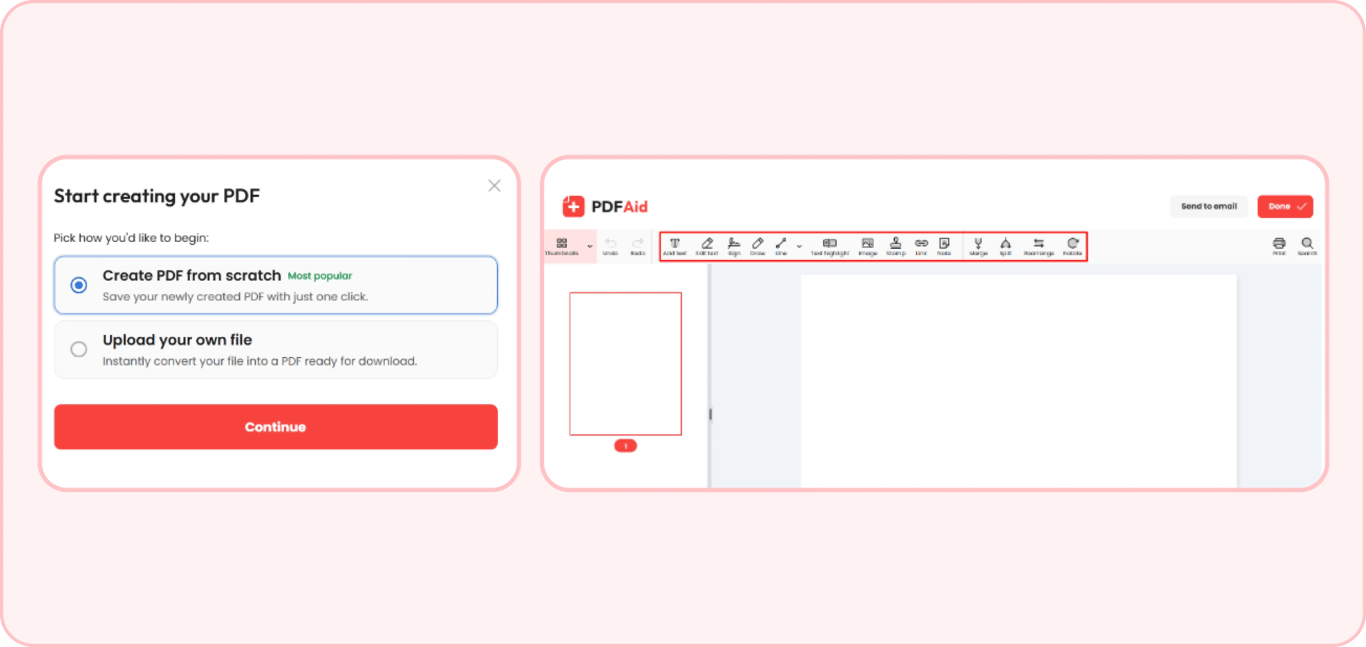
Understanding how to make a multi-page PDF can help you craft research pages, reports, commercials, and other documents. To add a page to an existing PDF, open it in the PDF editor, select Rearrange (or Manage pages, depending on the interface), then choose the option to add a blank page or import pages from another file. Our Create PDF tool starts you on a blank page. Press Create PDF and select Create PDF from scratch. Enter or insert the existing text, highlight information worth pointing out, add images, comment, leave annotations, place a hyperlink, or add extra fields.
Notes and plain text
Now, let's make it clear how to make a note into a PDF, as well as a draft, a list, or a messenger chat piece. You can turn all of this into a PDF to keep it usable outside of the software where it was created. There are two options for doing this: paste the text on a blank page of a new PDF or type the note there.
Web pages and emails
Print to PDF to save web pages and emails as PDFs. The methods can vary depending on a browser and email client. Here's how to save as PDF using the most popular options:
Chrome. Click the three-dot menu in the top-right corner, and select Print. You can also press Ctrl + P on Windows or Cmd + P on Mac. In the print dialog, set Destination to Save as PDF, then click Save.
Gmail. Click the three-dot menu in the top-right corner of the email itself (next to the Reply button), then select Print. In the print dialog, set Destination to Save as PDF, then click Save.
Check the preview first; turn on Background graphics under More settings if colors are missing. You can store it, print it, or send it as an attachment by email.
PDF template
How do you make a PDF that you can fill out and reuse multiple times? A problem solution can be the Template and Forms Creator, as it works for crafting templates from existing documents. Upload a PDF and edit it according to your needs. The tool lets you add a new fillable field or remove the ones you don’t need. You can also make it read-only and add a signature indicator. If needed, change the field color and size.