Flattening merges all PDF interactive layers, including completed fields, annotations, and signatures, with a page so they can't be removed or edited. This option lets you keep essential details unchangeable, but it's not the same as making the file read-only. Learn more about how to flatten a PDF, when you may need it, and whether you can undo it in our guide.
What flattening actually does
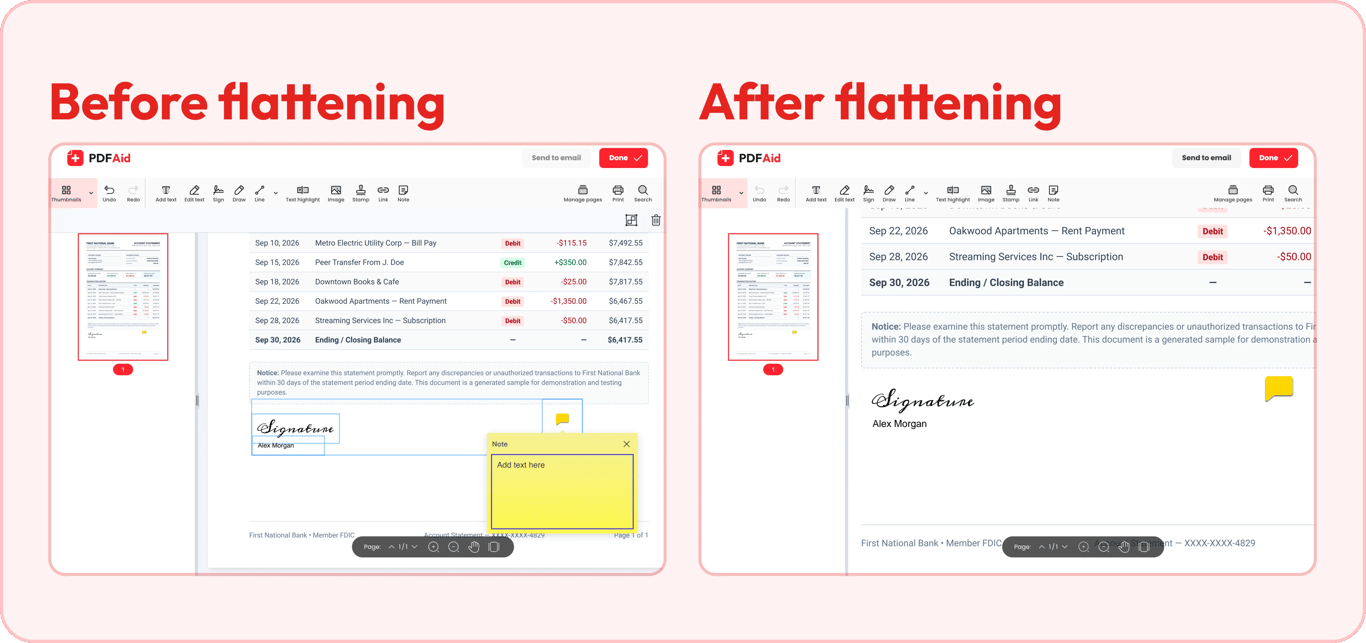
When you flatten a PDF, you merge its separate layers into the page itself. To see what that involves, start with what a file can actually contain. So, in addition to text and images, a document can include other elements that represent separate layers. Those are fillable fields, annotations, comments, signatures, stamps, and buttons. If you flatten a PDF, you'll combine them into a page.
Once a previously interactive layer becomes static, you can no longer click a form field or drag an annotation. A flattened PDF behaves like a printed page. There's nothing left to click or move.
An important thing to remember is that there are two different things called flattening:
The first refers to flattening a PDF to make it uneditable, including separate interactive layers. It's what this article is about and what most people want when they flatten their documents.
The second is a prepress step before sending a PDF to a printer. When a print shop asks for a flattened PDF, it usually means handling transparency and turning such areas into a combination of raster and vector. Text can be converted into outlines, making it impossible to select.
The difference between a vector PDF vs. a flattened PDF isn't obvious to everyone. Transparency flattening can turn areas into pixels, so they lose sharpness when zoomed; it's better to ask which one is required at the printing shop.
"Read-only", "non-editable", "uneditable": what people usually mean
Make a PDF read-only, lock what you entered, stop anyone from editing the file — these sound like the same request, but they’re three different problems with three different fixes:
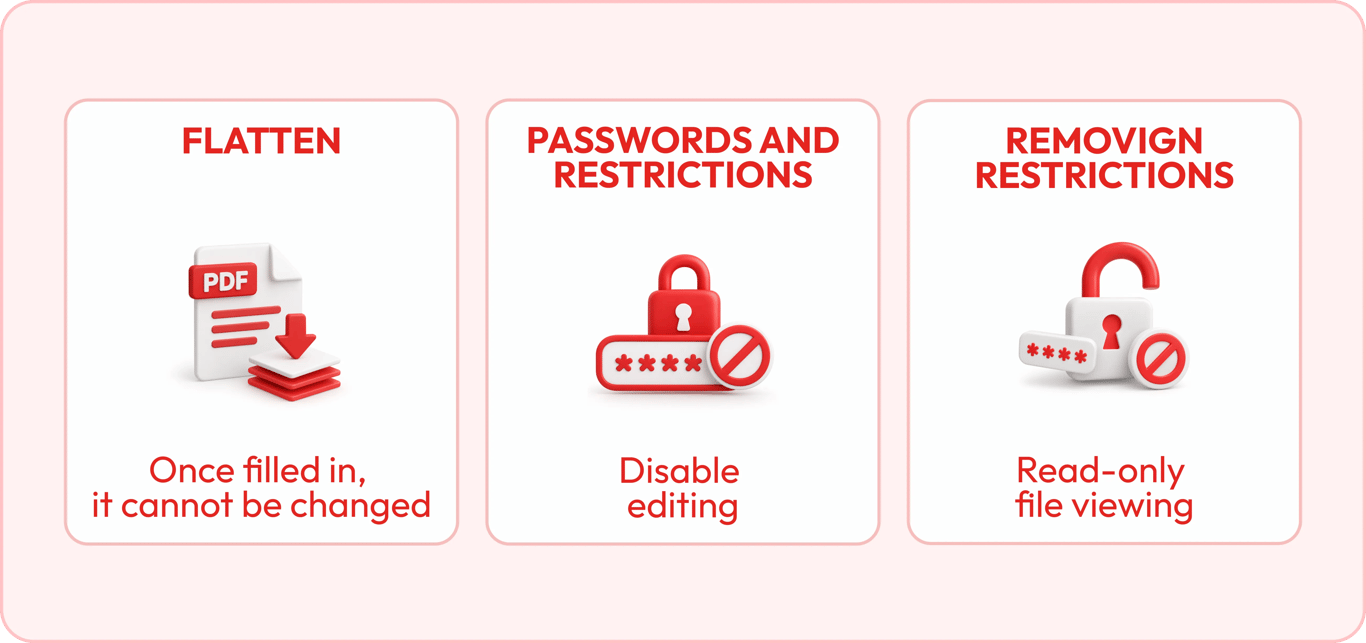
"I need to make the filled-in information impossible to change." For this, flattening will work, as it merges fields, annotations, and your signature with the page content.
"I want to have an absolutely non-editable document." Flattening isn't the right solution when you're looking for how to make a PDF uneditable, as it's necessary to restrict the permissions or protect the file with a password. Someone can still make changes to a flattened PDF.
"The file opens as read-only, and I can't edit it." If the file has restrictions, flattening won't work here. You can remove them with our Unlock PDF tool.
When you should flatten a PDF
Whether you flatten a PDF for printing or before sending it, the reason is the same: you need the content fixed in place. These four situations come up most often:
A filled form that is necessary to submit. For example, US federal court e-filing (CM/ECF) shows "ERROR: Fillable forms must be flattened before attaching." The system can reject or fail to upload unflattened PDFs, showing an error because they contain interactive elements. It's one of the most common reasons why people need flattening, as it helps submit documents successfully.
A file prepared for printing. Combining separate elements with the entire page will make the content act more predictably and be correctly interpreted by printing software. When a printing shop asks for a flattened PDF, make sure which type of flattening is required.
A signed document. Embedding a signature into a page, making it a part of it, instead of letting it be an interactive element. A flattened drawn signature can still be covered or edited, and flattening a certificate-based digital signature removes its validation. It's necessary when you sign a document and need to send it.
A final version of a file for sharing. The document may contain notes, bookmarks, annotations, and comments added during the review. These can be useful when you work, but they're not what the final recipient should see. So, delete review notes first, then flatten so only the filled fields and content you want the recipient to see become part of the page.
How to flatten a PDF file
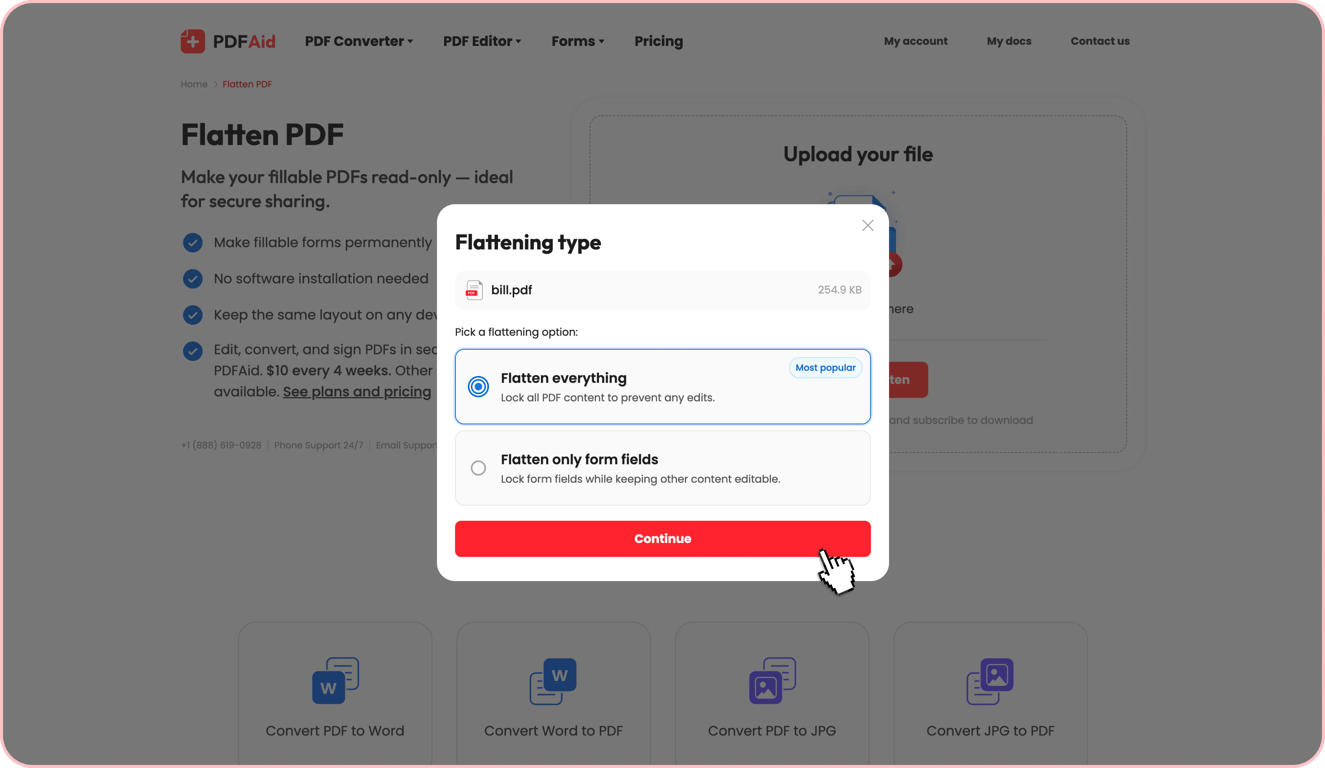
You can use our Flatten PDF tool without installing any additional software. Upload your file and select one of the offered options:
Flatten everything to make the whole content static and harder to change by accident.
Flatten only form fields to make the added details impossible to change, while keeping the rest of the document editable.
Since flattening is irreversible, it's better to save the original PDF in case you need it in the future. Check the result before sharing your document.
What flattening does not do
Flattening fulfills one specific task, which is joining interactive elements into a static layer, and here's what it doesn't do:
It doesn't protect a PDF from further changes. To stop others from typing or drawing something over the content, you can lock a file with a password or add restrictions.
It doesn't hide details under a shape. Even if you put a black rectangle above sensitive information and flatten a PDF, the text remains part of the page content and can be pulled out. You can redact a PDF to remove those details forever.
It doesn't compress a file. Is compressing a PDF the same as flattening? No. When you flatten a document, you remove interactive elements, and a PDF can become smaller in size, but it's only a side effect, not actual compression. Our online compressor can help you make a file essentially smaller.
It doesn't fix a file that opens read-only.
How to tell if a PDF is already flattened
Use these three methods to check if a file was flattened:
Click a filled field or note. If a cursor or a box appears after this, the PDF isn't flattened; if nothing happens, it's flattened.
Look for a notice about interactive elements at the top. If it's there, it's a fillable form you can still work with.
Try to select the text. If you can highlight it, it's a page with selectable content, but if you can't, the page is an image: it was printed to PDF or scanned, and thus rasterized.
It's worth taking a look at your document once you're going to share it. Interactive elements won't work after you flatten a PDF.
Can you undo flattening?
You can't undo flattening because interactive layers become part of the page content, and their elements are no longer selectable, fillable, or clickable. However, you can try this to use a PDF the way it was before:
Get back to the original document if you saved it.
Restore the previous version if you have it in the cloud storage.
Ask the person who sent it to send you an unflattened copy.
A file that won’t let you change anything is a different case. To make a read-only PDF editable, look at its permissions first — that restriction is what usually blocks edits, not flattening, though the two are easy to confuse.
To get searchable and selectable text, use the OCR tool to recognize it if you don't have an original document.