You can't edit a PDF in Google Docs; you can only edit the file that was converted by Google Drive tools. While it's a simple way to work with documents, the formatting shifts, and fixing it can take longer than the edit you came for. However, converting a PDF to DOCX before uploading it to Google Docs can help you keep the layout. Keep reading to learn how to edit your PDFs in Google Docs while preserving the original look as much as possible.
How to convert a PDF to a Google Doc in Drive
The next three steps describe the conversion and editing processes, including possible formatting changes.
Step 1: Upload the document to Google Drive
Upload your PDF to Google Drive to start working on your document. You'll need to have a Google account, so create one if you don't have one yet. Then find My Drive, click New in the upper-left, and pick File upload. The window with folders and files on your device will open, and you'll need to select the PDF you'll be working with.
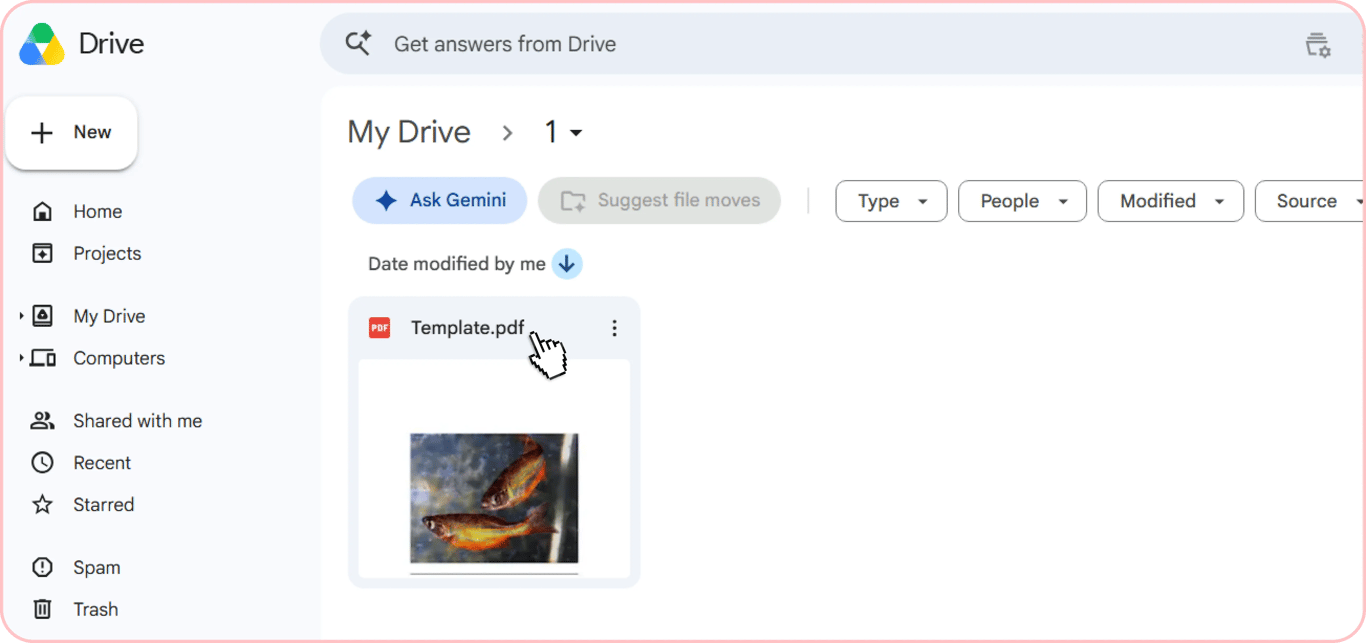
Step 2: Open with Google Docs
You can click on the PDF twice to view the preview, but you won't be able to edit it. To make changes in the document, press Open with Google Docs at the top of the preview. Also, you can right-click on the document and choose Open with > Google Docs or click the three dots on a file icon and choose this option.
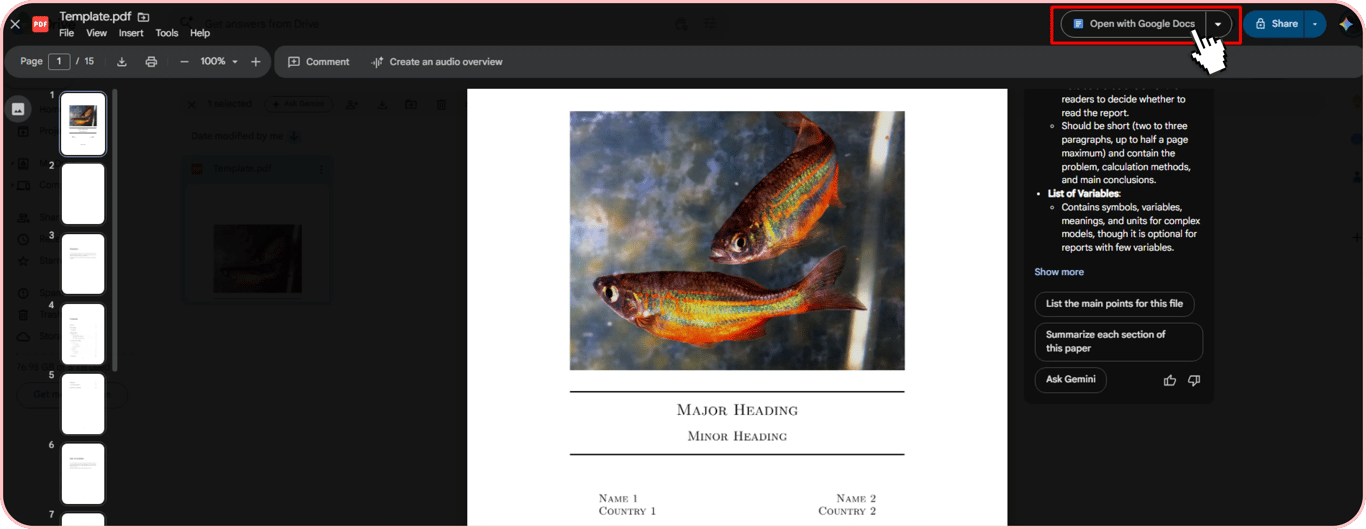
Step 3: Edit the file as needed
Now, you have an editable document to work with. However, you can face the limitations of converting a PDF to Google Docs, like changes to the formatting and original look:
1. The number of pages can increase because of font substitution when Google Docs tries to find similar text styles, but they can differ in size.
2. Headings can land on different pages from the ones the table of contents lists.
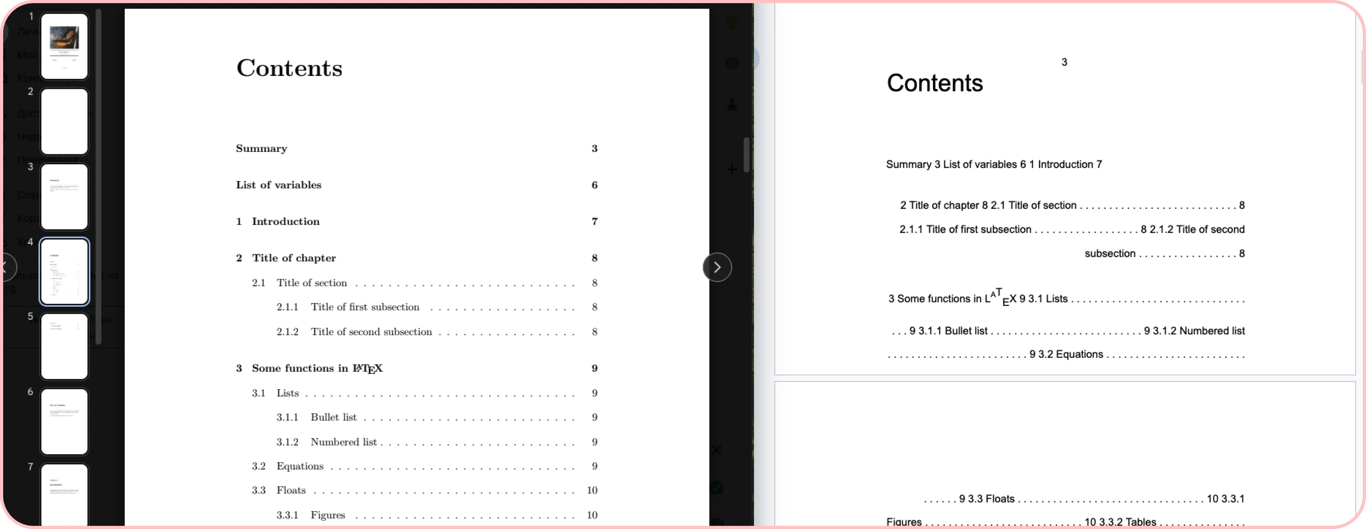
3. Image captions change their positions or are shown incorrectly.
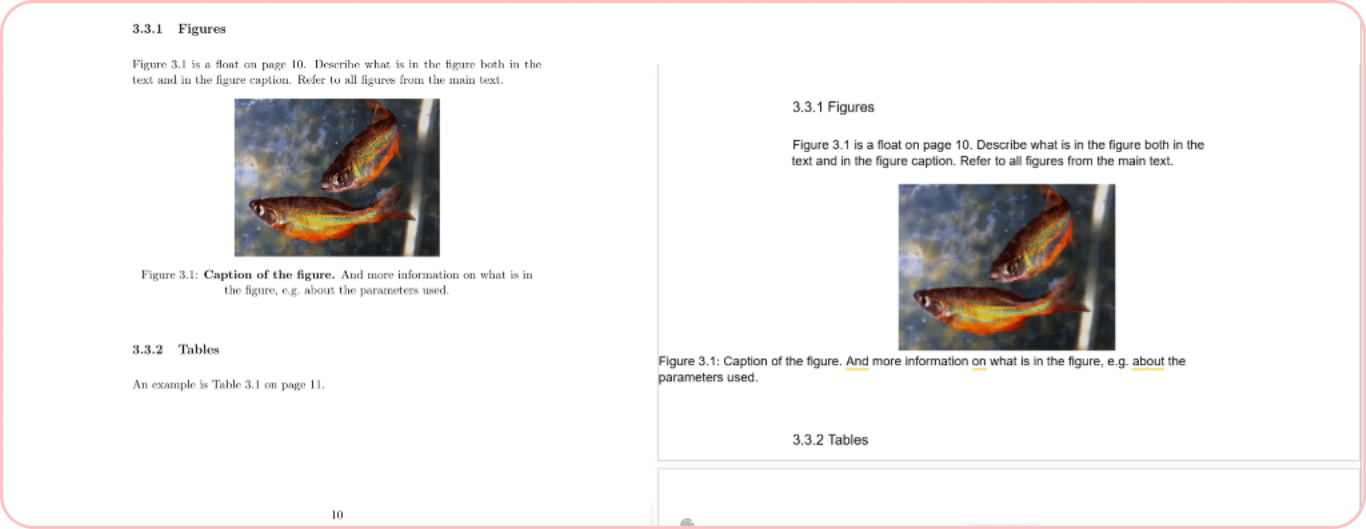
Uploading your file to My Drive and editing it there is a simple and quick solution. Nonetheless, you can use Google Docs to export a PDF, but you will export the formatting and fonts that you actually see. You'll need to spend some extra time to edit formatting, embed fonts, etc.
How to edit a PDF in Google Docs without losing formatting
If you turn a document into DOCX first, you'll avoid losing formatting. Convert the PDF with PDFAid's Convert PDF to DOCX tool first.
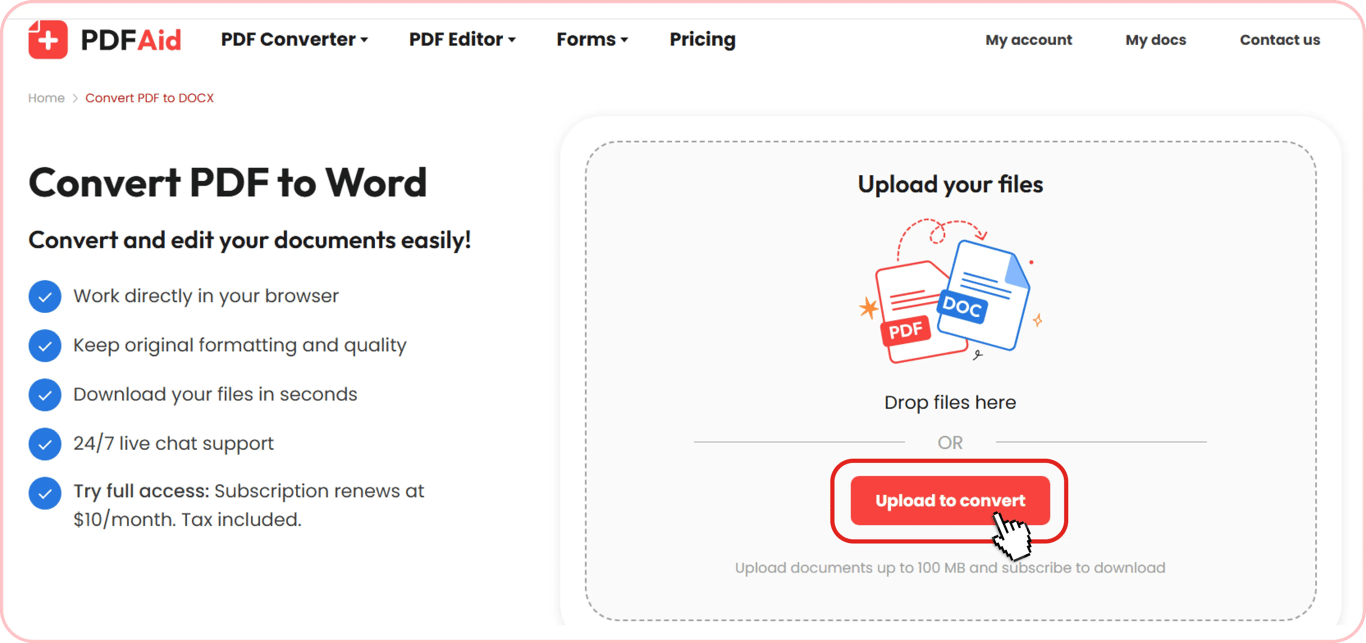
Step 1: Upload the document to the converter
Click Upload to convert and choose a file on your device. Also, you can drag it to the upload area. The file opens in the editor, and a Convert PDF to dialog appears. The allowed PDF size is up to 100 MB.
Step 2: Select the output file format
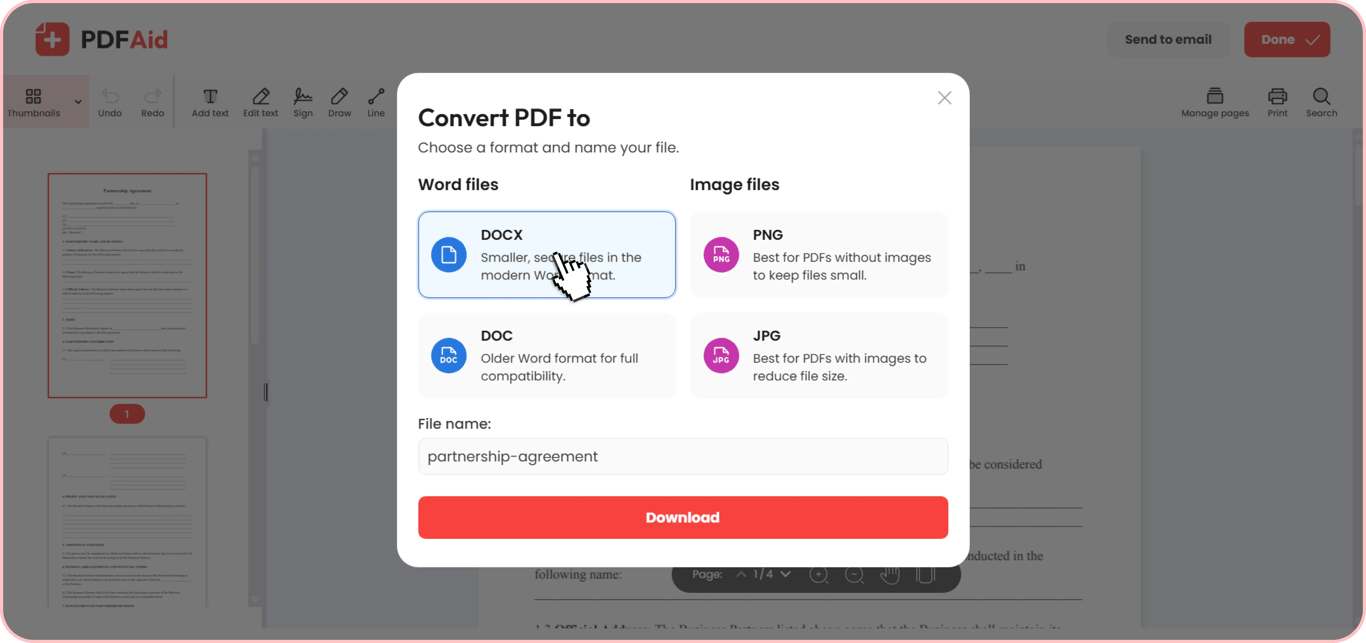
In the Convert PDF to dialog, DOCX is already selected under Word files. Leave it and click Download. There are also three other formats to choose from:
DOC – for the older Microsoft Word format.
PNG – for PDFs that don't contain images to keep the size small.
JPG – for files with images to shrink the size.
Keep in mind that PNG and JPG give an image of the page, not editable text, so they won’t work for editing in Google Docs.
Step 3: Select the conversion method
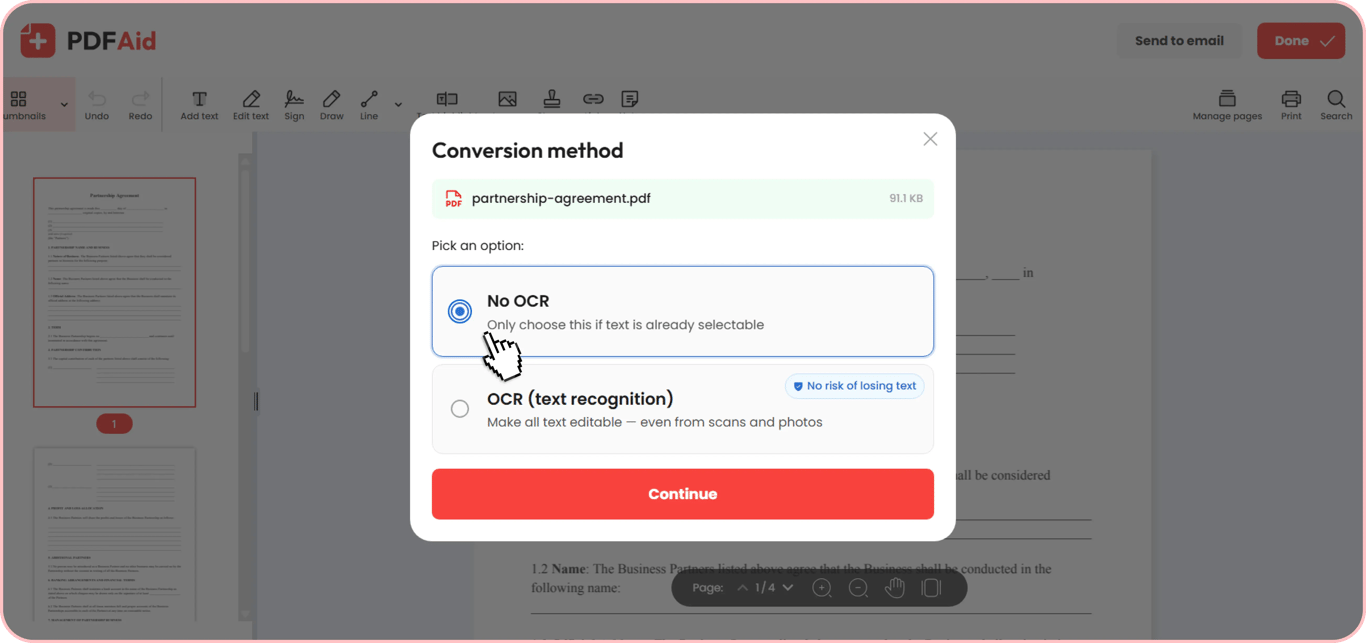
There are two options to choose from, depending on the file contents:
No OCR – this one works best when the text is already selectable, and you can edit it.
OCR (text recognition) – choose this option if it's a scanned document or images with text, and you need to make it fully editable.
Step 4: Open a new document in Google Docs
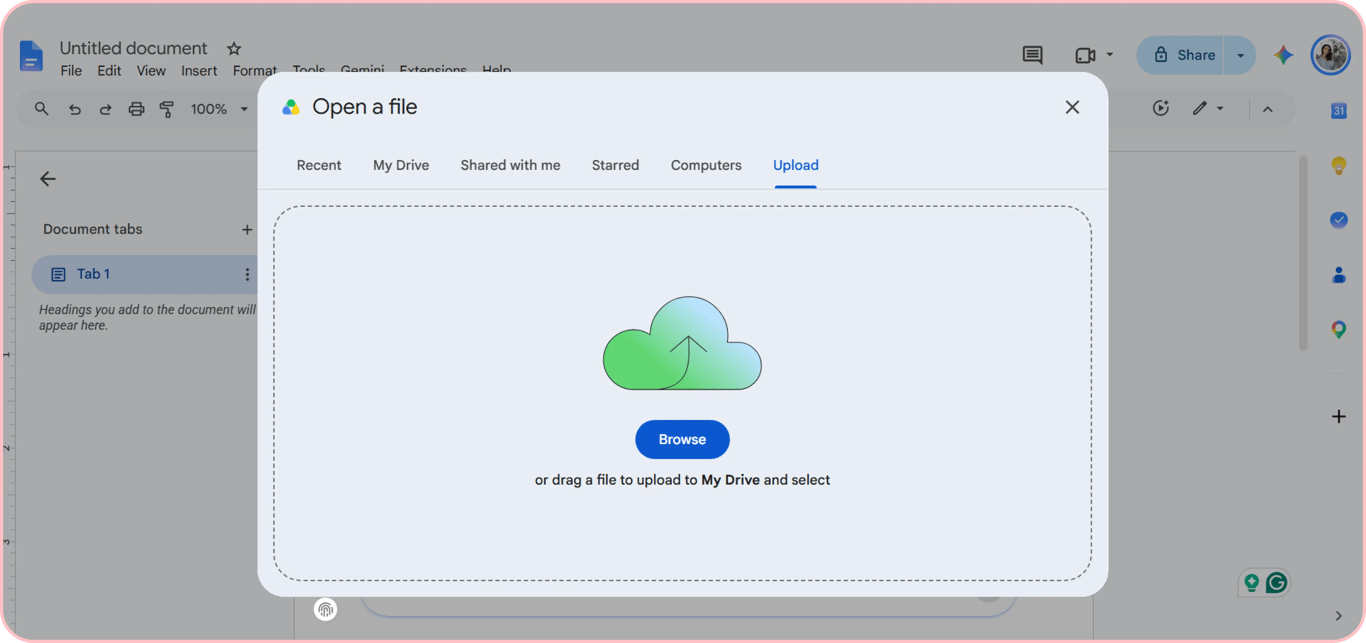
After downloading the DOCX file to your device, you can upload it to Google Drive and open it there. Or, create a new Google Doc and press Open in the File menu in the upper left corner. Click Upload and Browse to select the document on your device. Also, you can drag it to this window.
When you upload your DOCX file, you'll see that the original PDF formatting is preserved, including page breaks, line spacing, image placement, and columns. Once you finish editing, press File > Download and select the format for saving the document. Among the available ones are Microsoft Word, PDF, OpenDocument, Plain Text, and several others.
How to convert a PDF to a Google Doc on a phone (and iPhone, iPad, Mac)
When using an online converter, you don't need to install any software, which saves space on your device and time on setup. All is done in a browser, making it easy to work with your documents if you want to know how to open a PDF in Google Docs on a phone. In fact, you can use any device to upload a file to My Drive, or turn a PDF into a DOCX first with the online converter:
iPhone or Android smartphones
iPad and other tablet models
Mac and computers with Windows or other operating systems.
To work with your files, you only need a good Internet connection. You get the same features on every device.
Summary
Google Drive allows you to convert a PDF into Google Docs, but this solution can be unexpectedly time-consuming because the formatting isn't saved. It happens because documents have different layouts, and PDF keeps each line in a fixed position, while Google Docs doesn't. If you use the PDFAid online converter to turn a PDF into a DOCX, most of the layout survives, so you edit the content rather than rebuild the formatting.
You can skip Google Docs and use PDFAid tools to work with your PDFs:
Edit PDF – edit your PDF without conversion.
Compress PDF – reduce a file's size.
Sign PDF – upload your signature, draw it, or type it, using custom styles.
Merge PDF – combine several PDFs into a single document.
Split PDF – cut a file into a few PDFs.
Crop PDF – trim margins and change dimensions.
Redact a PDF – permanently remove names, numbers, or whole pages.
Annotate PDF – add comments and annotate a PDF.
FAQ
Why does the layout shift in Google Docs?
A PDF keeps every line locked exactly in place, but Google Docs works differently; it adjusts content to fit the page instead of fixing it in one spot. This isn't something going wrong; it's just how the two formats handle layout. Some shifting is normal when you convert between them.
Can you see edit history on a PDF of a Google Doc?
No. Edit history lives inside Google Docs itself, so once you download the file as a PDF, that version history isn't available anymore.
Do Google Docs comments show up in PDF?
No. Comments stay in Google Docs and don't carry over into a downloaded PDF.