Unlimited access to all our tools


How does it work?
Add hyperlinks to your PDFs in 3 simple steps:
- 1
Upload or drag and drop your file.
- 2
Select the text you want to link.
- 3
Download your updated file.
Add a hyperlink to a PDF, edit or remove the existing ones with PDFAid. Texts, pages, and markup stay the same. Use the tool online in your browser.
How to add a hyperlink to a PDF
Follow this simple guide to insert a hyperlink in your document:
Upload your file to the platform.
Choose the anchor text or area where you want to add a URL.
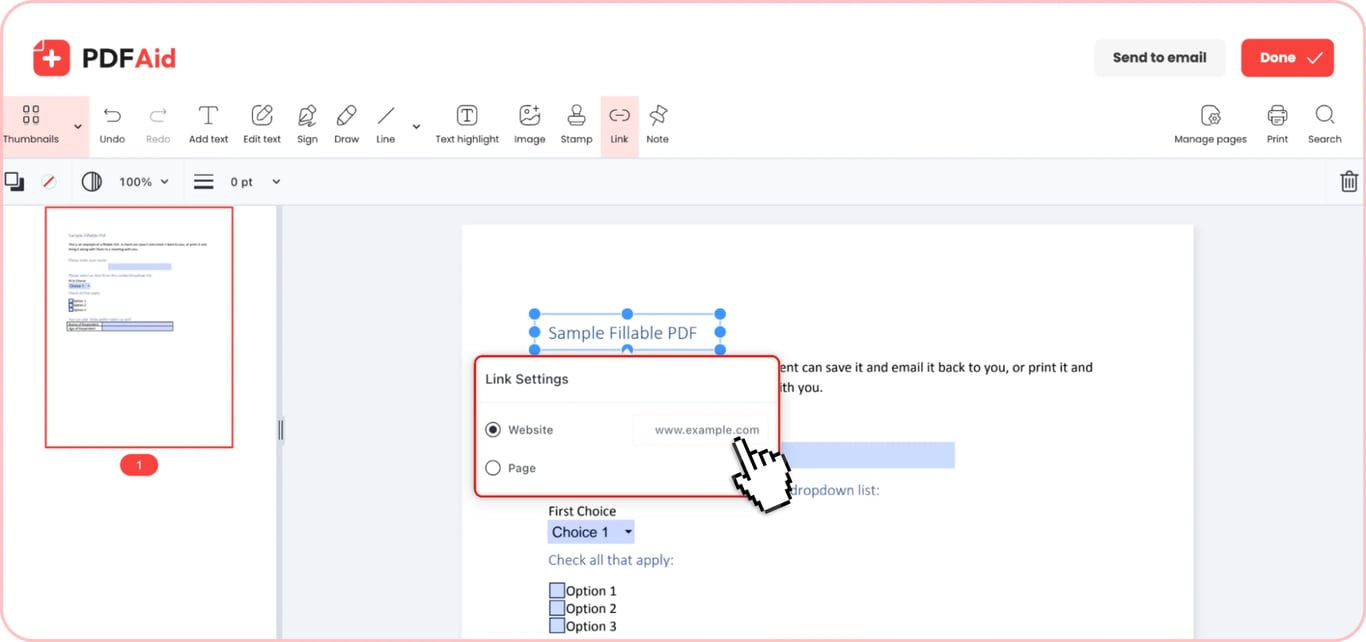
Choose Website in Link Settings or link a page.
Put a link into the field that appeared on your screen.
Send the document to your email or download it.
How to edit a link in a PDF
You can edit a hyperlink in a PDF if it has changed, a page has moved, or the address is invalid. Update a URL without redoing your document or attach it to another piece of text. Check your file before downloading.
How to make links clickable in a PDF
Make the PDF clickable so that links work and take you to the information source. A URL typed as plain text looks like a link but doesn't open anything. Links are often lost when a document is exported to PDF from Word or Google Docs.
To make the address clickable, insert a link. Look over your document and make sure that all links work before downloading it.
How to remove a hyperlink in PDF
Remove the link from the PDF if it has expired, there's no more need for external navigation, or you're planning to print a document. Choose the necessary address and delete it. Only the URL will disappear, while the text will remain unchanged.
Types of links you can add to a PDF
You can add a link to a PDF that leads to more than just websites. The most common types of destinations are below.
Add a web link to a PDF
Hyperlinks to sites, portfolios, forms, and invoices are the most common. It's necessary to attach a URL to text or a specific area in your document. Make sure your link doesn't contain errors before saving.
Add an email link to a PDF
A clickable mailto link in a PDF automatically launches your mail client with a message already containing a specific recipient's email address. It's used in commercials, CVs, invoices, and contact sections in documents. To create an email link, choose the anchor text and add an address in this format: mailto:name@example.com.
Link to another page inside the PDF
A link within a PDF takes a reader to another page of the same file or a bookmark. It helps you quickly navigate large documents, such as instructions, reports, catalogs, and contracts with appendices. You can also attach links to the table of contents. Unlike an external link, an internal one keeps you within your file, without moving to other sources.
Create a clickable table of contents in a PDF
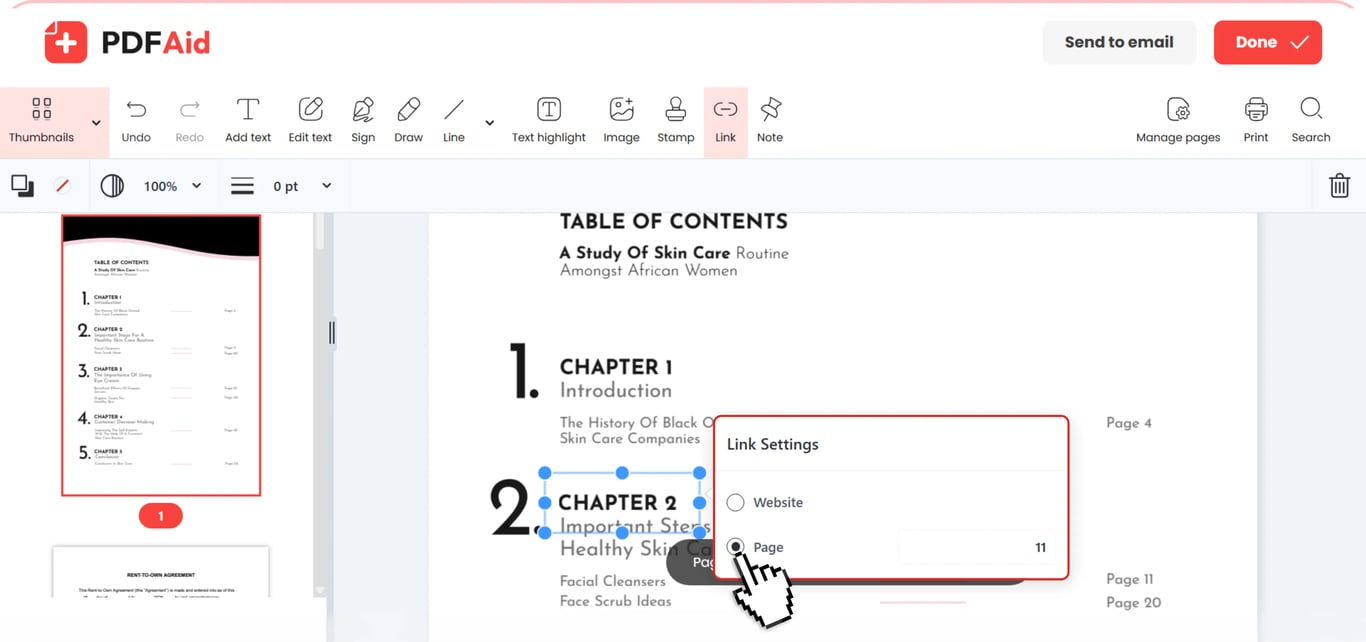
When there's a clickable table of contents in a long file, a viewer can quickly switch between sections. Do the following to connect hyperlinks to relevant pages in a report, thesis, catalog, guidelines, and other files:
Read the table of contents and choose a line that should lead to a relevant page.
Add the page number.
Do the same with other lines.
Check if links work and take you to the necessary page.
If the file came from Word, its table of contents often stops working after export. To fix this, you can re-attach the links in our tool.
Add link to PDF on any device – Windows, Mac, iPhone, or Android
Add a link to a PDF with our tool straight in your browser without software installation. All features are available across all devices, including computers, smartphones, and tablets. You can use a computer with macOS, Windows, or Linux and access the platform on iOS and Android devices.
Your document keeps its original quality
You won't have to redo your document after using this PDF link editor because it only changes the details you want. The tool leaves markup, fonts, colors, and pages as they were before.
Your files stay private and secure
Our PDF link adder is safe for your documents as you upload them through an encrypted connection. Your files are private and secure; access to them is limited to you, and only you can view them in your account.
 We’re sorry to hear that you want to cancel your subscription. If you no longer need our service, you can click Cancel plan in the Membership tab of your account. You can also contact us via live chat, at billing@pdfaid.com, or by calling +44 808 501 2541 for help with canceling your subscription.