You don't need extra software to save one page of a PDF: the print dialog and Preview on a Mac already do it. The right method depends on two things: one page or several, and whether the page's links must keep working.
Save one page vs split the whole file
Saving one page and splitting the whole file are the same job with different cuts. You can extract pages from a PDF or split a PDF into parts: both ways let you cut out a single page or divide the entire document into sections, and the original file on your computer stays unchanged.
On our website, both pages open the same cutting screen, and every part downloads at the end. What changes is where you place the cuts: two cuts around one page give you that page as a small file of its own, while cuts spread through the document give you a few larger parts.
Save a single page online
To save only one page of a PDF in the browser, you place two cuts: one right before the page and one right after it. The part between the cuts is your page, saved as its own PDF.
Step 1. Open the extract tool, click Upload to extract, and choose the PDF. Files up to 100 MB are accepted. The document opens in the editor with page Thumbnails on the left, so you can check which page is which.
Step 2. Click Go to Split in the upper right corner. The pages now appear as a grid, with a scissors button in the gap between every two pages.
Step 3. Click the scissors before your page and the scissors after it. Each active cut turns into a solid line, and the pages between cuts are grouped together.
Step 4. Click Split in the upper right corner. To download, log in with Google, Apple, or an email address.
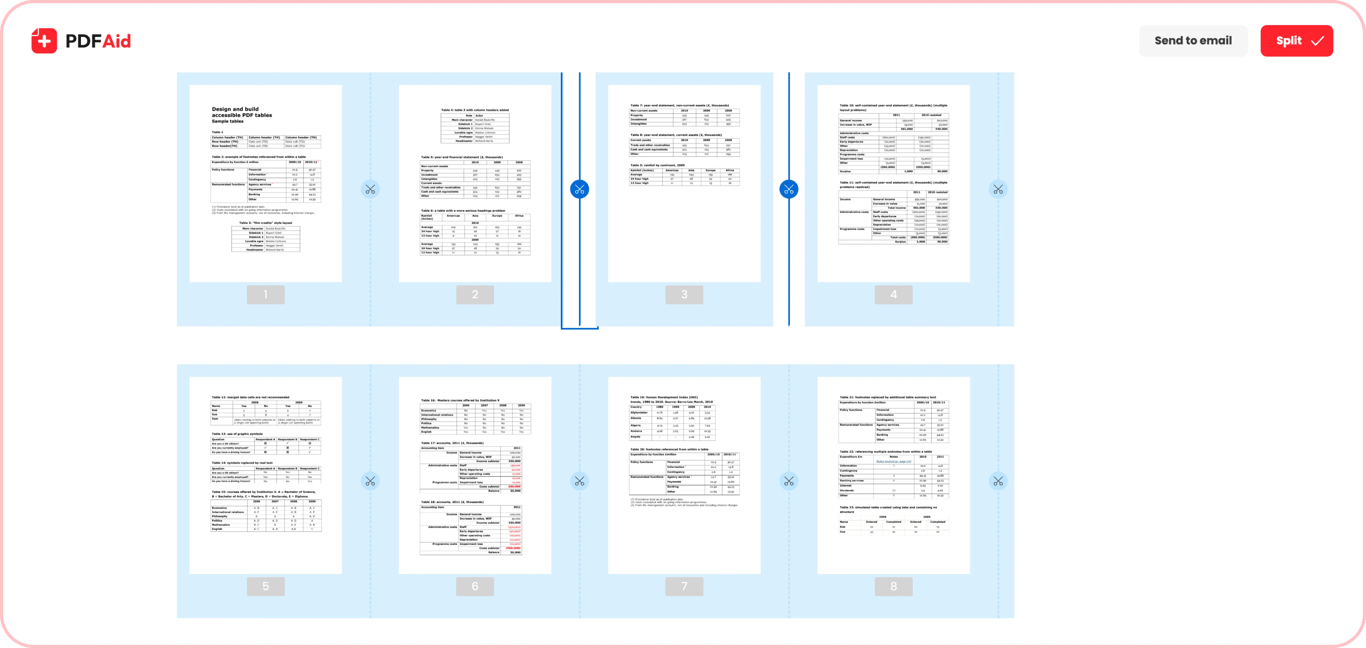
Every cut produces a file, so you get more than one. For page 17 of the 40-page lease, two cuts give three files: part 1 holds pages 1–16, part 2 holds page 17, and part 3 holds pages 18–40. The files are named by part, not by page, so if the original is lease.pdf, lease-part-2.pdf is the one you want. If the page you need is page 1, one cut after it is enough, and your page is part 1.
The file on your computer doesn't change. The cut-out page stays a real PDF page: its text can still be selected and searched, and links to websites still open, because the tool copies the links along with the page. A link that jumps to another page of the original, such as a table of contents entry, has nothing to point to in a one-page file.
❌ Printing a page with a payment link to PDF, then sending it to a client who can't click the link.
✅ Cutting the same page out of the original, so the link works in the new file.
Save several specific pages
The same screen saves specific pages of a PDF, but first decide what you want at the end: one new document or a separate file per page. The cuts decide it. Pages 3–6 as one document need two cuts, after page 2 and after page 6, and part 2 then holds all four pages. For four separate files, add cuts between 3 and 4, 4 and 5, and 5 and 6 as well; the pages before and after come out as two more files.
There's no field here for typing a range like "3-6, 9"; you set ranges with the scissors. To save certain pages of a PDF that aren't next to each other, such as 2 and 9, cut each one out, then combine the two files with a merge, as shown at the end of this guide. The print dialog, covered further down, does take typed ranges.
Save each page as a separate file
Sometimes each page of a 40-page scan is a different receipt. To save individual pages of a PDF, click every scissors button: 40 pages have 39 gaps, so 39 clicks give you 40 files. The screen has no "cut every page" button.
Here the file names finally match the pages, because every page is its own part: receipts-part-1.pdf through receipts-part-40.pdf. That's also the problem. A week later, 40 files that differ only by a number tell you nothing about which one is the hotel bill, so plan to rename them, as described below.
Save one page with the print dialog
This method needs no upload and no account, and it works on Windows and Mac. Here's how to save just one page of a PDF with it.
On Windows
Open the PDF in Microsoft Edge and press Ctrl+P to open the Edge print dialog. Under Printer, choose Microsoft Print to PDF. Under Pages, choose Custom and type the page you need, for example 17. A hyphen sets a range and a comma separates pages, so 3-6, 9 puts five pages into one file. Click Print, then name the file and save it.
On Mac
Press Command+P and set the page range to the one page you need, for example from 17 to 17. Then click the PDF button in the lower left corner and choose Save as PDF.
Preview has a faster option. Choose View > Thumbnails, then drag the page's thumbnail from the sidebar onto the desktop. Apple's guide to moving PDF pages in Preview confirms that this creates a new PDF. To get several pages in one file, select their thumbnails with Command held down and drag them together.
Printing has one real limit. It redraws the page the way it would appear on paper, and a link isn't part of the printed page, so clickable links in the original usually don't work in the copy. On a Mac, the text itself stays selectable. If the page has links you or the recipient will click, drag it out in Preview or cut it out in the browser instead.
Export a page instead of saving it
Sometimes you need the page as a picture for a slide or a chat message. To export one page from a PDF this way, save the page as a JPG. The Convert PDF to dialog that opens after upload has no page picker, so close it first, open Manage pages, select the pages you don't need, click Delete Pages, and click Save. Then click Done, pick JPG or PNG, and click Download. Text in a picture can't be selected or found by search.
After you extract: rename, organize, recombine
Rename right away. A name like lease-part-2.pdf means nothing a week later. Use what's on the page and the date: ❌ lease-part-2.pdf / ✅ 2026-10_Lease_Smith_p17-signatures.pdf.
Keep the pages next to the original. Put the extracted files in one folder beside the full document. You can then compare any page with its source.
Recombine with a merge. If the pages later need to become one document again, merge the PDFs into one file. The merge tool takes up to 12 files at a time.
Which way to save a page
What matters | Text stays selectable |
|---|---|
Print dialog | Yes on Mac; on Windows, check by selecting a word in the copy |
Preview on Mac | Yes |
PDFAid | Yes |
What matters | Links on the page still work |
|---|---|
Print dialog | Usually no |
Preview on Mac | Yes |
PDFAid | Yes |
What matters | Several pages in one file |
|---|---|
Print dialog | Yes, with a typed range |
Preview on Mac | Yes, select and drag |
PDFAid | Yes for neighboring pages (two cuts); otherwise cut and merge |
What matters | Each page as a separate file |
|---|---|
Print dialog | No, one print job is one file |
Preview on Mac | One drag per page |
PDFAid | Yes, a cut in every gap |
What matters | Works without upload or internet |
|---|---|
Print dialog | Yes |
Preview on Mac | Yes |
PDFAid | No; files up to 100 MB, log in to download |
What matters | Works on any OS |
|---|---|
Print dialog | Windows and macOS |
Preview on Mac | Mac only |
PDFAid | Windows, macOS, Linux, and ChromeOS, in a desktop browser |
The print dialog gives you a copy of how the page looks on paper. PDFAid gives you the page itself, with text you can search and copy and links that still open.
Conclusion: two cuts, then a real name
For one page without links, the print dialog or a Preview drag is the quickest option, and nothing leaves your computer. For pages with links, or many separate files, cut them out in the browser and rename them right away.
Key takeaways
Extract and split work the same way: where you place the cuts decides what each downloaded part holds.
Output files are numbered by part, not by page, so rename them as soon as they download.
Printing to PDF keeps the look of the page but usually loses its clickable links.
Start with the one page someone asked you for this week, and give it a name that says what's on it before you send it.
FAQ
Does extracting a page change the original PDF?
No. Your original file stays complete and unchanged.
Can I save one page of a protected PDF?
Not while the restriction is in place. Remove the password first with our Unlock PDF tool, then extract the page.
Can I do this on a phone?
Yes. You can use the same tool on your phone, right in the browser.
Why did my saved page lose its links?
You most likely saved it with the print option rather than extracting it. Printing to PDF flattens the page, so links stop working. Extracting the page keeps them.