Although there's no built-in PDF editor on Android, unlike on iPhone, it doesn't mean that you need to install a special app. You can make most changes to your document using a browser. Check out our guide to learn what the built-in tools can do, how to edit in Chrome, which app type you actually need, and how to change existing text.
Is there a built-in PDF editor on Android?
Android doesn't have a native tool for editing PDFs. Files by Google, Google Drive, and Chrome's PDF viewer let you draw and highlight freehand, but they can't add a text box, sign, or change the text. However, a solution exists, and there is more than one. Below, you'll find three working ways to edit documents on Android, and the first doesn't require any installation.
Edit a PDF in your browser
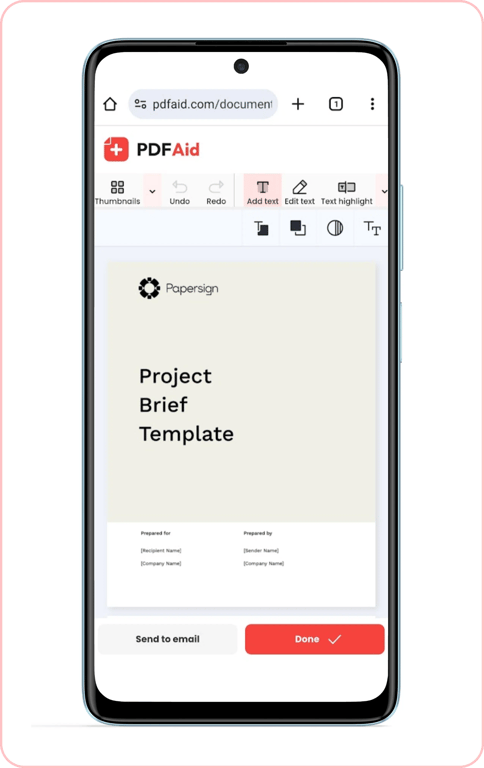
If you need to make adjustments quickly on your smartphone, edit a PDF online with PDFAid. You can open this browser editor in Chrome and upload a file from your phone storage or cloud.
Step 1. Open the PDF Editor page in Chrome and tap Upload.
Step 2. Tap Edit text to change a line, or Add text for a new text box.
Step 3. Tap Done and download.
If you have to deal with massive paperwork, note that the file size limit is pretty big, at 100 MB. Thanks to a browser-based format, you can start editing your document right away without installing separate software.
Types of PDF apps on Android
Just like in the Apple App Store, you can find helpful applications for your PDF work on Google Play for Android. Here are 3 types of tools that suit different purposes:
Comprehensive PDF editors. Typically, these apps include features that let you work with text and images.
Annotators and note-taking apps. When you need to highlight something important in a paragraph, annotate, or add a signature, it's the choice to consider.
Converters and mergers. While completing specific tasks, such apps help combine a few files or convert them.
Most people only need the second type; install a full editor only if you change text or images.
Add text and annotate a PDF
Annotators typically offer several options for PDF markup, such as placing text on a page, highlighting details with a marker, or drawing with a pencil. When you need to flag information that is worth attention, annotate a PDF with PDFAid. You can choose text color and add special elements such as highlights, drawings, shapes, and sticky notes. Also, if it's necessary to put a signature on a contract or form, you can sign a PDF on your Android smartphone as well. The added text isn't inserted into the document contents. A text box sits on top of the page and doesn't join the paragraph under it so lines won't reflow. If you need the sentence itself changed, use Edit text.
Add an image to a PDF on Android
Adding an image to your report or inserting a signature or stamp into a contract are common paperwork needs. In this case, you can place an element as a separate object, resize it, and change its position with your fingers on the smartphone. To do it conveniently in your browser, add an image to a PDF on this platform.
Change existing text in a PDF
An annotator can draw over text but can't change the words themselves, so you need more than a standard tool. There are two ways to change text in your document. The first is a browser editor: tap Edit text and change the line. If the PDF's font isn't embedded, the edited line may appear in a substitute font. The second is to convert your file and then use a text editor. Keep in mind that conversion can damage complex layouts, so you'll have to rebuild your document.
Create a new PDF on Android
You can save a file on your Android phone as a PDF using the printing menu. In Chrome on Android, Print is under the three dots > Share > Print; in Google Photos and Drive, it's in the three-dot menu. In the list of printers, find the Save as PDF option. The instructions are the same for web pages and photos.
Save and share the edited PDF
You'll find the saved file in your Downloads folder unless you chose another location. Share your PDF directly from your Android device using a standard menu. If the document exceeds the size limit, for example, Gmail's attachment limit of 25 MB, compress it to make it smaller and try again.
Tips for editing on a phone
Follow these useful recommendations to work on your PDFs:
Use a stylus for greater precision. It's more convenient for picking small areas, adding notes, or signing a document than doing all of this with your fingers.
Check the image size. The PDF grows larger when you insert pictures, which can slow upload speed or exceed limits when you want to share it via messenger or email.
Read the app requirements before installing. Editors often request access to all files, and it's a serious permission if you deal with documents containing personal credentials.
Which way to edit on Android
What you need | Read a document |
|---|---|
Google Drive | Yes |
Annotator app | Yes |
PDFAid in the browser | Yes |
What you need | Highlight and add a text box over a page |
|---|---|
Google Drive | Partially |
Annotator app | Yes |
PDFAid in the browser | Yes |
What you need | Change existing text |
|---|---|
Google Drive | No (conversion works only on a computer) |
Annotator app | No |
PDFAid in the browser | Yes (formatting is preserved) |
What you need | Rearrange pages |
|---|---|
Google Drive | No |
Annotator app | Partially |
PDFAid in the browser | Yes |
What you need | No full storage access needed |
|---|---|
Google Drive | Yes |
Annotator app | Often no |
PDFAid in the browser | Yes |
Among the options described, PDFAid is the only way to change existing text without converting it or installing an app requesting access to your Android phone's entire storage.
FAQ
Does Android have a built-in PDF editor?
Android doesn’t come with a full PDF editor by default. You can edit PDFs in your browser with our PDF Editor tool, with no apps or software to install.
Can I edit a PDF in Google Drive?
Google Drive can display PDFs, but to edit the text, you’ll need to open the file in Google Docs. This converts the PDF, so the layout may change.
Why can’t I edit my PDF?
Your PDF is either a scanned image or password-protected. For scans, use OCR to make the text editable. For protected files, remove the password first with our Unlock PDF tool.