PDF stands for Portable Document Format. This file type keeps its original look, including fonts, text, layout, and images, the same on any screen you open it on. Find out what a PDF is, how it actually works, what it’s used for, along with its types, benefits, limitations, and comparisons with other formats in this guide.
What does PDF stand for
PDF stands for Portable Document Format. Each word in the full form describes what the format does. Portable means a PDF opens on phones, tablets, and computers, regardless of the software it was created in. Document means it’s built to hold things like contracts, forms, and reports. Format means the layout is fixed: fonts, text, and images stay where you put them, so the recipient sees the page exactly as you saved it.
In plain words, a PDF is a digital imprint of a sheet of paper, not a set of symbols a browser rearranges on the fly. That’s the whole PDF meaning in one sentence, and it’s why the abbreviation is used far more often than the full name in everyday and technical writing.
What is a PDF file
A PDF is a single file that stores a page’s text, images, and layout together, so it looks the same wherever it’s opened. Here’s what’s inside one and how it manages that.
What a PDF can hold
Regarding what is inside a PDF file, it can contain different content types, depending on how it was created. They include the following ones:
Text
Image
Vector graphics
Embedded fonts
Interactive buttons
Hyperlinks
Fillable form fields
Comments
Videos and other media
Metadata
Attached files
A PDF isn’t a picture of a document, but a container for different interactive elements. It holds way more than static pages, letting you click links, fill forms, and, in viewers that support them, play video or use buttons. Thanks to the many content types a PDF can include, it’s a multi-purpose file you can use for paperwork and to complete a variety of tasks.
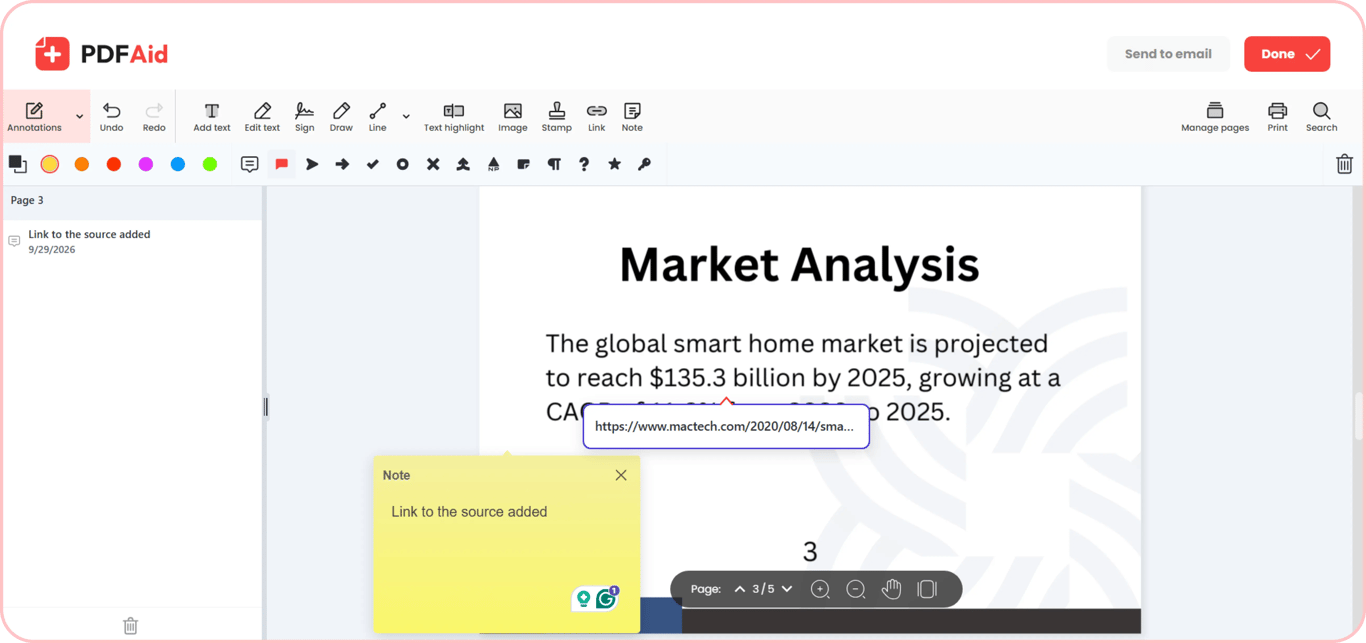
How a PDF keeps the same layout everywhere
So, how does a PDF work when it contains different elements but keeps them untouched? A PDF stores the exact position of every element in place instead of relying on another program or software to put them in order again. Fixed formatting that includes coordinates of each element and embedded fonts is the heritage of PostScript, which is the ancestor of PDF. PDF grew out of PostScript, Adobe's page description language. Both approaches (fixed coordinates and embedded fonts) make a file stable; it doesn't depend on the software where it was created, the device, or the operating system. Unlike a PDF, a DOCX may differ from its original look on another computer when it comes to fonts or structure. A PDF holds precise instructions for storing the positions of elements, making it possible to display them the same way everywhere.
How to spot a PDF on your computer
If you wonder what a PDF is on a computer or how to find it, look for a .pdf file extension at the end of the document name. Your system also shows the icon of your default PDF viewer next to the file name. If you double-click on this file, most likely you won't be able to edit it because the system opens it in a viewer. To make changes to the document, you'll need a special tool or convert it into an editable format.
What is the PDF format used for
A clear understanding of what the PDF format is makes it easier to explain why this document type is so popular. Considering its fixed layout and multi-purpose nature, it's a perfect solution to sign contracts, fill forms, and complete other tasks. Check out the most common uses of PDF below.
Contracts, invoices, and agreements
Legal and financial documents often come in a PDF format because it keeps the agreed-upon version. A PDF keeps the agreed-upon content on the page. Once it carries a certificate-based digital signature, any later change breaks that signature. You can use a sign PDF tool to add an electronic signature and send it by email for someone else to sign.
Forms people fill in and send back
Job applications, tax forms, and questionnaires are saved as fillable PDFs because fields are embedded in a file. A recipient can enter their information and return the document without retyping and changing the format. A PDF may be a reusable form template when different people need to complete it. The PDFAid’s fill PDF tool allows you to type into the fields in your browser, save the completed form, and create PDF templates with interactive fields.
Resumes, reports, manuals, and eBooks
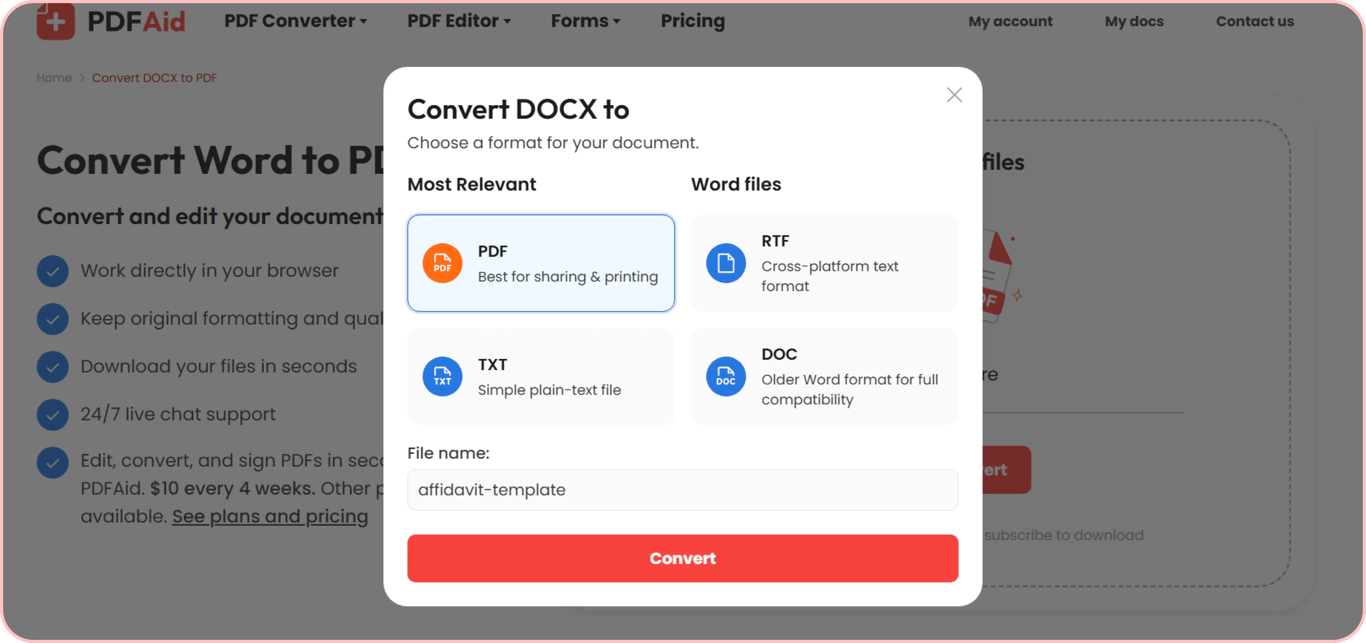
Choosing a PDF format is the right decision when documents, like a resume, report, research paper, instruction, brochure, or eBook, are already meant for reading rather than editing. The reason for that is that the author wants to preserve the original file design. To keep the layout as it was created while sharing, you can convert DOCX to PDF with our tool. When fixed formatting is needed for an eBook, turning EPUB to PDF will also help.
Print-ready files for designers
Print shops often ask for a print-ready PDF because the format preserves all the details necessary for high-quality printing. The print-specific standard is PDF/X and it’s regulated by ISO 15930. A document can include high-resolution images, embedded fonts, and color profiles, and a PDF supports all of them. The layout will be printed the way a designer created it, with all visual elements in place and zero changes.
Scans and archived paperwork
We use a PDF format when it's necessary to turn paper documents into digital files, such as contracts, receipts, and medical records. You can make a single file instead of making and keeping multiple photos. As a result, it looks like a document on a screen, but it's still not searchable or editable text. The pages remain images after all.
Types of PDF files
The difference between the types of PDF determines what you can do with a file and which tools are needed. For example, if you try to select a phrase on your screen with a mouse and nothing happens, it means that you have a scan. There's also the PDF Portfolio – one PDF that includes several files, such as a contract, a spreadsheet, and photos.
Digital PDFs
These are files that were created digitally in Word, Excel, a browser, or design software. The text in this document is real, so you can search and copy it in any viewer and change it in a PDF editor. It's one of the common PDF types people usually work with. Such files are compatible with most tools for editing, converting, and performing other actions.
Scanned PDFs
To better understand what you can do with this type of file, it's necessary to clarify what a scanned PDF is. It's an image of a page saved in a PDF format. The pictures and text you see are part of this copy, and you can't search, select, copy, or edit them. Technically, those are the pixels a page consists of, not individual elements. This type of PDF is a page from a scanner or a photo taken on a smartphone. However, you can convert a scanned PDF to editable document on our platform and make changes here.
Searchable PDFs
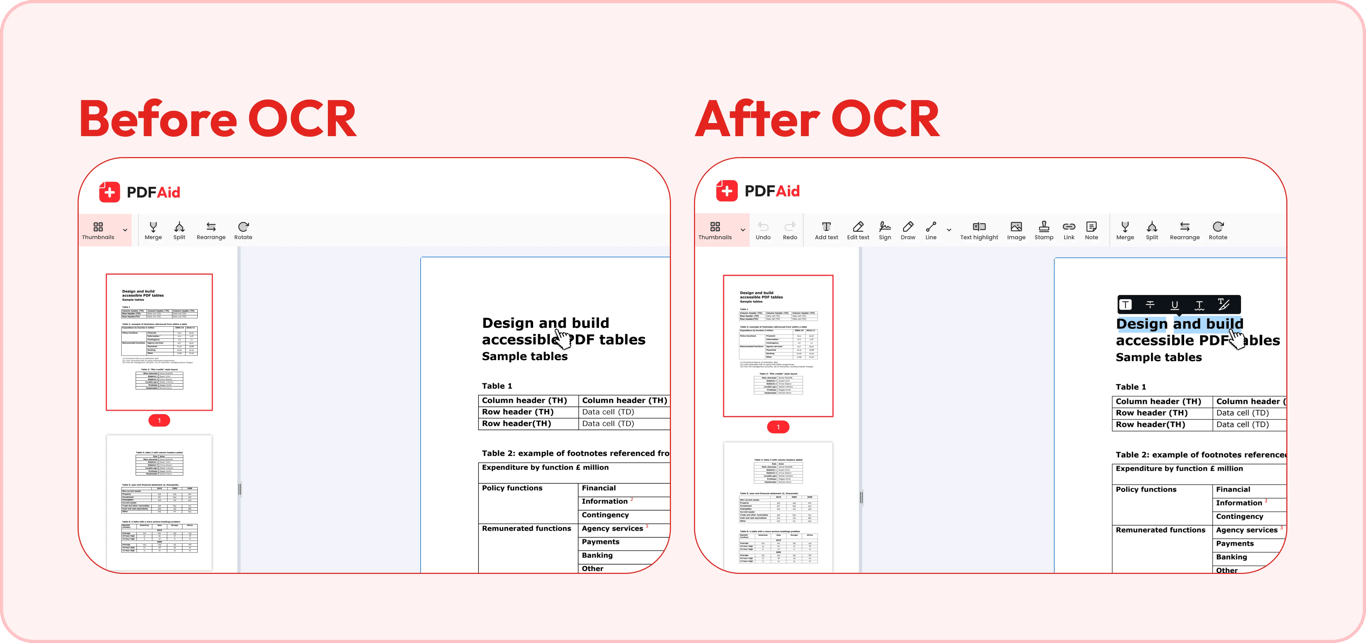
So, what is a searchable PDF file, and how do you work with it? A scanned document, after applying OCR, gets a searchable text layer, although it still looks like an image. It contains the content recognized by a scan, and you can select or copy it. The main thing here is that OCR downloads a new file. It isn't a different kind of document, but it's the same scan with a text layer added underneath. You can quickly convert a scanned file with the OCR PDF tool and search a PDF in a browser.
Advantages and limitations of PDF
Advantages of PDF | Looks the same on every screen |
|---|---|
Disadvantages of PDF | Editing needs an extra step |
Advantages of PDF | Opens without anything installed |
|---|---|
Disadvantages of PDF | Scanned pages are images |
Advantages of PDF | Keeps text searchable |
|---|---|
Disadvantages of PDF | Long documents get heavy |
Advantages of PDF | Supports signatures and password protection |
|---|---|
Disadvantages of PDF | Fixed layout doesn't adapt to small screens |
Advantages of PDF | Follows an open ISO standard |
|---|---|
Disadvantages of PDF |
What the format does best
There are several PDF advantages, apart from keeping the original layout, as mentioned above. You can quickly find the necessary text, words, figures, and other information in a searchable document and edit it, and you don't need to view every page. PDF meets the open ISO 32000 standard, making it independent of a software vendor. Therefore, such files can be shared and viewed in a range of programs on different devices regardless of the operating system. Also, PDFs have security options, such as passwords and permissions for safe use, especially when it comes to corporate contracts, applications, and other documents with important credentials. Other supported features, including hyperlinks, signatures, and fillable forms, make a PDF one of the most practical formats for social, academic, or work purposes.
Where it gets in your way
You should know about PDF limitations that can impact work. Since this format was created for sharing, editing requires an extra step, which means that it's necessary to edit it directly or convert it into DOCX. Another issue comes with a scanned document that remains an image rather than text before you use OCR. A lengthy PDF can also turn into a problem if you need to send an attachment via email due to size limitations. Splitting or compressing a file can be a solution in this case. Usually, people convert PDFs not for the conversion itself but to access the content.
PDF vs other file formats
Files of different formats fit specific needs and can be a better option for some tasks, so that's why we'll compare PDF vs Word and JPG. The difference between PDF and Word is covered next.
Details | Layout on another device |
|---|---|
Yes | |
Word | Not always |
JPG | Yes |
Details | Editing |
|---|---|
Not always, needs extra steps or tools | |
Word | Yes |
JPG | No |
Details | Text you can search |
|---|---|
Yes (not scans, until applying OCR) | |
Word | Yes |
JPG | No |
Details | Works without an account |
|---|---|
Yes | |
Word | Yes |
JPG | Yes |
Details | Best for |
|---|---|
Saving the final document version and sharing it with the original layout | |
Word | Drafting and editing |
JPG | Viewing a PDF without a special program |
PDF vs Word
DOCX works well as a draft you can edit, and a PDF is a practical choice for a final version. If you need to make changes to a PDF, you can convert a PDF to Word, and then turn Word to PDF again when you finish. Keep in mind that a conversion to DOCX can affect the original layout, including columns, image captions, and other elements.
PDF vs JPG
Unlike a multi-page PDF document that contains searchable text, a JPG is a single image without a text layer. It's a helpful solution if you don't know if a recipient has a program that opens a PDF. To work with both types of files, convert PDF to JPG or JPG to PDF online in your browser.
How to open a PDF
If you want to know how to open a PDF file, you can use any modern browser with no need to install software. Drag the file onto an open browser tab, or right-click it and choose Open with > Chrome, Edge, or Safari. Your PDF will be available for viewing immediately. To search text, edit it, leave an annotation, or print it, you can use an online PDF reader tool. Upload the file from any device and apply the built-in tools if needed. You can view, zoom, jump between pages, print, download, and email a PDF, and open it in the editor if you need to sign or change it.
How to create a PDF file
There are several methods of how to make a PDF file, including document conversion, saving it as a PDF in a printing window, or when you download a web page.
Convert a Word, Excel, or PowerPoint file
Conversion is the most popular method, especially when it comes to office papers, and you want to keep the original layout. Turn DOCX to PDF if you want to share a contract or report, Excel to PDF for spreadsheets, and convert a PowerPoint to PDF for presentations.
Print to PDF instead of paper
You can print to PDF instead of printing a document as paper if you choose this option in the printer window. Depending on what system you’re using, do the following: Destination > Save as PDF (Chrome and Edge); Microsoft Print to PDF (Windows); the PDF menu > Save as PDF (macOS). You can do this with almost all printable files, from images to documents.
Save a web page as a PDF
To preserve the layout and content of the files you need, save a web page as a PDF. This method lets you download tickets, order confirmations, and articles. Use an online HTML to PDF tool to convert web pages to PDFs.
Turn photos or scans into a PDF
It's a convenient option because you can create one file from a collection of images or scanned copies while preserving the page order. One PDF is easier to store and share than separate photos or documents. Handle your file using the JPG to PDF, Scan to PDF, and merge images into one PDF.
Start a PDF from scratch
Even though it's not the most popular need, sometimes it's necessary to create a PDF without an original file. Typically, people have to start from scratch when a cover letter, simple form, or another one-page document is required. Use the Create a PDF tool to start from a blank page.
How to edit a PDF
Editing a PDF requires more than one action, as it may involve changing text and images, combining or splitting files, or pulling out the content you need.
Change text and images
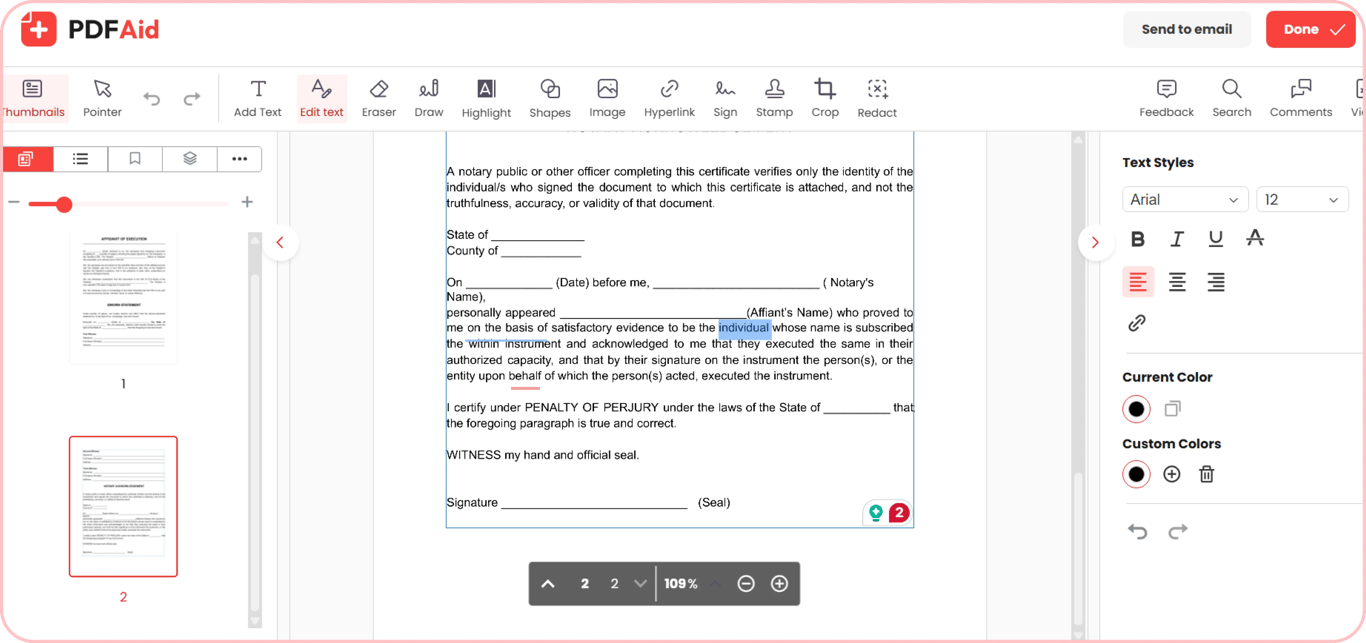
You can change a figure, replace a logo, or remove a paragraph directly in our PDF Editor. You won't have to rebuild your document. Besides, this tool lets you edit text with the original font that was used for the text. The font can only be matched when it's embedded in the PDF, so some edits will fall back to a similar font. The distinctive PDF Text Editor feature is a helpful solution when the corrected line has to match the rest of the paragraph.
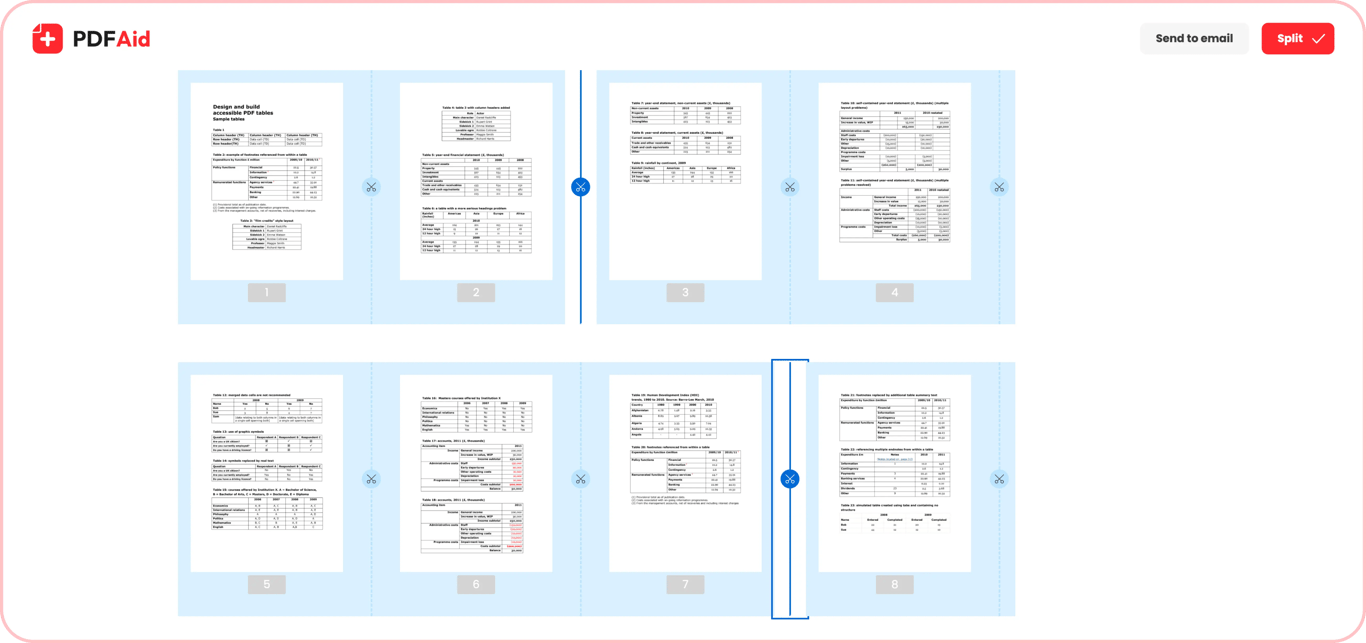
Combine, split, and reorder pages
You can work with a PDF similarly to a deck of cards, rearranging and combining them. Join separate files into a single one with our PDF Merger to save archived documents or keep report details in one file. Split PDF if it's necessary to email a lengthy file or if you need only one chapter. Once you need to reorganize your file, you can reorder pages in our workspace, too.
Pull out the pages or images you need
If you have a 60-page file and you need only 3 of them, you can extract pages from a PDF. Pull out the necessary content and send it separately from the entire document. Our Extract PDF tool handles 100 MB files. Also, extract images from a PDF when you need to keep an important screenshot with the Extract Images service.
Add a watermark before you share
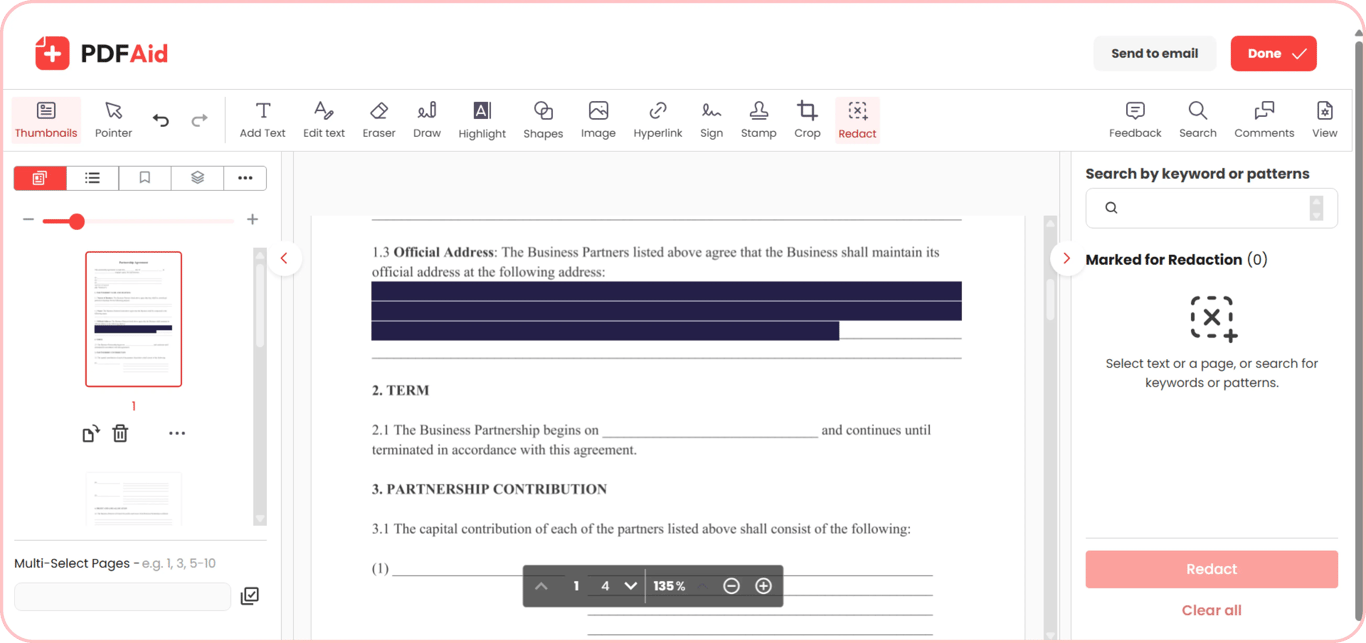
Add a watermark to a PDF when a document leaves your hands before it's final, or should be marked Confidential. For example, you can use labels, like Draft or Confidential. Choose a custom template for your file when you add a watermark or stamp using PDFAid’s tools.
Make the file smaller before you send it
Large PDFs are unlikely to pass email service size limitations, especially if they include a multi-page scan built from phone photos – that can reach tens of megabytes. Compress a PDF to make your file smaller and send it by email on our platform. Compression may affect only image quality, not text in your document.
Is a PDF secure
PDF has three different security mechanisms and permissions (requiring an owner password), which you can choose depending on your purposes and tasks. Passwords (an open password and a permissions password), signatures, and redaction or flattening are described next. Your choice depends on what you need to protect.
Passwords and encryption
PDF encryption with password protection forbids others from opening your file unless they enter the necessary password. It's useful when you want only certain recipients to access the document. However, you can have a file that no longer needs protection, and you want to remove the encryption. Once you know a PDF password, you may unlock a PDF and make it available for viewing, changing, and sharing.
Digital and electronic signatures
So, what is a certified PDF, and why is it important to know the difference between these signatures? Many people confuse them, although they're not similar. An electronic signature is one you can type, insert, or draw to demonstrate that you approve or intend to do what is said. You may sign a PDF this way using our service. A digital signature is based on cryptographic technology and can verify identity and maintain the document's integrity after signing. When the author applies a certification signature, the PDF becomes certified: readers can see who certified it and whether anyone made changes that the author didn't allow.
Redaction and flattening
Redaction and flattening are two different mechanisms that can protect your document. Redaction deletes the selected text or area from the file for good; a black box drawn on top is not redaction, because the text stays underneath and can be copied out. Flattening works another way, making it impossible to make changes to signatures and fields. This option fixes layers of content, so others can't edit or remove those elements. The fields and signatures become part of the page, so no one can edit or remove them as form elements. Redact a PDF when you need to hide sensitive details, and flatten a PDF to make it secure for sharing.
A brief history of PDF
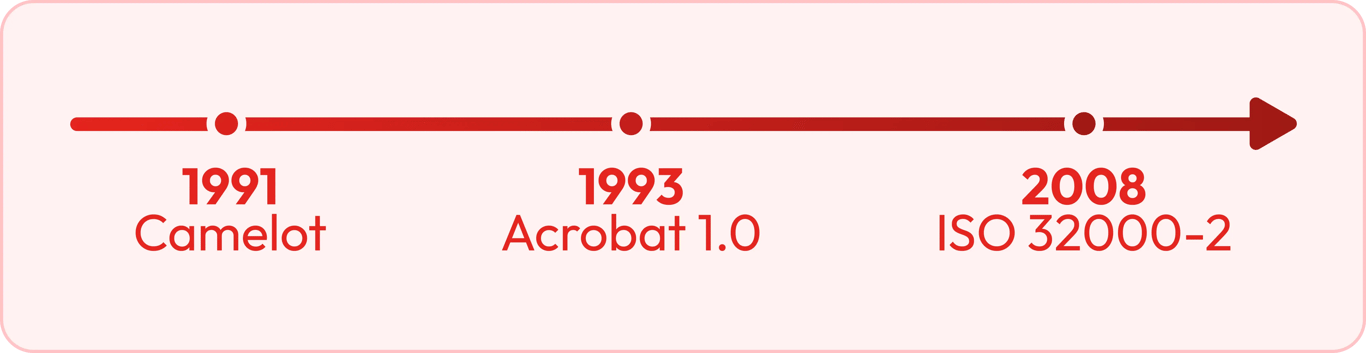
1991 – Dr. John Warnock, who invented PDF, starts the Camelot Project, which is known as the early stage of PDF technology.
June 15, 1993 - Adobe officially launches Acrobat 1.0, the first PDF version.
2008 – PDF 1.7 is published by the International Organization for Standardization as the ISO 32000-1:2008 standard.
2017/2020 – ISO publishes PDF 2.0 as ISO 32000-2 in 2017, followed by a second edition (ISO 32000-2:2020) in December 2020.
The Camelot project, 1991
Dr. John Warnock launches the Camelot Project. He describes the idea of a file that can be opened and printed with the original layout on any computer or printer. Back then, sharing documents was rather problematic because they could look different on a colleague's screen. The Camelot project was designed to solve this issue.
Acrobat and PDF 1.0, 1993
Adobe presented the first Acrobat along with a PDF format on June 15, 1993. It gave people an opportunity to share documents while keeping their authentic appearance. However, the PDF adoption was slow because files were large at that time, and Adobe Acrobat was paid software.
An open standard since 2008
Adobe transferred the Adobe PDF specification to ISO in 2008, which meant that a PDF is no longer controlled by one vendor. According to the current ISO 32000-2, it's an open standard that can be used independently regardless of the software provider.
PDF standards you'll come across
What is a PDF in terms of its specifications? PDF is rather a family of different standards than a single standard. They all fit different tasks, including preservation, accessibility, and organization.
PDF/A for long-term archiving
PDF/A is for archiving files and preserving them for a long time. This version requires all the necessary elements, including fonts and color profiles, to be embedded in a document. A PDF shouldn't depend on external tools or resources. PDF/A is used when files must be stored and remain reproducible for years, which is often required by courts, archives, and government agencies.
Tagged PDF and PDF/UA for accessibility
A tagged PDF keeps a document structure that includes headlines, lists, reading order, and image captions. Thanks to this, the content is recognized instead of being treated as a collection of elements. PDF/UA (ISO 14289) sets the rules a tagged PDF must meet so screen readers can read it in the right order. Accessibility is the core principle for tagged PDFs.
Linearized PDF for fast web viewing
First, it's necessary to answer the question: what is a linearized PDF? It's a PDF that is restructured so that you can see its first page before the browser finishes downloading it. Such an approach is useful when you have to deal with large files online, like long catalogs or research papers. You don't have to wait until the download is over, and can start reading a linearized PDF immediately.
FAQ
Is PDF free?
Yes. PDF is an open format, so opening, reading, and creating PDFs doesn’t cost anything.
Can I get my converted file without paying?
Our tool lets you convert a file for free, but it applies only to one document, and processing takes a few hours before your file is ready. If you’d rather skip the wait, a subscription gets you the result right away.
Why do so many people use PDFs?
PDF, short for Portable Document Format, stays popular because it keeps a document looking and formatted exactly the same on any device or operating system.
What is a PDF reader?
A PDF reader is software built for opening, viewing, and printing files in the PDF, or Portable Document Format.
How do I know if my PDF is a scan?
Try selecting or copying some text with your mouse. If nothing highlights, your PDF is a scan, essentially an image of a page rather than editable text.
Does a PDF look the same on every device?
Yes. A PDF is built to display identically on any screen or printer. It fixes the layout, fonts, and images in place so nothing shifts out of position.