You can open a PDF file in Word, but Word first converts it into a Word document, so you edit a copy, not the original PDF. For a text-only letter or contract, the copy usually comes out close. For a two-column report, a form, or a scan, expect to fix some of it by hand. This guide covers how to open a PDF in Word, what tends to break, and what to do instead.
What actually happens when Word opens a PDF
Word doesn't open the PDF itself. It makes a copy of the file and converts it, and the original file stays untouched. Microsoft puts it this way: "Word makes a copy of the PDF, converting it to a Word document and attempting to match the layout of the original PDF." Attempting is the word that matters: the layout is rebuilt, not carried over.
The result is saved as a .docx file. If you need a PDF again afterward, that's a separate step, covered at the end of this guide.
Opening a PDF isn't the same as inserting one
Many guides on this topic mix up two different jobs. Opening a PDF in Word converts it so you can edit the text. Inserting a PDF (Insert, then Object, then Create from File) places it inside another Word document as an object, and Microsoft is clear about the limit: "You can resize the object, but you can't edit it after you insert it." If you want to change the words, you need the first one.
How to open a PDF in Word step by step
The process is the same in Word for Microsoft 365, Word 2024, 2021, 2019, and 2016:
Step 1. Open Word.
Step 2. Go to File, then Open.
Step 3. Choose the PDF from your computer or cloud folder.
Step 4. Click OK on the conversion message.
Step 5. Edit the converted document.
Step 6. Save it.
Confirm the conversion message
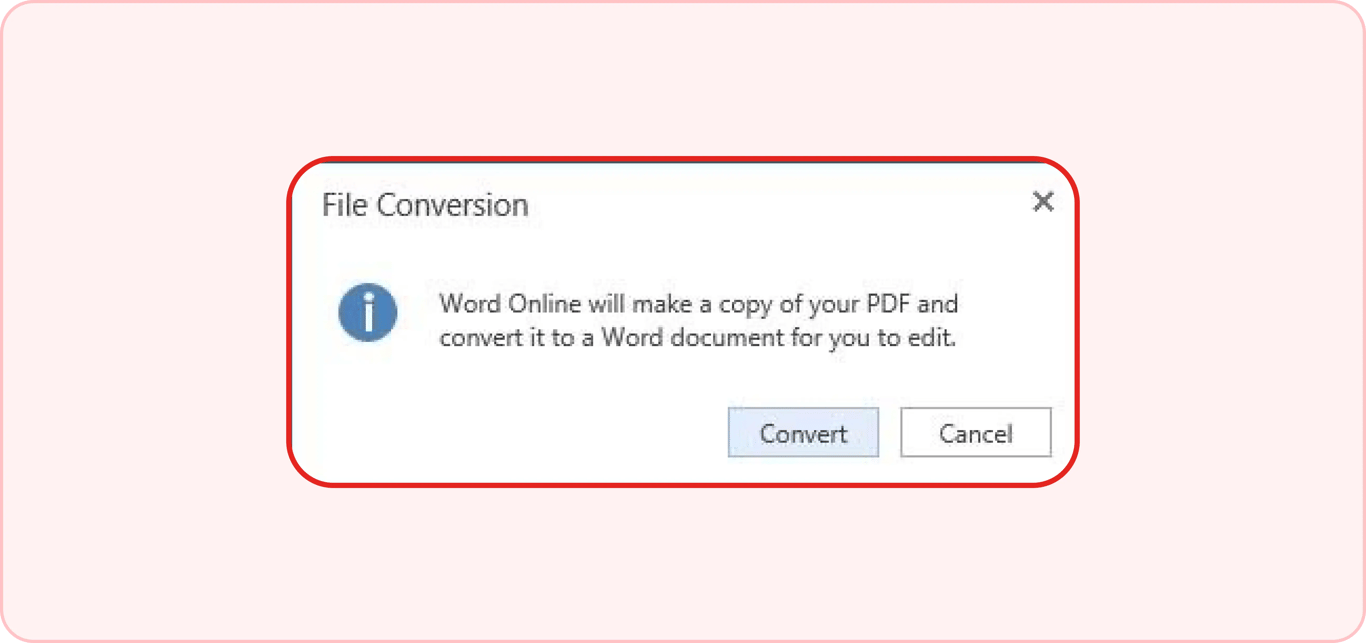
This is the step most people click through without reading, and it tells you exactly what to expect. The convert message reads: "Word will now convert your PDF to an editable Word document. This may take a while. The resulting Word document will be optimized to allow you to edit the text, so it might not look exactly like the original PDF, especially if the original file contained lots of graphics."
In plain terms, this conversion warning says three things: Word builds a new copy, the copy is shaped for editing rather than for looks, and pages with many images are the likeliest to change. Clicking OK is safe. The original PDF isn't modified, so if the copy looks wrong, close it, and nothing is lost.
Save the result in the right format
When you press Save, Word saves a .docx by default, not a PDF. That surprises people who expected the file to stay what it was. Use Save As and give the copy a name that says what it is, so you can tell the two apart later: you now have two files on your device, the original PDF and the editable Word document.
❌ | |
Files in the folder after editing | lease.pdf and lease.docx: which one has the new rent? |
✅ | |
Files in the folder after editing | lease_ORIGINAL.pdf and lease_2026-10_edited.docx |
What Word gets wrong
Word doesn't move the PDF into a document; it rebuilds the page from scratch. So the more complex the page, the more the copy drifts. If you plan to edit a PDF in Word, here's where to look first.
The PDF is a scan
A PDF made from a photo or a scanner has no text inside, only an image of the page. Word doesn't recognize the text in it. As a Microsoft Q&A volunteer moderator explains, "Word will create a .docx file that contains the same picture, not editable text," and "Word doesn't have OCR capability."
So if you're wondering how to convert a PDF image to text in Word, the answer is to do the recognition first: run OCR on the PDF, then open or convert the result. To check which kind of PDF you have, use the two-second select test: try to highlight a line with your cursor. If nothing highlights, the page is most likely a scan or an image of text; if it does, you have a text-based PDF with selectable text.
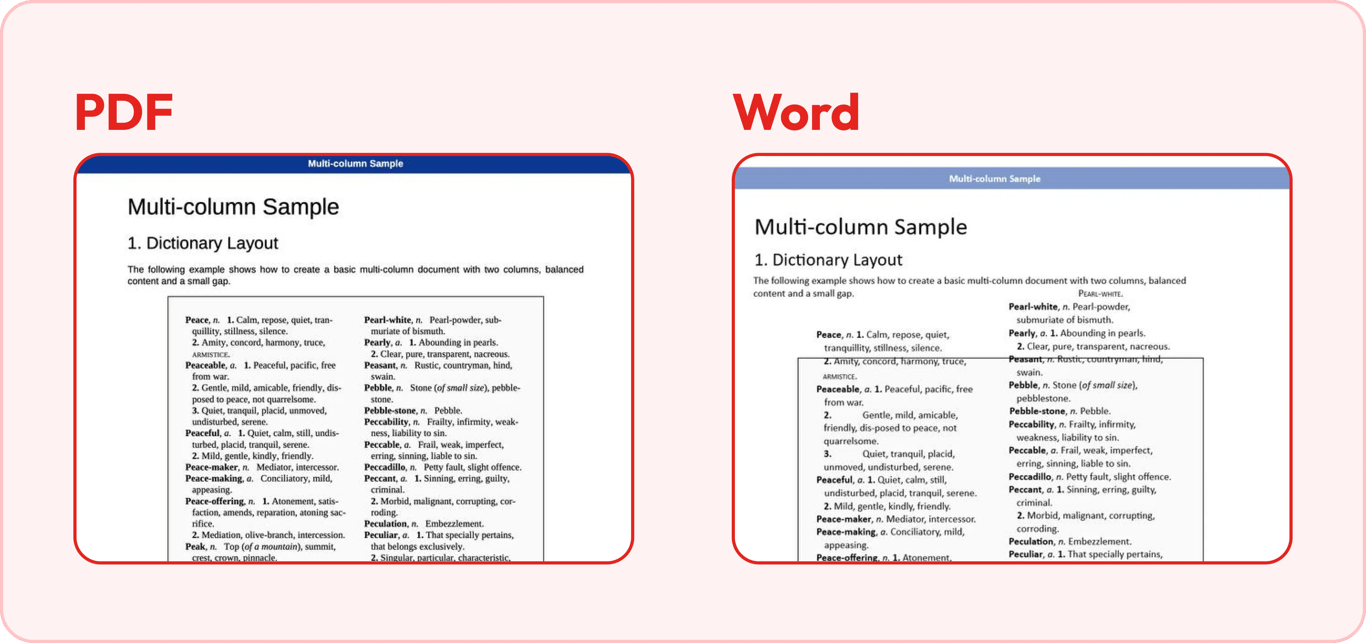
Columns, tables, and headers move
A multi-column layout often collapses into one long stream of text, tables spread out or split, and headers and footers slide into the body. The reason is the format itself. Microsoft's guide to opening PDFs in Word explains it: "PDF stores a table as a set of lines without any relationship to the content inside the table cells." Word has to guess which lines form a table and which words belong to which column.
So if you're looking for how to open a PDF in Word without losing formatting, there's no switch for it. The conversion has no settings to adjust, and Microsoft's own list of elements that don't convert well includes tables with cell spacing, page borders, footnotes that span more than one page, PDF bookmarks, and PDF comments.
Fonts get swapped
A PDF usually carries its embedded fonts inside the file. A Word document relies on the fonts installed on the computer. If the font in the PDF isn't installed, Word substitutes a similar one, and line lengths change.
Small differences add up. If the substitute runs 5% wider, a 60-character line now needs the width of 63, so the last few characters wrap, and a page that held 40 lines may push the last two onto the next page. Across a 12-page report, that's about 24 lines of drift, more than half a page. It shows most on letterheads, branded templates, and forms where text has to sit on a line.
Form fields and signatures disappear
Fillable form fields usually turn into plain text or disappear, rather than staying fields you can fill. A digital signature doesn't survive either. It certifies one specific PDF file, and the Word document is a new file, so there's nothing for the signature to verify. The signature's picture may still show on the page, but the cryptographic signature behind it is gone.
The practical rule: don't open signed documents in Word. Work with them as PDFs, and if a signed agreement needs changes, the changes have to be made and signed again.
Edit the PDF without opening it in Word
If the change is small, like a wrong figure in an invoice, an outdated line in a policy, or a missing sentence in a cover letter, the conversion creates more work than it saves. You'd convert the whole file, check every page for layout drift, and export it back to PDF, all to change one line.
It's simpler to edit the PDF online, directly in the browser. In the editor, Edit text lets you change existing words in place, and Add text places a new text box. Only the edited line changes; the rest of the page isn't rebuilt.
If the original font is only partly embedded in the PDF, new characters may come out in a substitute font, so look at the line you changed. When you're done, sign in to download the file, or have a download link emailed to you. Keep Word for the jobs that really need a Word document: rewriting long sections or reusing the content in a new file.
Convert the PDF to Word with PDFAid
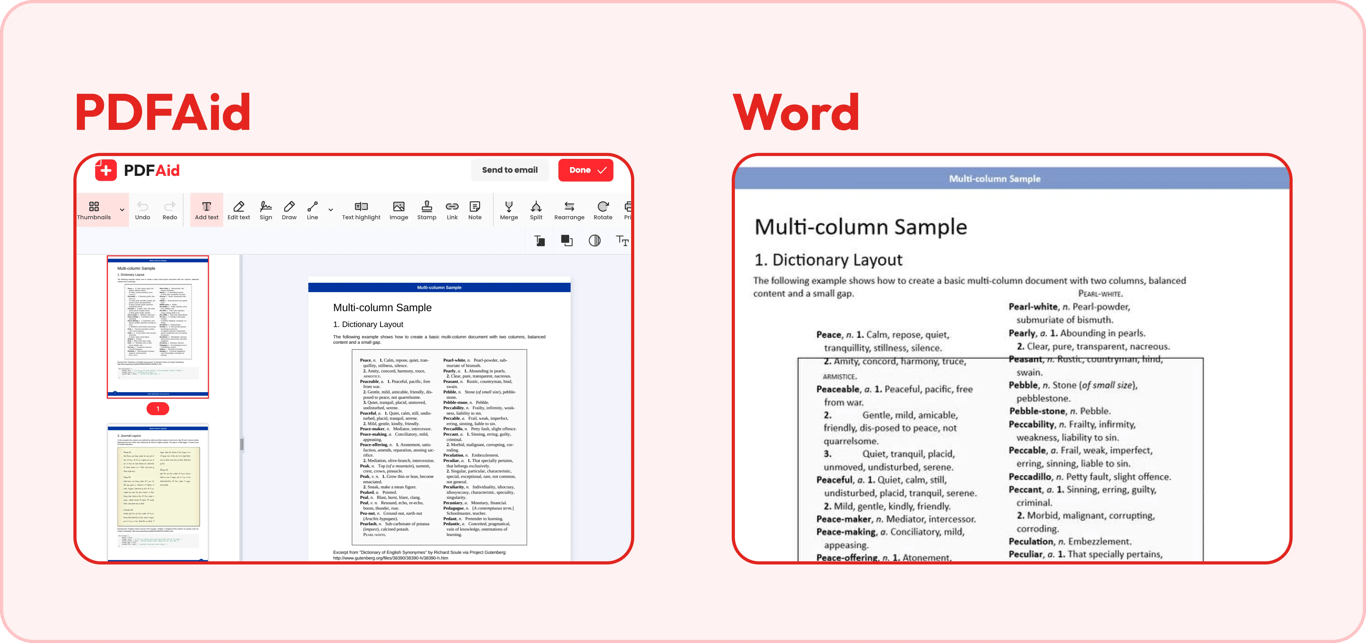
When you do need an editable Word document, a standalone converter is the alternative to Word's built-in conversion: convert to DOCX first, then open that file in Word. Word opens a .docx as its own format, so there's no conversion message and no second rebuild (if a yellow Protected View bar appears on a downloaded file, click Enable Editing). The PDF to Word converter works like this:
Step 1. Click Upload to convert and choose the PDF (up to 100 MB). It opens in the editor first: to fix a typo before converting, close the dialog, make the fix, then click Done to bring it back.
Step 2. In Convert PDF to, pick DOCX for current versions of Word or DOC for older ones, and name the file.
Step 3. Click Download, then choose the Conversion method: No OCR if the text is already selectable, or OCR (text recognition) for scans and photos. This is the step Word doesn't have.
Step 4. Click Continue, wait while the file is processed, then sign in with Google, Apple, or an email address to download it, or have a download link emailed to you.
There are downsides: the file has to be uploaded, you need an internet connection, and you need an account to download. Word's built-in conversion keeps everything on your computer. And no converter can promise a perfect copy of every layout, so check the converted document page by page against the original, the way you would with Word's version.
Your PDF | Mostly text: a letter, a contract, a memo |
|---|---|
Best approach | Open it in Word |
Why | Microsoft says conversion "works best with files that are mostly text" |
Your PDF | One small change needed |
|---|---|
Best approach | Edit the PDF directly |
Why | Only the edited line changes |
Your PDF | A scan or a photo of a page |
|---|---|
Best approach | Convert with OCR, or run OCR first |
Why | Word keeps a scan as a picture |
Your PDF | Columns, tables, images |
|---|---|
Best approach | Convert to DOCX, then compare page by page |
Why | Expect cleanup either way; check before you rely on it |
Your PDF | Digitally signed |
|---|---|
Best approach | Keep it a PDF |
Why | The signature can't move into a Word file |
Turning it back into a PDF
When the edits are done, you can always turn the Word document back into a PDF. In Word, open the file, go to File, then Save a Copy (or Save As if the file hasn't been saved yet), and choose PDF in the file type list.
Name it so it can't be mistaken for the original: not lease.pdf, which overwrites or gets confused with the file you started from, but lease_2026-10_signed-ready.pdf. Microsoft's instructions are in Save or convert to PDF. If you're on a computer without Word, the Word to PDF converter does the same in the browser.
One thing to keep in mind: the new PDF is made from the edited Word copy, not from the original. Anything the conversion lost on the way in, such as a fillable field or a digital signature, won't come back on the way out.
Conclusion: Word edits a copy, so check the copy
Opening a PDF in Word is a conversion, and every conversion is a guess about the layout. The result is good for plain text and unreliable for scans, columns, forms, and signed files.
Key takeaways
Word converts a copy of the PDF; the original file is never changed.
Run the select test first: if text won't highlight, it's most likely a scan, and Word will only give you a picture.
For a one-line fix, edit the PDF itself instead of converting it.
Keep signed PDFs and fillable forms as PDFs: a digital signature can't survive the trip into Word, and form fields rarely come back as fields.
Next time a PDF needs changes, try the select test on one line before you open Word. It takes two seconds and tells you which approach to take.
FAQ
Does opening a PDF in Word change the original file?
No. Word works with a copy of your file, so the original PDF stays exactly as it was, no matter what changes you make.
Why does my PDF look wrong after opening it in Word?
Word tries to turn the PDF’s fixed layout into something editable, and that process can distort complex formatting, fonts, and layout along the way. The more complex the original design, the more likely something shifts out of place.
Can Word open a scanned PDF?
Yes, but the text stays part of the image rather than becoming real, editable text. To make it selectable and editable, run it through our OCR tool first.
Which Word versions can open PDFs?
Microsoft Word 2013 and newer versions can open and edit PDF files directly, with no extra software needed.