Google Slides can't open a PDF, so to convert a PDF to Google Slides, you first turn it into a PowerPoint file or a set of images. The choice depends on one question: will you edit the text on the slides afterward? If yes, convert to PowerPoint. If the 12-page report must look exactly as designed, use images.
Below you'll find both methods step by step, how to add one PDF page to a finished deck, and what to fix after the conversion.
Why Google Slides will not open a PDF
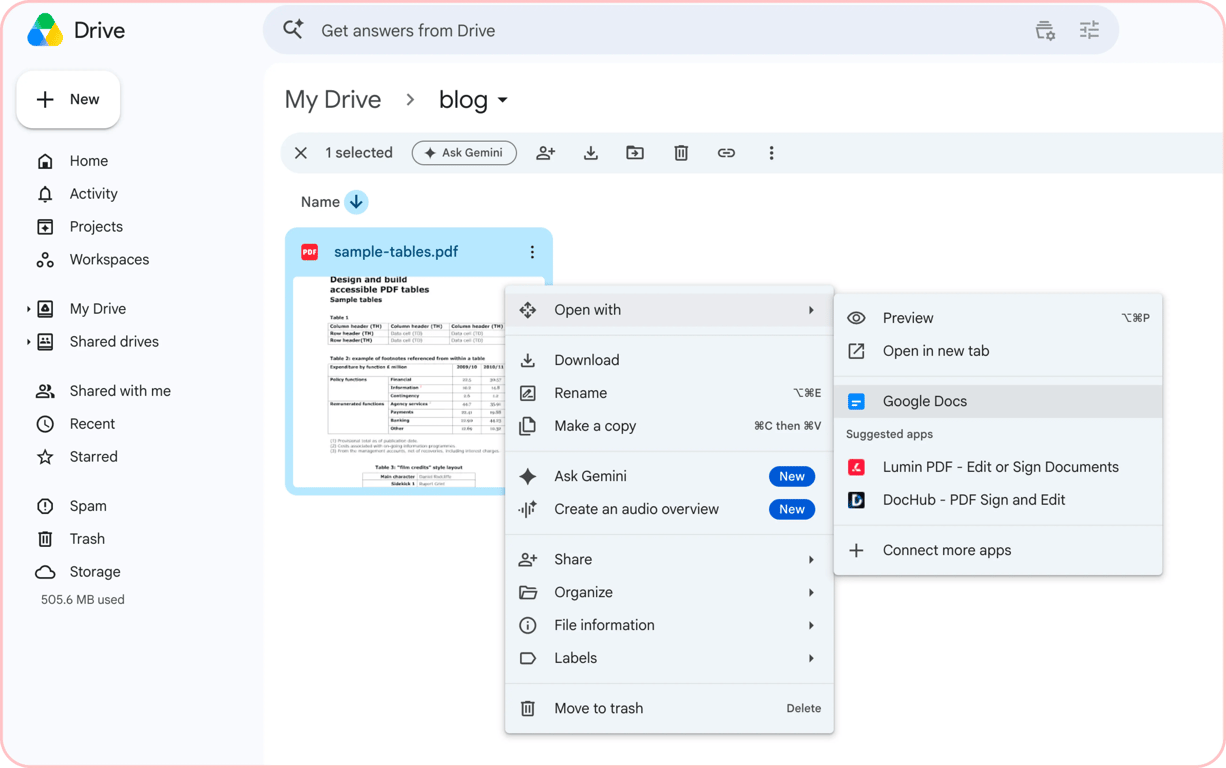
There's no direct way to open a PDF in Google Slides. In Google Drive, right-click a PDF and go to Open with: you'll see Google Docs, but not Google Slides. Docs can pull the text out of a PDF and turn it into an editable document, as Google's help page on converting PDFs explains, as long as the file is 2 MB or smaller.
Slides only opens presentation files, such as a Slides deck or a PowerPoint PPTX, and images placed on slides. So every working method changes the PDF into one of those.
How to convert a PDF to Google Slides
The two ways differ in what lands on each slide: text boxes you can retype, or a picture of the page. The converters run in a browser, so step 1 also works on an iPad or phone; the Slides steps are for a computer.
Convert the PDF to PowerPoint, then import it
This is the only method that gives you slides where the text stays text.
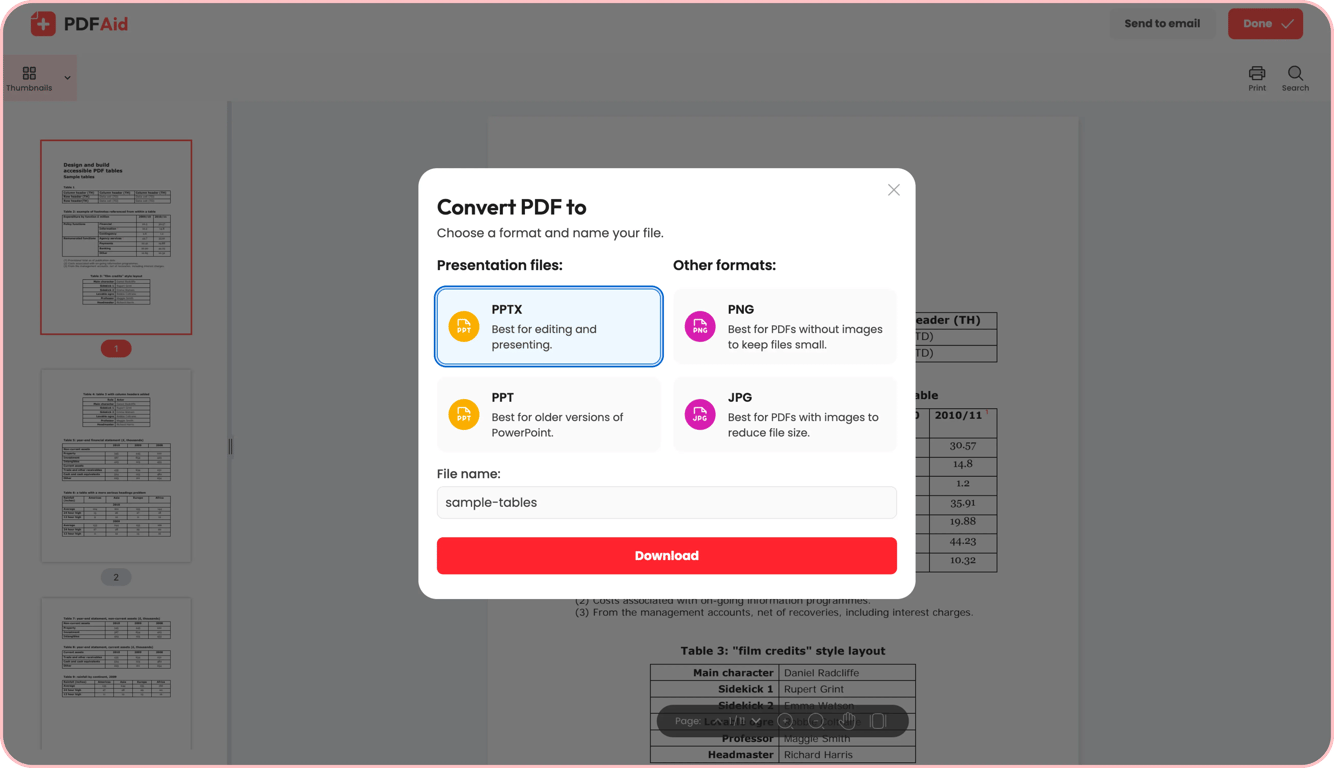
Step 1. Open PDF to PPTX and click Upload to convert. In the Convert PDF to dialog, keep PPTX selected, check the File name, and click Download.
Step 2. Open the presentation in Google Slides, either a blank one or the deck you're adding to, and click File > Import slides, as described in Google's guide to importing slides.
Step 3. Choose the option to upload a presentation from your computer, and select the PPTX file you just downloaded.
Step 4. Click the slides you want, or select all of them, and click Import slides. Check Keep original theme to bring the slides in unchanged; leave it unchecked to match the deck's theme.
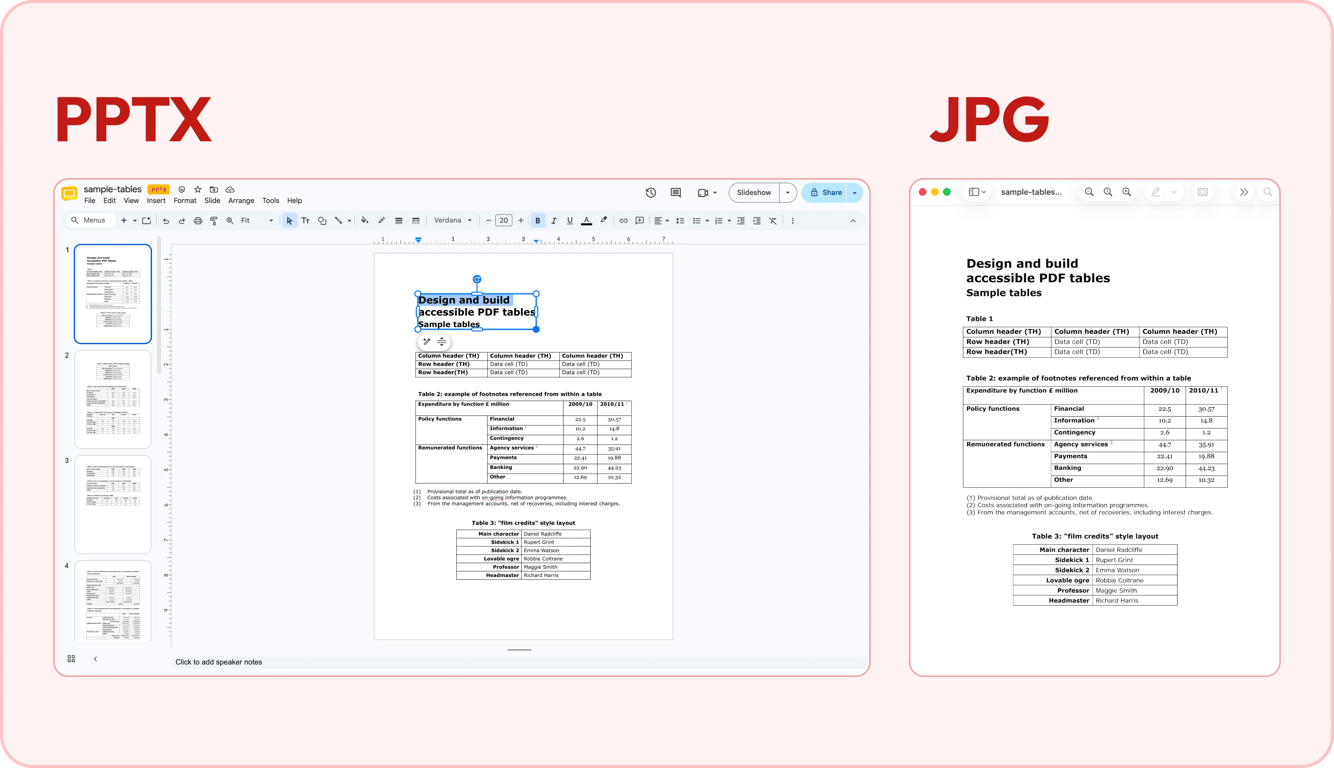
Text that stays text doesn't mean the layout stays the same. Expect to tidy some text boxes and fonts; the fixes are covered below.
Convert the PDF to images, then insert them
Use this method when a page has a complex layout, a diagram, or a scan, and it has to look exactly as it does in the PDF.
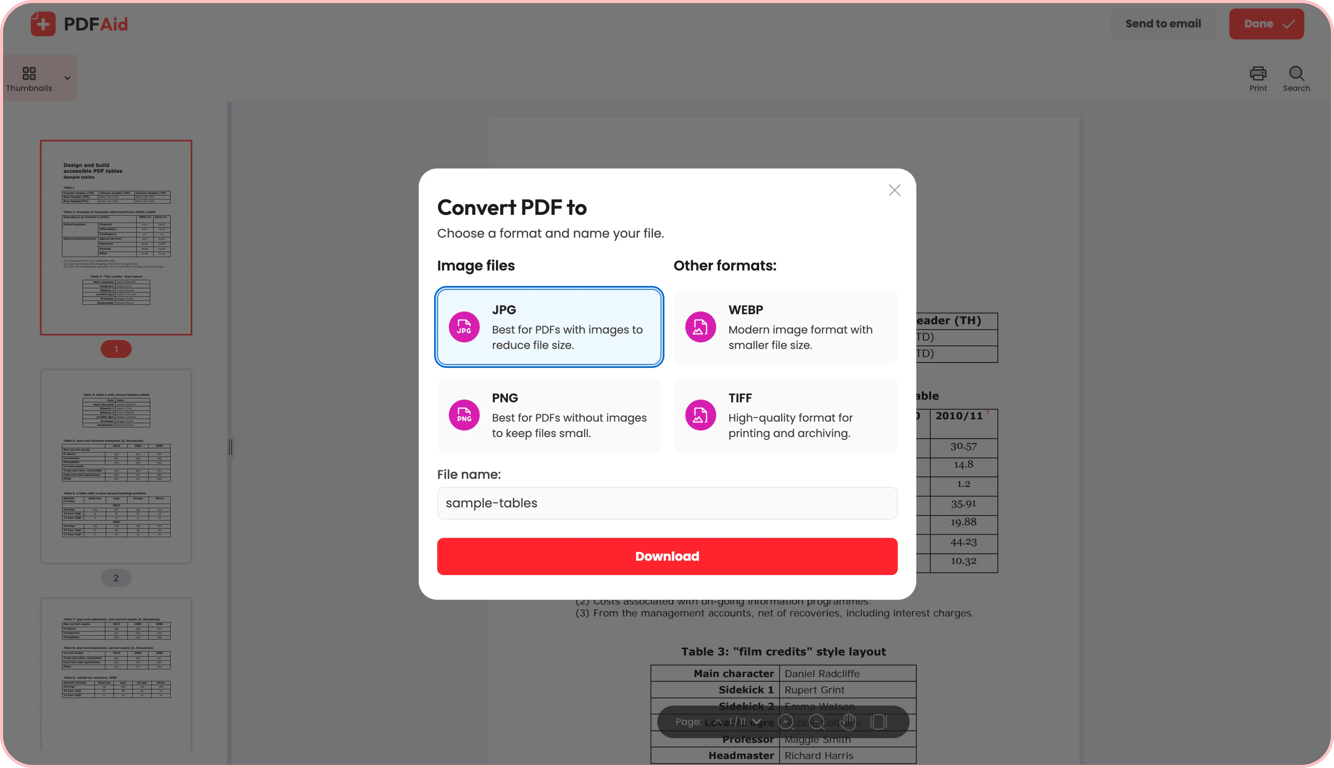
Step 1. Open PDF to JPG, click Upload to convert, keep JPG selected, and click Download. The pages download as a ZIP archive with one image per page; unzip it before the next step. Pick PNG instead for a page that's mostly text or a chart. Skip WEBP and TIFF: Google's help on slide backgrounds lists .gif, .jpg, or .png images under 50 MB.
Step 2. In Google Slides, click Insert > Image > Upload from computer and choose the image of the first page.
Step 3. Add a new slide and repeat, one page image per slide, resizing each one to fit.
Watch the aspect ratio. A portrait letter page fitted to the height of a 16:9 slide covers about 43% of its width (8.5/11 × 9/16 ≈ 0.43), so you get white space on both sides. A landscape page covers about 73%. To fill the slide, change the deck's size under File > Page setup: a landscape letter page fills about 97% of the width of a Standard (4:3) slide (11/8.5 × 3/4 ≈ 0.97). The setting changes every slide, so skip it when you're adding pages to an existing 16:9 deck.
The slide you get is a static image. You can't edit or search the text on it, and a typo in the PDF stays a typo on the slide. In presentation mode, though, it looks exactly like the page.
Which route to pick
Decide one thing first. If you'll change wording, update numbers, or reuse the content in your own slide deck, you need editable text. If the page is finished and only has to be shown, freeze it as an image.
What you need | Editing the text on the slide |
|---|---|
PowerPoint route | Text lands in text boxes you can retype, though some blocks need merging first |
Image route | Not possible, the slide is a flat picture |
What you need | Keeping the page exactly as designed |
|---|---|
PowerPoint route | The layout is rebuilt, so fonts and spacing can shift |
Image route | The page looks the way it did in the PDF |
What you need | Searching the deck for a word |
|---|---|
PowerPoint route | Works, because the slides hold real text |
Image route | Nothing to search |
What you need | Number of steps |
|---|---|
PowerPoint route | 4: convert, open Import slides, upload the PPTX, pick slides |
Image route | 3: convert, upload the images, place one per slide |
If you'll need to edit the text, use the PPTX method; if the page has to stay untouched, use images.
How to insert a PDF into a Google Slides presentation
Converting turns the whole PDF into slides. Sometimes the deck is already finished, and you only need to insert a PDF into Google Slides as one page or as a link to the full document.
Insert one page as an image
You can't upload a PDF to Google Slides directly, but you can upload a picture of one page. For one page of a 40-page report, convert the whole report with the PDF to JPG converter, as in the image method above. Every page comes out as a separate image, and the images download together in a ZIP archive. Unzip it, find the image of the page you need, and add it with Insert > Image.
Don't take a screenshot instead. Its resolution depends on your monitor and zoom level: a letter page fitted to a 1080-pixel-tall screen gets about 1,000 pixels for 11 inches of paper, roughly 90 pixels per inch. Small labels turn soft as soon as you crop to one chart or present on a 4K screen. A screenshot also often includes the viewer's toolbar or cuts off an edge of the page.
❌ A screenshot of the page at whatever resolution your screen and zoom level give it
✅ The page converted to JPG or PNG, with the whole page and nothing around it
Link to the full PDF from a slide
When the document is long, like a 60-page audit, put a link to it on the slide instead of the pages. Upload the PDF to Google Drive, click Share, and under General access choose Anyone with the link, then Copy link. Back in Slides, select the text you want to turn into a link, click Insert > Link, and paste it.
Anyone who has that link can open the file, and Google's sharing help notes they don't even need to sign in. For a contract or a payroll report, share it with named people instead.
❌ A payroll report set to Anyone with the link and linked from a deck you send to the whole department
✅ The same report shared with the five managers who need it, linked from their copy of the deck
What the conversion keeps and what it breaks
The PowerPoint method keeps the words, the images, and the order of the pages. Three things usually need attention after the import.
Text boxes land in the wrong places
A PDF doesn't store paragraphs. It stores the position of each character on the page. The converter has to rebuild the lines into text boxes, so a long paragraph can turn into five separate boxes, and two columns can get mixed together. Go through the slides and merge the broken blocks by hand before you edit the wording.
Fonts get substituted
A PDF usually carries its fonts inside the file. Google Slides doesn't; it uses the fonts in its own font menu. When the original font isn't there, Slides puts in the closest one, and the lines change width. Even a shift of a few pixels breaks the alignment of labels under a chart, so check every diagram slide.
A scanned PDF has no text to convert
If the PDF is made of photos or scans of pages, there's no text inside it, and the PowerPoint method gives you the same pictures as the image method. The PPTX converter has no text recognition setting, so run OCR on the scan first and convert the result. Check that the text can be selected, and compare names and numbers with the original; OCR can misread them. If the slides still show the scan as one picture, choose WORD in the OCR step and paste the recognized text into your slides instead.
How to include speaker notes in a Google Slides PDF
To make a PDF that keeps the notes, open the deck, click File > Print settings and preview, open the layout menu in the toolbar, which shows 1 slide without notes by default, and choose 1 slide with notes, as Google's printing help describes. Then click Download as PDF in the same toolbar.
How to save Google Slides as a PDF
The reverse direction takes one action: in Slides, click File > Download > PDF Document (.pdf). It's useful when you send a deck to people who don't have access to your Drive. If you work with a PowerPoint file instead, convert the PPTX to PDF in the browser.
Conclusion: decide what happens to the text first
Most problems with a PDF in Google Slides come from picking the method before deciding about the text. Editable slides need a cleanup pass; image slides can't be edited at all. Rebuilding slides by hand from copied text is a third option, but it's outside this guide.
Key takeaways
Text or picture: if the text will change, convert to PPTX and use Import slides; if the page is final, insert it as a JPG.
Cleanup pass: after a PPTX import, merge broken text boxes and check fonts on chart slides.
Image format: pick JPG or PNG in the converter; those are the formats Google lists for Slides images.
Scans and notes: OCR a scan before converting; to keep speaker notes in a PDF, print the deck with notes.
Start with the next deck you have to rebuild: decide whether its text will change, convert one page, and check the result in presentation mode before you convert the remaining pages.