When you get a PDF document, you often find that an important date, comment, or paragraph is missing. For example, a client sends back a signed contract. The date field is blank, and nobody can find the original Word file. Tracking down the source file to edit and re-export takes extra effort, which leaves many people wondering how to add text to a downloaded document without starting from scratch.
You do not need to convert your file into a Word document just to slip in a quick update. The easiest fix is to open an online PDF editor tool straight in your browser, add your words directly to the page, and save the updated version. That way, you finish the work and download the final document in seconds.
In this short tutorial, you can learn why an online editor is faster than desktop software for small fixes, and how to:
Upload your PDF to the editor
Add a new text box or edit existing text
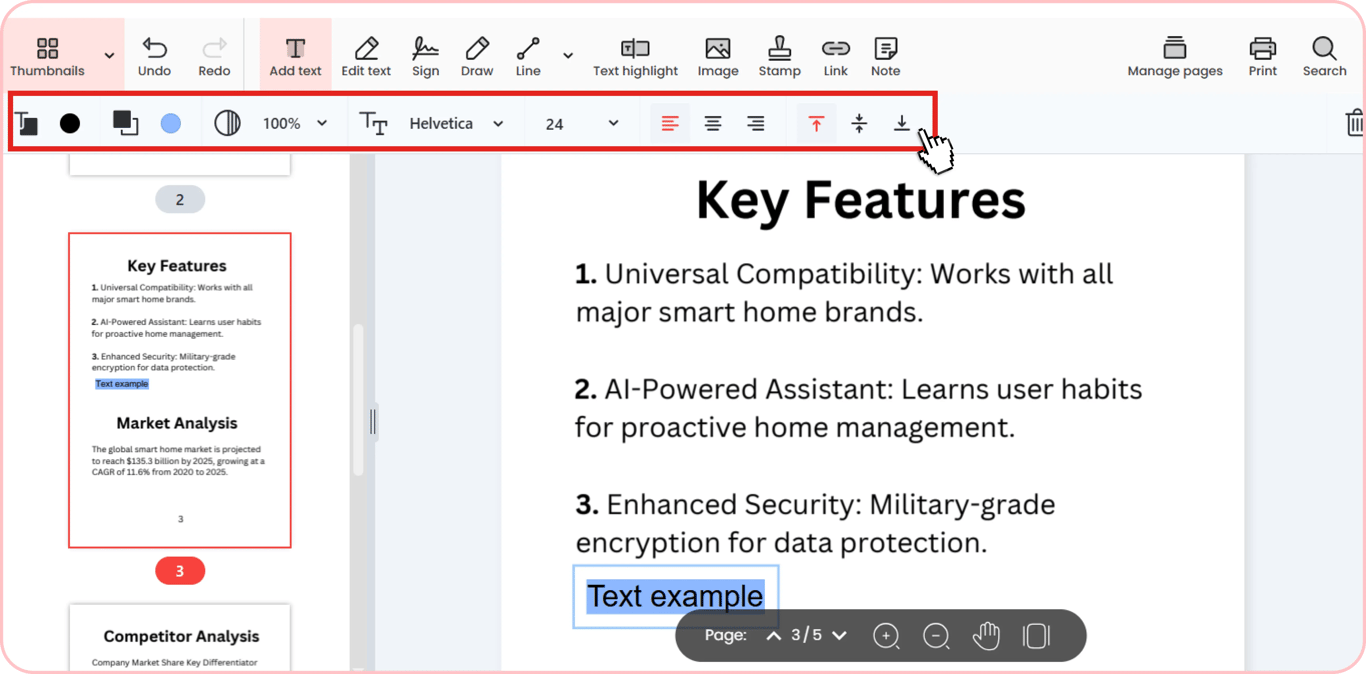
Type on the page, then style your text: adjust font, size, color, fill, opacity, and alignment
Paste text you've already written in another app.
Why choose an online PDF editor?
Most people only need to make a quick fix to a document, like adding a missing name or a date, or completing an official PDF form. Opening heavy desktop software for such a small update usually slows you down.
That's why it makes a lot more sense to use an online PDF editor. It works in your web browser, so you don't even need to download anything to use it on your laptop, phone, or tablet. The simple interface lets you quickly add text, pick your font settings, and adjust the layout. When you're done, you can either save the file right away on your device or send it straight to your email inbox.
Detailed steps to add text to a PDF
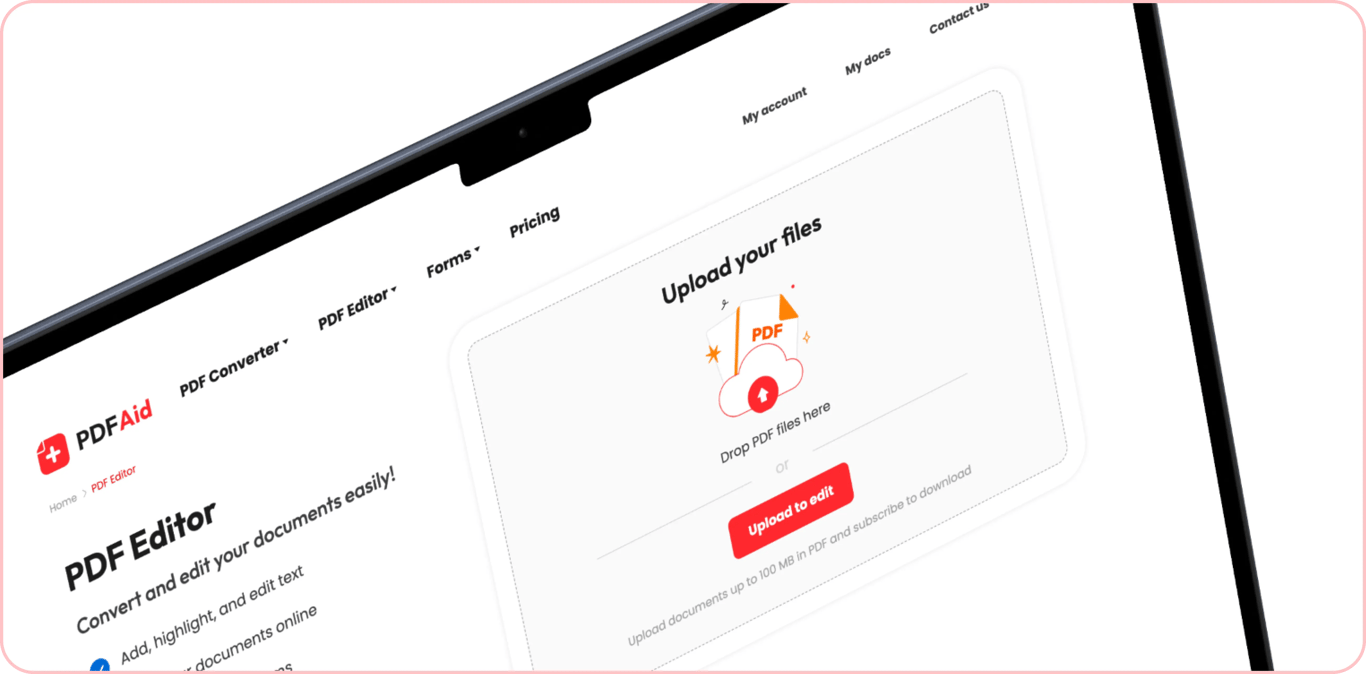
It’s easy to add text to a PDF, but you first need to upload your document to the editor. You can select a file from your computer or just drag and drop it into the Upload area. Once the PDF file loads on the screen, use the toolbar to type your new content, customize the text, and place it exactly where you need it.
How to add a text box to a PDF
Once you upload your file, the editor recognizes the existing text on the page. Click Edit text on the top toolbar to interact directly with existing text blocks and make changes to them.
If you want to add a text field to PDF documents from scratch, you have two quick options:
Click Add text in the main toolbar, then click anywhere on the page to insert a new box.
Select Edit text first, then click the small T+ icon in the formatting bar on the left.
After your new field appears, you can customize your text right away, so it blends in naturally with the rest of the document.

How to type on a PDF
When you need to write on a PDF, start by placing a text box in an empty spot on the page. As soon as you click inside that field, you can begin typing your content.
After entering your text, use the toolbar to style it to fit the layout:
Pick a font style and adjust the text size
Change the font color
Select a fill color for the box background
Tweak the opacity
Center your text to keep the block balanced
How to insert text in a PDF
Sometimes you already have your content ready in another app and just need to put text on a PDF without retyping everything by hand. You can copy the text from any source, like a browser tab, an email, or a note file. Next, either open an existing text block or make a new one right on the page. Click inside that field and paste your copied text. After the new words appear in the box, you can change the spacing or style right away.