Ubegrenset tilgang til alle våre verktøy


Hvordan fungerer det?
Sett inn tomme sider i 3 enkle trinn:
- 1
Last opp PDF-filen.
- 2
Legg til blanke sider der du trenger det.
- 3
Last ned den redigerte PDF-filen.
Sett inn tomme sider i en PDF med PDFAid. Velg hvor de nye sidene skal plasseres, og få en ferdig versjon av dokumentet med noen få klikk, uten å bruke ekstra tid på å reorganisere et allerede ferdigstilt dokument.
Slik legger du til sider i en PDF
Med verktøyet vårt kan du legge til en side i en PDF i tre trinn. Bruk en PDF-fil på opptil 100 MB.
Trinn 1: Last opp dokumentet
For å sette inn en side i en PDF kan du dra filen til opplastingsområdet eller velge den manuelt fra enheten.
Trinn 2: Velg hvor den nye siden skal plasseres
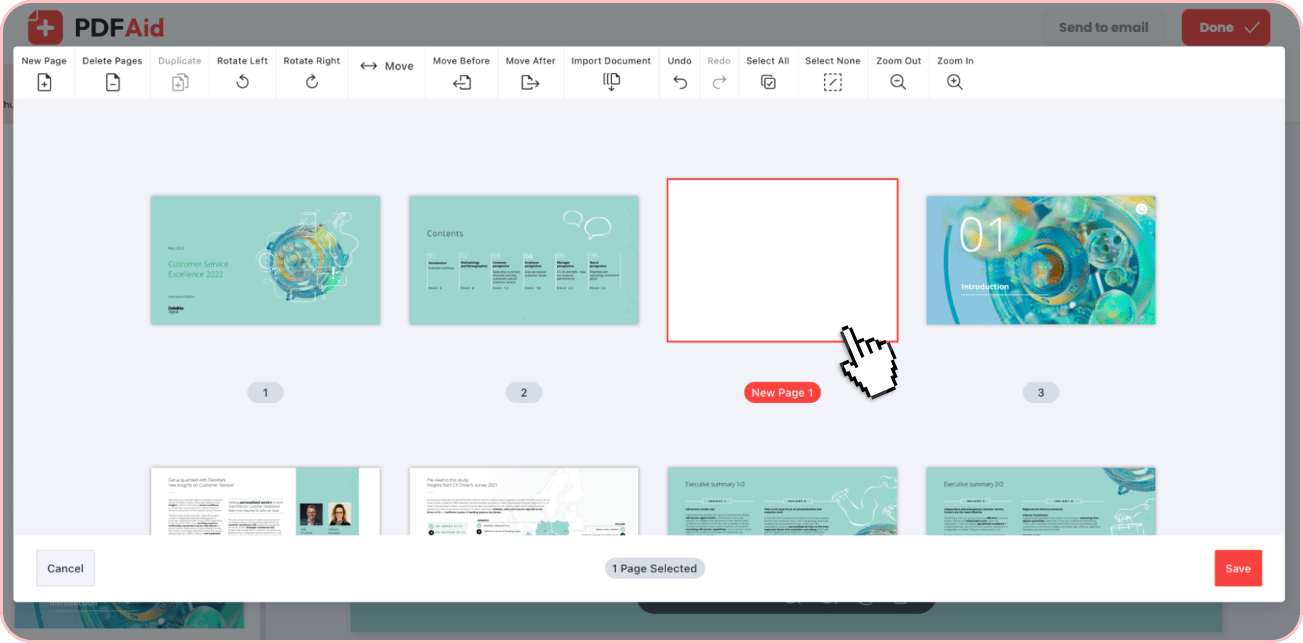
Når filen raskt er behandlet, åpner plattformen vår et vindu for sidehåndtering i PDF-redigeringsprogrammet vårt. Gå gjennom alle de eksisterende sidene, og velg siden den tomme siden skal plasseres etter. Klikk deretter på knappen Ny side øverst til venstre. Den tomme siden, merket Ny side, vises rett etter siden du nettopp valgte. Du kan flytte den til ulike plasseringer ved å bruke knappene Flytt før og Flytt etter. Klikk deretter på Lagre når du er klar.
Trinn 3: Lagre dokumentet
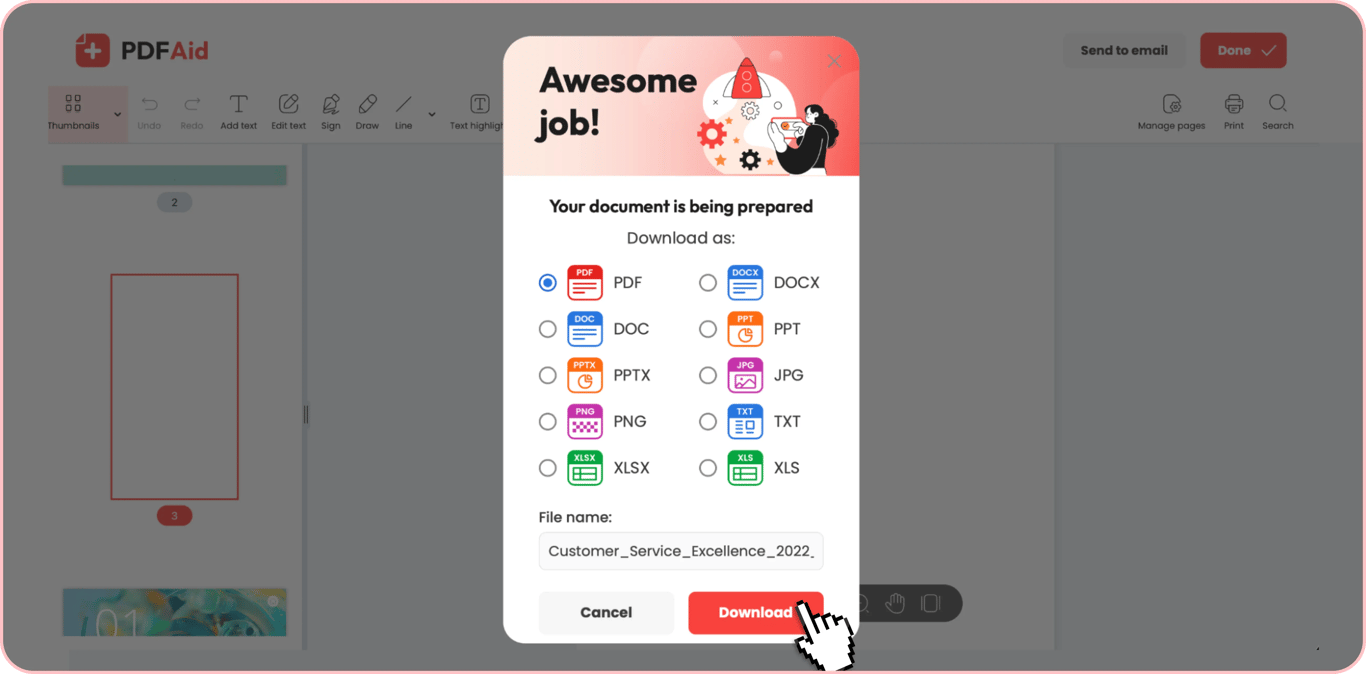
Etter at du har brukt funksjonen vår for å sette inn sider i PDF og lagret endringene, kan du bruke PDF-redigeringsprogrammet vårt til å fylle den nye siden med nødvendig innhold. Når du er klar, klikker du på Ferdig eller Send til e-post øverst til høyre og velger hvordan du vil eksportere filen. Du kan gi filen nytt navn og velge ett av de støttede formatene: PDF, DOCX, DOC, PPT, PPTX, JPG, PNG, TXT, XLSX eller XLS.
Vanlige bruksområder
Det er ofte nødvendig å legge til én eller flere nye sider når et eksisterende dokument mangler viktig informasjon eller må oppdateres. Med verktøyet vårt kan dette gjøres med noen få klikk, uten å reorganisere hele filen. Her er noen av de vanligste bruksområdene:
En kontrakt som mangler en vedleggsside
Hvis du har en kontrakt som allerede er ferdigstilt, og plutselig oppdager at den mangler en vedleggsside, vil det å omorganisere hele filen øke tiden det tar å ferdigstille dokumentet, samt sannsynligheten for flere feil. Med verktøyet for å legge til PDF-sider kan den manglende siden raskt legges til på riktig sted i filen, og sidenummereringen justeres automatisk.
En skilleside mellom deler av en lang rapport
Store rapporter med flere deler kan virke overveldende for interessenter. I slike tilfeller fungerer det å legge til en side i en PDF som et skille mellom selvstendige seksjoner. Dette bidrar til bedre lesbarhet og enklere fysisk håndtering av dokumentet.
En side for håndskrevet signatur
Når et dokument skal signeres for hånd, men det ikke er nok plass på siste side, er det en rask løsning å legge til en tom side i en PDF med verktøyet vårt. Det gir ekstra plass til signatur(er) og gjør dokumentet klart til signering umiddelbart.
Dokumentet beholder den opprinnelige kvaliteten
Noen dokumenter, særlig de som inneholder bilder eller har en spesialisert layout og design, krever nøye redigering som ikke påvirker kvaliteten på den endelige versjonen. Med verktøyet for å sette inn sider trenger du ikke å bekymre deg for dette. Når redigeringsprogrammet brukes til å legge til en ny side, endres ikke dokumentets layout, farger eller oppløsning – du får en fil med de samme bildene, skriftene og andre elementene, men med én eller flere ekstra sider.
Legg til sider i en PDF på alle enheter
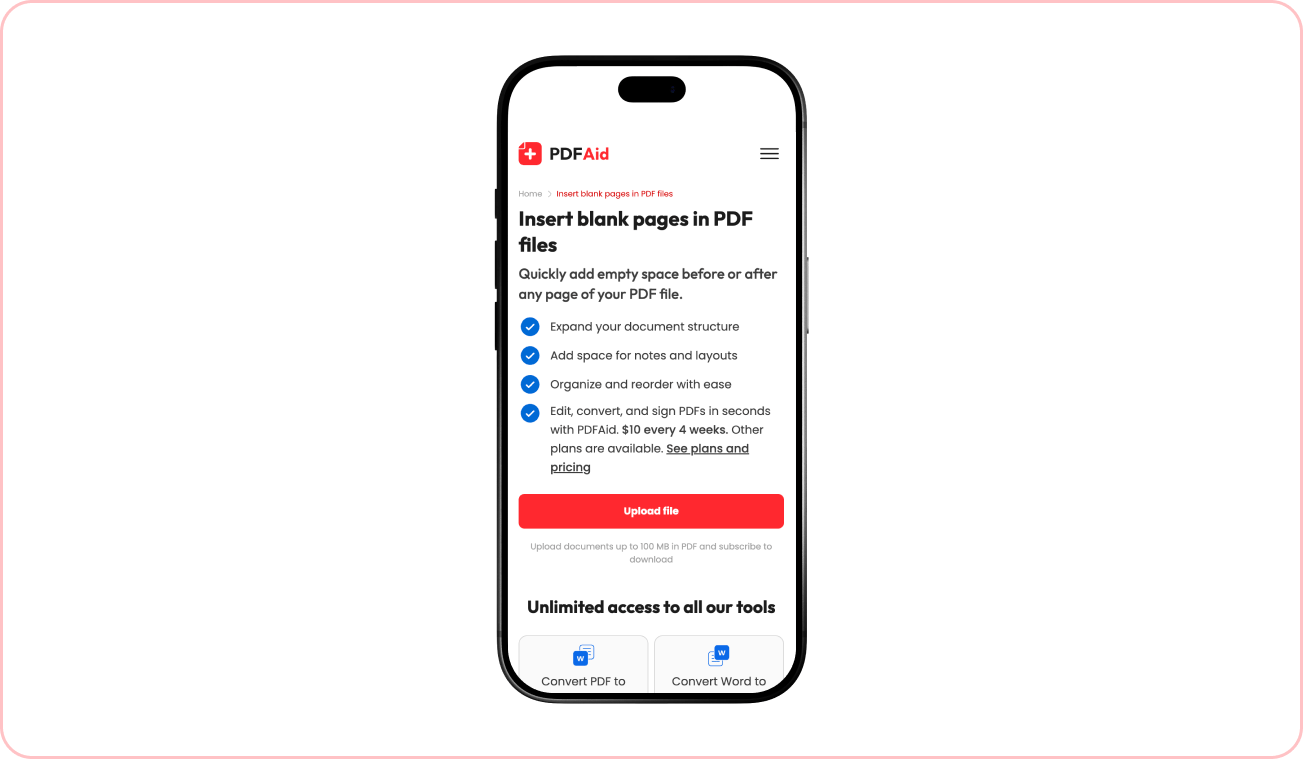
Plattformen vår er helt nettleserbasert. Uansett hvilket verktøy som skal brukes, kan det åpnes direkte i nettleseren, slik at arbeidet kan starte med en gang. Derfor fungerer alle verktøyene våre problemfritt på alle enheter. Bruk en datamaskin, et nettbrett eller en smarttelefon for å legge til sider i en PDF eller redigere filer. Det eneste som kreves, er en stabil Internett-tilkobling.
Filene dine forblir private og sikre
Det er ofte nødvendig å legge til nye sider i en eksisterende PDF-fil ved håndtering av sensitive dokumenter, som kontrakter, forretningsrapporter, avtaler og andre dokumenter. Disse dokumentene kan inneholde personopplysninger og interne bedriftsdata som ikke skal være tilgjengelige for tredjeparter. Når et tredjepartsverktøy brukes til å legge til sider i slike dokumenter, er det naturlig å være bekymret for sikkerheten. Med verktøyet vårt trenger du ikke å bekymre deg. Alle filer som lastes opp til plattformen vår, behandles sikkert. Tilgang til dem er bare mulig fra den personlige kontoen din.
Lignende verktøy
Med plattformen vår kan du legge til sider i PDF og gjøre mer. Her er seks andre verktøy for arbeid med det samme dokumentet:
Slett sider fra PDF: Fjern sidene du ikke trenger fra et eksisterende dokument.
Endre rekkefølge på sider: Endre rekkefølgen på sidene i filen for å gi den en logisk struktur.
Slå sammen PDF: Samle flere PDF-er i ett organisert dokument.
Del PDF: Del opp en stor PDF-fil i mindre dokumenter.
Ekstraher sider: Hent ut enkeltstående sider fra en eksisterende fil med noen få klikk.
Opprett PDF: Opprett nye PDF-er fra bunnen av, og rediger dem etter behov.
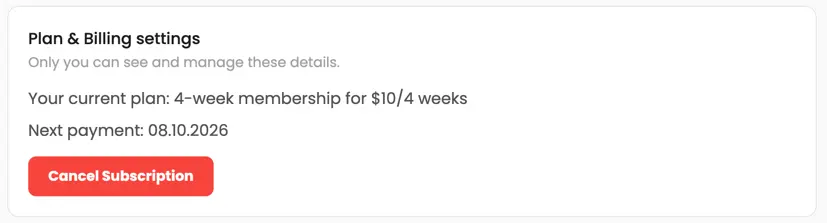 Vi beklager å høre at du ønsker å kansellere abonnementet ditt. Hvis du ikke lenger trenger tjenesten vår, kan du klikke på Kanseller abonnement i Medlemskap-fanen på kontoen din. Du kan også kontakte oss via live chat, på billing@pdfaid.com, eller ved å ringe +44 808 501 2541 for å få hjelp med å kansellere abonnementet ditt.