So, you know how to encrypt a PDF, but your method fails, and you're thinking, "I set the password, but it doesn't work…what should I do now?" Restricting access to the file and forbidding actions aren't the same. A PDF has two passwords, and the one that stops opening is the user (open) password. They serve different purposes, so this guide covers what each one protects, how to set them on Windows, Mac, and in Word, and how to send the file safely.
What PDF encryption actually protects
There are user and owner passwords, and you can set either or both. Below, you'll discover what each of them works best for.
User password vs owner password
To lock a PDF so that others can't open or edit it, keep the difference between the two in mind:
User password. Also called an open password, it locks the document from others, preventing anyone from seeing what's inside. The PDF remains encrypted, and no one can access it without the correct password.
Owner password. This one is also known as a permissions password. Apply it if the PDF should be available for reading, but you want to restrict editing, printing, or copying.
If anyone can still open your locked PDF, you most likely set only an owner password.
What each password actually blocks
Action | Open the file |
|---|---|
With a user password | Requires the password. |
With an owner password | You can open it without entering a password. |
Action | Read the text |
|---|---|
With a user password | You need a password to open and read the PDF. |
With an owner password | No password is required to view the contents. |
Action | |
|---|---|
With a user password | You can print the file after opening it. |
With an owner password | The PDF is protected from printing. |
Action | Copy text |
|---|---|
With a user password | This action is allowed once you enter the password. |
With an owner password | Restricted from copying. |
Action | Edit pages |
|---|---|
With a user password | You can make changes to a document. |
With an owner password | You can't edit it. |
Action | Fill a form |
|---|---|
With a user password | Filling forms is possible. |
With an owner password | The password doesn't allow the completion of forms. |
Action | Add comments |
|---|---|
With a user password | You can leave comments. |
With an owner password | The file is restricted from comments. |
When you need both
You can secure your PDF with both passwords to maintain control of your document. This way, only people with the open password can read it, and the viewer app will refuse to print or edit it. Remember that an owner password alone is a weak method of protecting information within the file, because its restrictions depend on the PDF software that applies them. If the content is private, make sure you add a user password.
Password protect a PDF on Windows
There are two ways to password protect a PDF file on Windows:
Use a desktop PDF editor. Windows has no built-in way to password-protect a PDF, and you need to download one.
Set a password in Microsoft Word. You can do that if you haven't converted your document to PDF yet. When saving it as a PDF, click File > Save As > choose PDF > Options... > tick "Encrypt the document with a password" > OK > enter the password twice.
People often forget this option, and it's quicker than opening a separate PDF editor.
Password protect a PDF on Mac with Preview
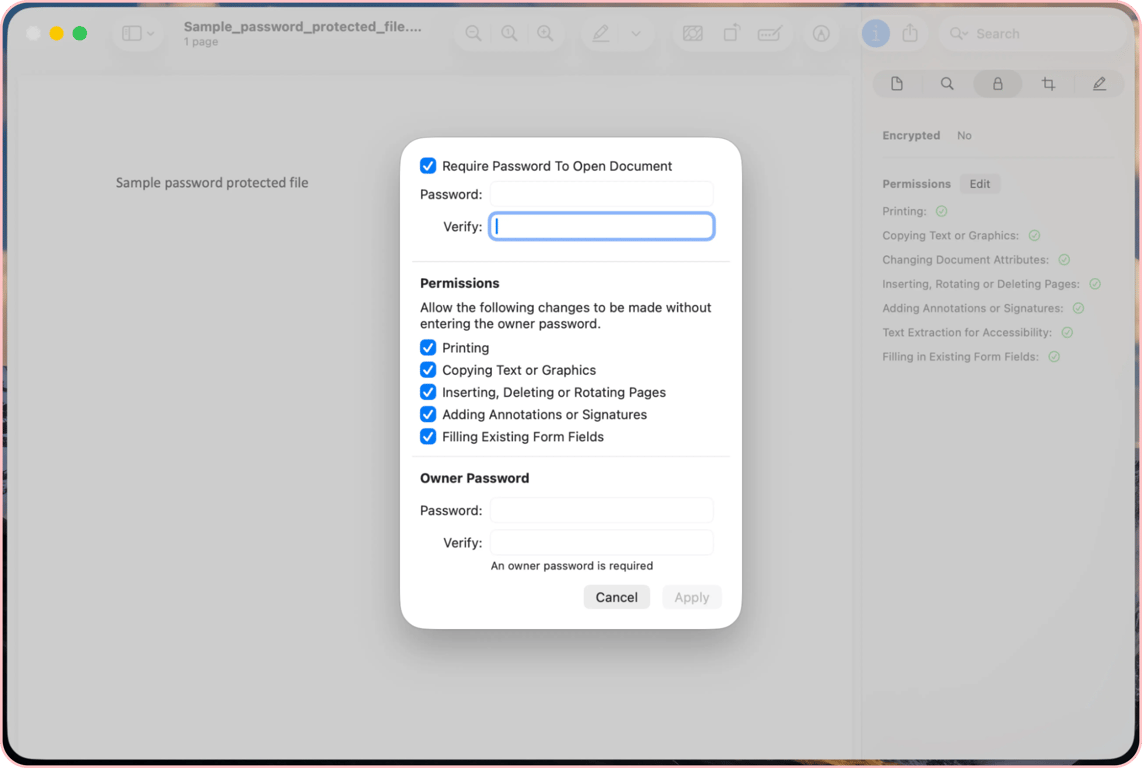
To password protect a PDF file on Mac, use the Preview app; nothing extra needs to be installed:
Step 1. Open your document.
Step 2. Choose File > Export….
Step 3. Click the Permissions button.
Step 4. Select Require Password To Open Document.
Step 5. Enter a password, then retype it to verify.
Step 6. Enter a password in the Owner Password section, then retype it to verify.
Step 7. Click Apply, then click Save.
There's an important detail to keep in mind: Preview only creates a new encrypted file, while the original remains unprotected. Store the first version separately and secure or delete it if you need it to be a private document.
Password protect a PDF from Word or Google Docs
Word and Google Docs handle this differently. In Word, you can set a password when exporting it to a PDF. This option isn't integrated into Google Docs, so you'll need to take an extra step. Download your file as a PDF, and then secure it with a password.
Choose a password that actually protects the document
Three things make the password worth setting:
Opt for a longer combination instead of special symbols. It's harder to guess a lengthy password than a short one packed with characters, so you can put together a few words or make a mix of letters, figures, and symbols.
Create an absolutely new password. Avoid using a combination you already have on your online accounts because if someone discovers it, they can apply it to your file, too.
Don't send the password in the same letter with the file. Keep it separate from your PDF and message it via a secure channel so that no one else who can access that email can open the PDF.
Word's PDF export uses 128-bit AES encryption by default, so you won't have to adjust settings to increase the protection level.
Send a protected PDF by email
Two habits keep a PDF you encrypt for email protected.
Share the password through a different channel
You can send a PDF to any recipient using our tool. Note that our tool works with unprotected files, so password-protected PDFs must be sent via your own email client. When you share your file by email, don't include the password, as it's equivalent to no protection. Send it separately in a message or call them to say it over the phone. Don't mention the name of a PDF if it contains sensitive information: the subject line isn't encrypted, so it appears in notification previews and to anyone with access to the mailbox.
Use a link instead of an attachment
If you're sending a large PDF or sensitive content, consider sending an expiring link instead of a file (Google Drive for Workspace accounts, OneDrive, or Dropbox share-link expiry settings). It's safer and more convenient because you can cancel access, and it won't be stored in someone's mailbox for ages.
What can go wrong
Even a correctly set password can cause three problems:
A recipient can't open the file. It happens because their PDF viewer is outdated and it doesn't handle modern encryption. Advise them to update the software or open the document in another, newer reader.
You forgot a password. When you password protect a PDF, remember that you won't be able to access it without the correct combination, and you can't recover it. To avoid this situation, keep it somewhere secure.
The file is too large to send via email. Encryption doesn't change the size. Compress the PDF first, then add the password. Encryption doesn't make the file smaller.
Remove the password when it’s no longer needed
When the document is no longer sensitive, remove the password; otherwise, you'll forget it and won't be able to open the file in a year or so. If you know it, you can unlock a PDF using our service straight in your browser. Remember that you may decrypt only your file or one with the owner's permission.
FAQ
Can I password protect a PDF for free?
Yes. You can add a password for free on a Mac or in Microsoft Word.
What is the difference between an open password and a permissions password?
An open password (also called a user password) controls who can open a PDF, while a permissions password (also called an owner or master password) controls what people can do with the file once it’s open, like printing or editing.
Can a password-protected PDF be opened without the password?
Not if it has an open password. Without it, the file won’t open.
Does password protection work on phones?
Yes. When you open a protected PDF on your phone, the viewer will ask for the password.
Can I protect a PDF in Google Docs?
No. Google Docs doesn’t have this option, so you’ll need to add a password as a separate step after downloading the file.