You can edit most of a PDF on a Mac with Preview: add text, sign, and reorder pages. The main thing it can't do is change the words already on the page, so the right tool depends on that job, not on which app is best. This guide covers how to edit a PDF on Mac and which option fits each task.
What Edit actually means on a Mac
Possible adjustments you can do to your PDF include the following:
Annotate the file by highlighting a passage, adding text above it, or drawing.
Rewrite the content that is already there.
Rearrange pages.
Add your signature to the document.
Preview handles only annotations, page reorganization, and signatures. To edit a PDF document on Mac beyond that, you need an additional tool for the text.
Edit a PDF in Preview
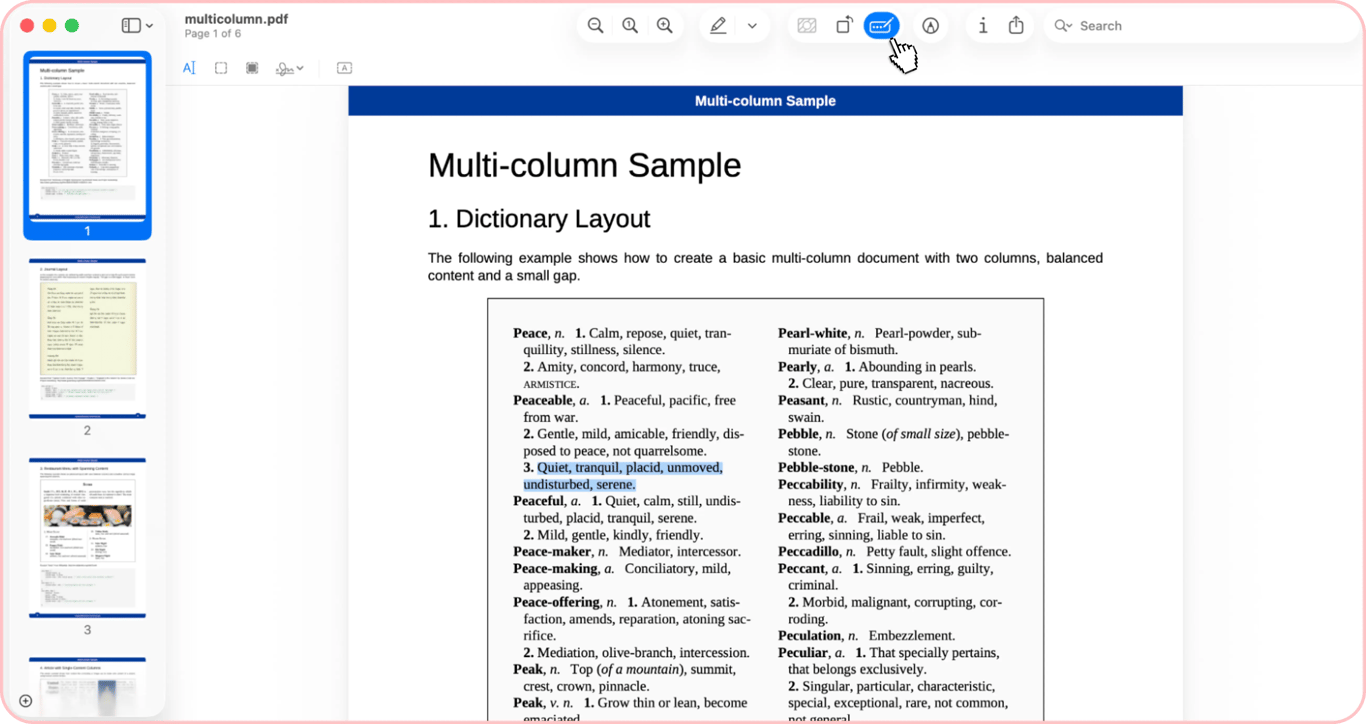
Preview lets you edit a PDF on Mac for free: it opens PDFs by default, and every tool sits behind the Show Markup Toolbar button. Preview automatically saves your changes to the live document, so make sure you edit a file’s copy if you need the original document to stay untouched or want a backup. You can create a copy just by clicking File > Duplicate.
Add text and annotate
Open the file in Preview, then click Show Markup Toolbar > Text, type your text, and drag the box where you want it. Use the same toolbar to customize font, color, and text size. The text box sits on top of the page as a separate object. You can move or delete it, but it won't merge into the paragraph below, so the line doesn't reflow. According to Apple’s guide on Preview, it also allows highlighting lines or separate phrases, striking through, and including notes, but if you need more options, use our online tool to highlight a passage or leave a comment.
Add a signature
If you sign a PDF with Preview, the app will save your signature so you can use it in any future document. There are three ways to create it: using your trackpad, showing your signature to the camera, or drawing on your iPhone. Once it's in the document, you can change the size and drag it with a mouse. As an online alternative to Preview, sign a document on Mac directly in your browser on our platform. If you need to complete the form first, use Fill & Sign to type into the fields and sign in one pass.
Reorder, rotate and delete pages
To reorder, rotate, or delete pages in Preview, choose View > Thumbnails. To select several pages, hold Command and click each thumbnail. When you delete a page from a PDF, all the annotations on the page are removed as well. Click the Rotate button to turn the page left (Option-click to turn it right), or choose Tools > Rotate Left (Command+L) or Rotate Right (Command+R). Adding part of another PDF is also possible. However, when you insert pages from another file, it's called merging, which is a separate topic.
What Preview cannot do
Although Preview can be really helpful, it still lacks a few important options. Since macOS Sonoma, Preview can add a text layer to a scanned PDF (File > Export > Embed Text), making the text selectable and searchable. However, the app doesn't let you change text in the document or edit text on a scanned page. Also, when you need to edit an image that is part of the page content, Preview isn't an option to rely on. For all three, you need a different tool: an online editor, OCR, or a converter, covered below.
How to edit a PDF file on Mac in your browser
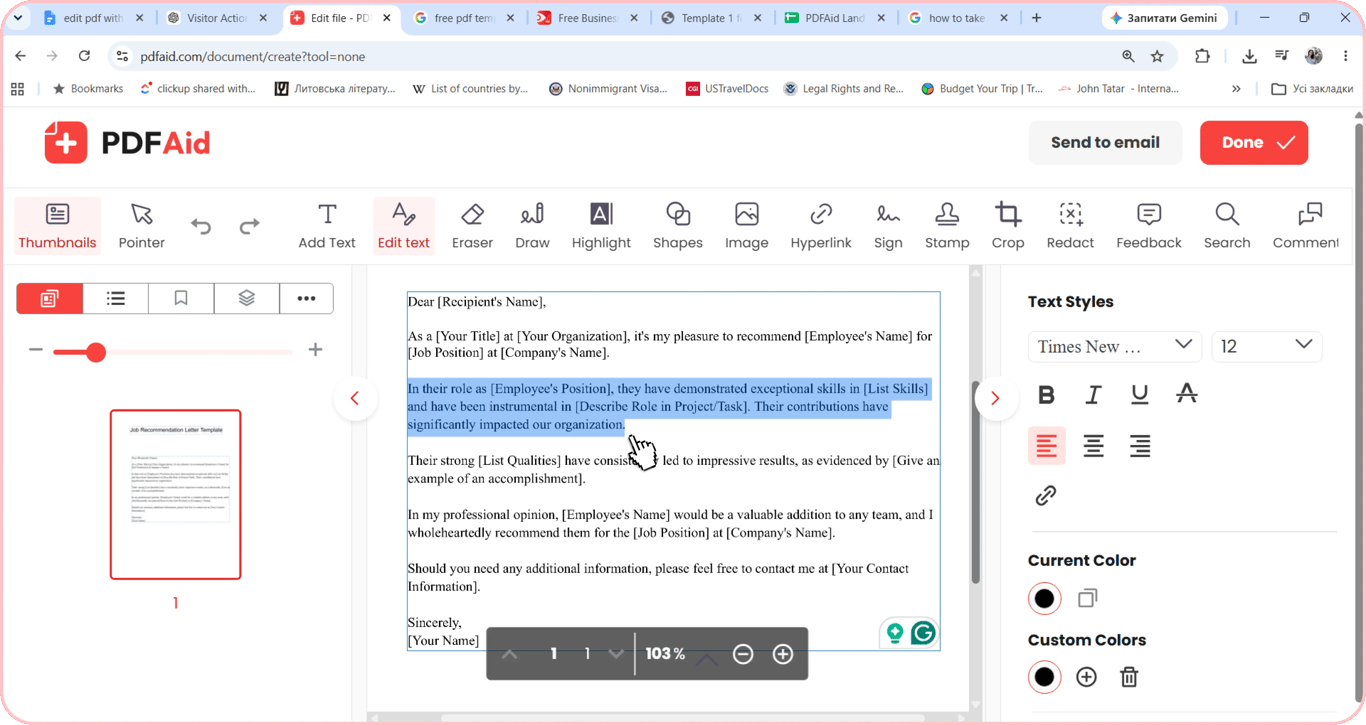
A browser is handier than Preview when you need a quick look, get the file by email, the Mac isn't yours, or you need options the app doesn't have. PDFAid doesn't require installation, so you can start editing on our platform immediately. Upload one PDF of up to 100 MB from Finder (including iCloud Drive), and it opens in the online PDF editor.
The toolbar includes Add Text, Edit text, Highlight, Sign, and Done labels. All changes appear as you edit. Click Done, choose PDF, name the file, then click Download to export the updated version back to your Mac.
Rewrite existing text on a Mac
Preview isn't enough if you need to rewrite a couple of sentences, change or remove the date, and delete words. There are two other ways to edit the existing text in a PDF on Mac:
Text editing tool. Once you change the document's original content by adding or removing phrases, the text in that block wraps to fit. Edit text in the PDFAid editor uses fonts that match when the original font is embedded in the file. If the original font is not embedded in the PDF, then no editor can reproduce it exactly. In this case, Edit text in PDFAid uses the closest similar font, so check the edited line.
Conversion to Word or Google Docs. This may be a fallback alternative if you don't have access to the editor. The method seems fast and comfortable, but it's risky if your file has complex formatting. When you convert a PDF, the process affects columns and tables, so it's necessary to check everything before saving. Google's help page on converting PDFs in Google Docs warns that lists, tables, columns, footnotes, and endnotes are not likely to be detected.
Edit a scanned PDF on Mac
If you can't select a word, the page is an image, and no text editor will change it until OCR runs. First, you'll need to run the file through an OCR converter, and then your text becomes selectable and searchable with Command+F. The quality of OCR recognition depends on the quality of the scanned PDF, so check numbers and other essential details. To change the words, open the file in an editor.
Edit a PDF that is password protected
First, check which kind of password-protected PDF you have. You'll understand what you can actually do. An open password completely locks it, so it's impossible to see what's inside unless you have the correct combination. If you can view the document but the editing option is disabled, it must be a permissions password that prevents any changes. Once you have the password, unlock the PDF to remove restrictions and make the necessary adjustments. Unlock protected files only if the owner allows you to modify them, or they are yours.
Which method to use: pick by task, not by app
Pick the editing method based on the kinds of changes you plan to make to your document, not the app type.
What you need to do | Add a text box over a page |
|---|---|
Preview | Yes |
PDFAid | Yes |
When each falls short | Preview changes the original file, so choose File > Duplicate first |
What you need to do | Rewrite the original line |
|---|---|
Preview | No |
PDFAid | Yes |
When each falls short | OCR is necessary if it's a scanned PDF |
What you need to do | Sign the document |
|---|---|
Preview | Yes |
PDFAid | Yes |
When each falls short | — |
What you need to do | Reorder or delete pages |
|---|---|
Preview | Yes |
PDFAid | Yes |
When each falls short | The Undo option isn't available in Preview after you close the window, but File > Revert To > Browse All Versions restores an earlier state |
What you need to do | Edit a scanned file |
|---|---|
Preview | No |
PDFAid | After OCR |
When each falls short | The quality depends on the scanned copy quality |
Edit a PDF you downloaded: what to check first
Before you edit a downloaded PDF on Mac, check three things:
Make sure it's a PDF, not another format with a renamed extension. You can do this by opening it in a PDF viewer. It may be damaged or use a file format that Preview doesn't recognize.
Try to select the text in your document. If your effort to pick the necessary line fails, it's a scanned PDF.
Check if the file has editing restrictions. To figure out if you're allowed to work with the content, use Tools > Show Inspector (Encryption tab), or File > Edit Permissions.
Troubleshooting
The text is impossible to select. Once it happens, it means that you have a scanned PDF with each page preserved as an image. Convert it to an editable version using the OCR tool.
The font changed after editing. If the original font isn't embedded in the PDF, use Edit text in PDFAid, which uses the closest similar font. Check the edited line and adjust the size if needed.
The PDF became significantly larger. After adding images or fonts, the file size may change, but you can compress your file if necessary.
Preview doesn't let you edit the document. If the Markup tools are greyed out, the file likely has an editing password. Remove the restrictions, then make your changes.
FAQ
Can I edit a PDF on a Mac for free?
Yes, with Preview, which lets you add text, highlights, and signatures. Preview can’t change the existing text, though. To edit it, use our online PDF Editor tool. You can also download your first document for free after a short wait.
Does macOS have a built-in PDF editor?
Yes. Preview comes preinstalled on every Mac.
Why can’t I edit the text in my PDF?
Your PDF is either a scan, so the text is part of an image, or it’s password-protected.
Will editing change the original file?
In Preview, yes. It saves your changes over the original, so make a copy first if you’d like to keep it. Our online editor creates a new file, so your original stays unchanged.
Can I edit a PDF on Mac without Preview?
Yes. You can edit it in your browser with our online PDF Editor tool.