You fed a 12-page contract through the scanner and got 12 files called Scan_0001 to Scan_0012. That is a setting. Switch the file format to PDF and turn on the option that keeps all pages in one file.
If your scan app doesn't have that option, scan as usual and merge the pages afterward. This guide covers merging, fixing the page order, and keeping the file size down.
Why your scanner saves each page separately
If your scanner acts like this with multi-page files, it's usually one of two settings, or an app that has no multi-page option at all. The selected output format can be an image instead of a PDF, or the scan profile is set to save each page independently. Changing these settings can help you resolve the issue without extra software.
Scan several pages with a document feeder
To scan several pages into one PDF with an automatic document feeder, stack the pages, choose PDF as the format, and start the scan. All pages are saved one by one in one file, in the order the feeder takes them. Two things to check before you scan several pages into one PDF:
Check which mode is on before starting. If you need to scan 10 one-sided pages while duplex scanning is enabled, you'll get 20 instead, with empty ones between those containing content. Many scanner apps have a blank-page removal option that skips these pages, so check for it before deleting pages by hand. Half of the document will be missing when you load double-sided sheets with simplex scanning mode enabled, and you may notice this after you share the file with someone else. If the feeder is simplex only, scan the fronts, flip the stack and scan the backs, then merge both files and drag the pages into order.
Remove paper clips and straighten bent corners. Unless your scanner has double-feed detection, a feeder can take two sheets. As a result, a PDF may be missing pages, which can go unnoticed. Make sure the file contains all the content by comparing it to the original stack.
Scan page by page on a flatbed
When using a flatbed scanner, you can also save multiple pages to a single PDF. All you need to do is follow the prompts that appear on the screen. Many scanner programs (Epson Scan, for example) ask after each page if you want to scan more pages. Continue, and you'll get a single file instead of multiple ones. However, if you finish too early and place another document on the scanner, the program will save it as a new digital copy.
Scan multiple pages on Windows
Windows has a Windows Scan app you can use to transfer physical documents into digital files. Open the program and choose your scanning device. Find the File type option on the main Scan page. If PDF is in the File type list, pick it; if your version only offers JPEG, PNG, TIFF, and Bitmap, scan them as images and merge them into a single PDF afterward. Don’t forget to turn on the feeder as well. Each pass is a separate file.
Scan multiple pages on Mac
There are two ways to scan multiple pages and save them as a single file on a Mac: Image Capture or System Settings > Printers & Scanners > Open Scanner. Select your scanner, click Show Details, set Format to PDF, and tick the option to combine the pages into a single document. If you don't do this, you'll eventually have many documents, even after saving them as PDFs.
When the scanner cannot do it: combine the files afterward
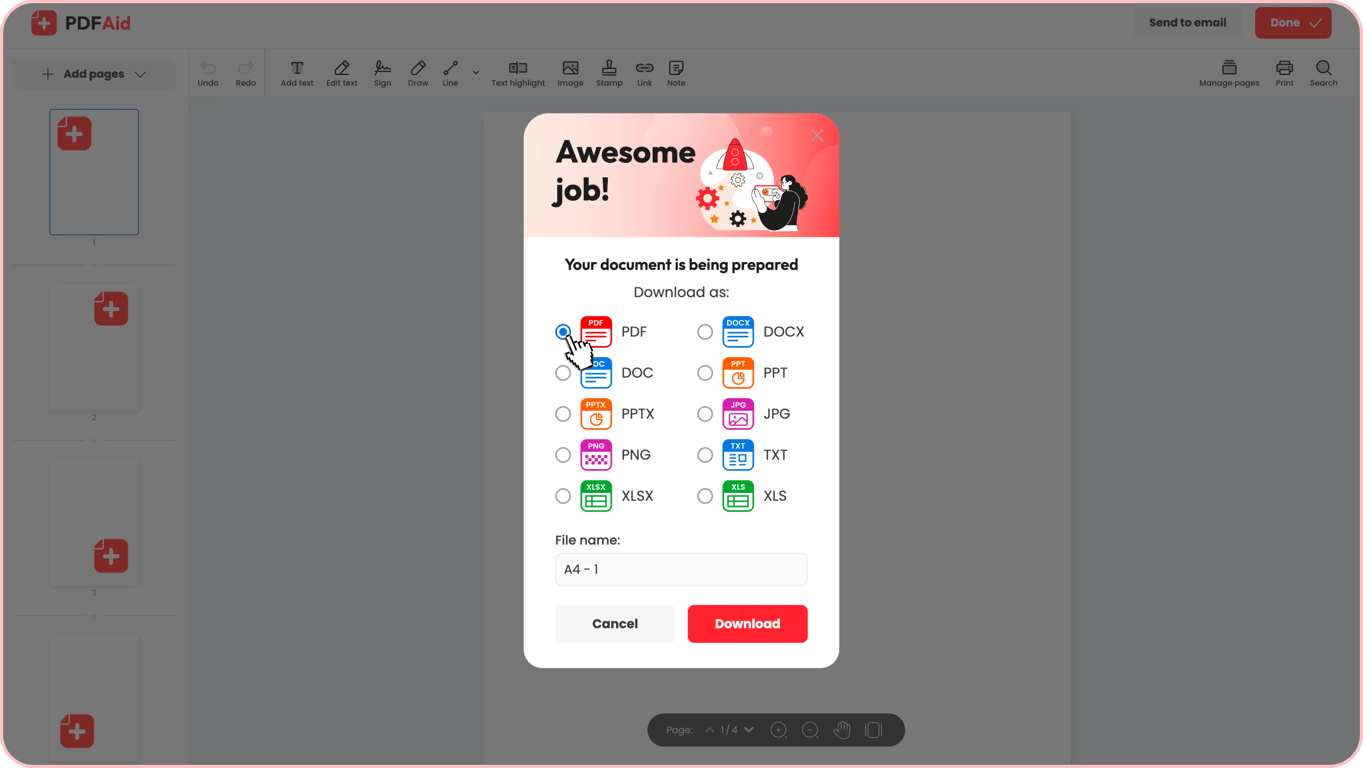
If a scan profile doesn't offer the option to save multiple pages as a single document, you can combine separate copies afterward. Once everything is on your device, merge your PDFs directly on our platform. The supported number of files is up to 12 PDFs, each up to 100 MB. Upload your PDFs, click 'Merge PDF', then reorder in 'Manage pages' in the editor. Once you finish adjustments, download the completed file. If your scanner saved JPG or PNG files, merge images into one PDF instead (the PDF merger takes PDFs only). It runs in your browser, so there is nothing to install.
Get the page order right
A damaged page order is a problem. Load the stack the wrong way up (check the icon on the feeder tray), and the PDF comes out last page first. If it happens to you, use our online workspace and make the necessary changes. Upload and reorder pages by dragging their thumbnails into the correct order. If you spot blank pages in your document, delete them and save the final PDF.
Make the scanned PDF searchable and lighter
Unless your scan software runs OCR, a scanned PDF is a stack of page images: Ctrl+F finds nothing. It is also large, which causes trouble when a portal or mailbox has an upload limit. This is when two important actions must take place: make the scan searchable with OCR and compress the PDF. We recommend scanning documents at 300 dpi. Setting the resolution too high (over 600 dpi) slows down OCR. Also, the best mode for OCR is grayscale scanning: the document won't be that large and will retain its readability.
Common scanning errors
These four errors can occur while you're scanning many pages, but there are easy methods to prevent or cope with them:
A feeder took two pages at a time, and one went missing from the file. Before scanning, make sure there are no paper clips and that pages don't have bent corners.
The pages look crooked on the screen. Slide the feeder guides against the paper edges and turn on the straighten (deskew) option in your scan app. Turn off auto-cropping only if it cuts off the edges.
The file size is hundreds of megabytes. The resolution is probably set to 600 dpi or higher, or the scan is in color, so set it to 300 dpi and scan in grayscale.
Scanning is interrupted halfway. Chances are there’s a paper jam or a stack over the tray capacity. Remove some sheets if the stack is over the tray capacity, clear the jam, or restart the scanner.
Which way to get one file
Your situation | Loose sheets of the same size |
|---|---|
Feeder | Yes |
Flatbed | Yes, page by page |
PDFAid | Not applicable |
Your situation | Different sized or bound pages |
|---|---|
Feeder | No |
Flatbed | Yes |
PDFAid | Not applicable |
Your situation | Scanner made separate files |
|---|---|
Feeder | No |
Flatbed | No |
PDFAid | Yes |
Your situation | You need to remove empty pages |
|---|---|
Feeder | Only if your scan software offers it |
Flatbed | No |
PDFAid | Yes |
Your situation | It's necessary to make text searchable |
|---|---|
Feeder | Only if your scan software offers OCR |
Flatbed | Only if your scan software offers OCR |
PDFAid | Yes |
FAQ
Why does my scanner create a separate file for each page?
Your scanner is most likely set to save scans as images, or it’s using a “file per page” profile. Switch the format to PDF and choose the option to combine pages into one file.
Can I add a page to a scan later?
Yes. You can insert new pages into the finished PDF at any time.
What resolution should I scan at?
For text documents, 300 dpi is usually enough. It keeps the text sharp without making the file too large.
Can I scan double-sided pages into one PDF?
Yes, if your scanner’s document feeder supports double-sided scanning. If it doesn’t, scan the front sides first, then the back sides, and combine them into one file.