An iPhone can do so much more than you think without an extra app. It can sign a document, add text, and reorder its pages with the built-in Markup tools and the Preview app. The main thing it can't do is change the words already on the page, so there's another way to edit a PDF on iPhone.
What you can and cannot edit on an iPhone
The Markup tools built into your iPhone let you add text on top of the page, draw, and sign. From the page thumbnails, you can also rotate, delete, insert, or move pages. These are the basic changes you can do with a PDF. To rewrite a phrase or paragraph, or to edit a scanned file, Markup won't help.
Edit a PDF with Markup in the Preview app
To edit a PDF on an iPhone, tap the Markup button (a pen tip in a circle) on the screen. The Preview app comes with iOS 26 and later; on older versions, open the PDF in Files and tap Markup.
Add text
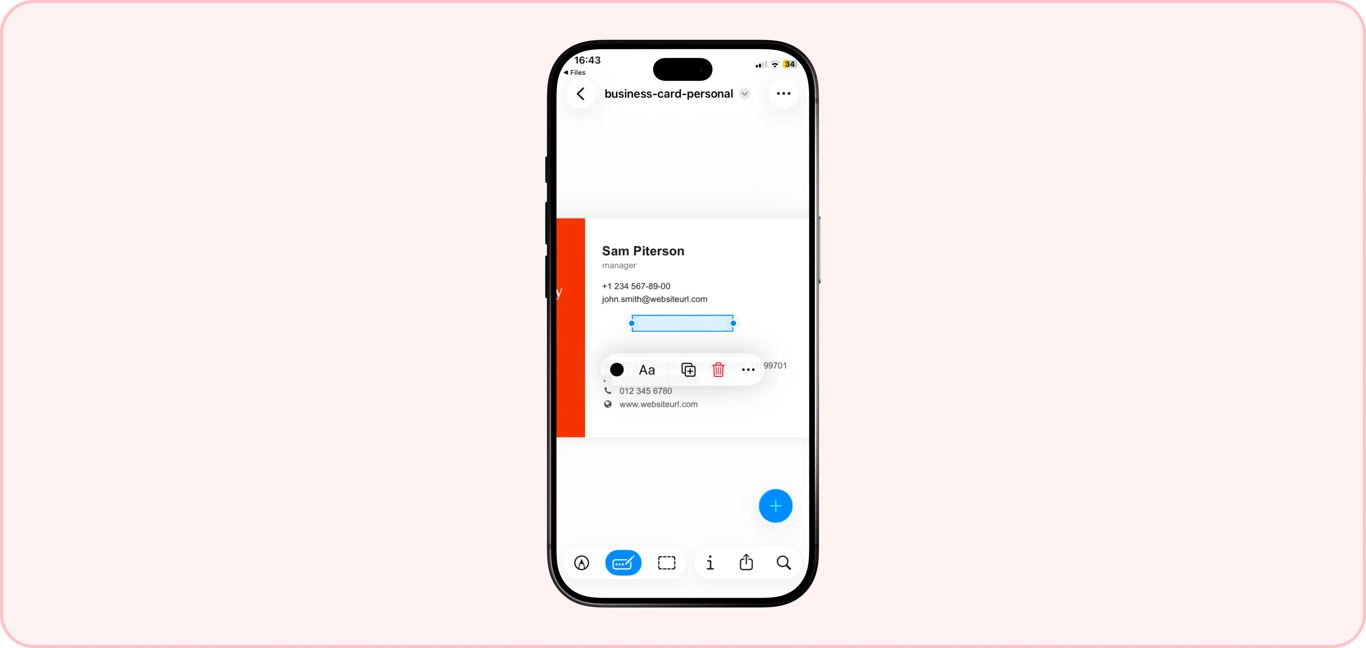
On your iPhone, tap Markup, the plus icon, and Add text to edit a PDF file. A text box you can drag will appear right there. If you prefer another color or size, make adjustments in the same toolbar. New details are added as new elements, and they aren't integrated into the existing content, appearing separately over the page.
Add a signature
After tapping the plus, select Add Signature instead of Text and sign the document with your finger. Markup saves your signature, and you can insert it in any other file with one tap. Drag the blue dots to resize it, then drag it into place. If the iPhone's functionality isn't enough for you, try our tool to sign PDF.
Annotate and highlight
Look for a marker, pencil, and eraser at the bottom of the Markup toolbar to mark the details worth attention or remove annotations. To highlight the text, touch and hold a word, drag the grab points, tap Highlight, then pick a color. Remember that working with scanned files is different. On a scan, you can't select the text, so use the marker to draw over it instead; the mark isn't tied to the text.
Markup saves changes to the original PDF: touch and hold the file in Files, then tap Duplicate to make a copy beforehand.
Mark up a PDF straight from Mail
You don't have to save the received attachment to your iPhone to edit it. Tap the PDF directly in the email and use Markup. Add the necessary text or make other adjustments, and that's all. Once you finish, you can reply to the email with the new version of the same file or send it using the Share Sheet. You skip saving the attachment, opening Files, and attaching it again.
How to edit a PDF on an iPad
On an iPad, the steps are the same as on an iPhone, with more room to work. An iPad has a larger screen that makes reading documents more comfortable, and you can mark details with the Apple Pencil more precisely. You can tile two windows side by side, for example, the PDF and the email or document you're copying details from. One feature is iPad-only: with an Apple Pencil, Scribble turns your handwriting in a text box into typed text.
Change existing text in a PDF on iPhone
Since Markup doesn't support the option allowing you to edit already existing content, use one of these two methods to handle your paperwork:
Work on your file in a browser-based tool through Safari. Upload your PDF from Files and edit PDF online using PDFAid. For a scanned PDF, use PDFAid's Scanned PDF to editable tool (OCR first, then edit). Select the line you want to change, make sure you're typing with the right font, switch colors if necessary, or try other instruments like Add text, Text highlight, or Image. When you finish, tap Done, then choose PDF.
Convert the PDF to Word. You can work with the content now, but when you convert documents, the formatting, including fonts, spacing, and other attributes, may change. It's more of an alternative method because you'll need to spend time restoring the file's original look.
Scan and combine pages in the Notes app
To turn a paper document into a single PDF, use the Notes app: it scans several pages in a row and saves them as a single file without requiring any additional programs. The tool lets you scan pages with a camera, which is convenient if you want to save information from books, for example. Then, work with the file in Markup and save it to the Files app as a PDF. If you need to join existing separate files, Merge PDF combines up to 12 PDFs in one go.
Which documents you'll actually edit on a phone
You'll mostly edit PDFs on your phone when a document can't wait until you're at a laptop. You can sign a contract on the go, while traveling or without access to a laptop, without delay. Another situation is receiving a document for review and wanting to highlight a paragraph. You may also need to add a reference number to a form.
When editing doesn't work
These recommendations will help you deal with some of the issues that can appear when you try to edit a document:
The Markup button is missing. The PDF is probably open in a viewer that doesn't support editing (for example, a messenger or browser preview). Open it in Files or Preview.
You can't select the text. It's a scanned PDF stored as an image, so it needs to be run through OCR (for example, with PDFAid's OCR PDF tool) to make the content searchable. On iOS 27, Preview can also add a text layer: Export > PDF > Embed Text.
Changes aren't preserved. If you opened the PDF in a read-only preview, your changes won’t save unless you use the Files app or another tool.
You have a password-protected document. Restrictions don't allow editing, so unlock PDF to remove them if you have the owner's permission.
Which way to edit on a phone
What you need | Add text on top of the page |
|---|---|
Markup | Yes |
Notes | Yes |
PDFAid in Safari | Yes |
What you need | Sign the document |
|---|---|
Markup | Yes |
Notes | Yes |
PDFAid in Safari | Yes |
What you need | Rewrite the existing line |
|---|---|
Markup | No |
Notes | No |
PDFAid in Safari | Yes |
What you need | Scan the document as a PDF |
|---|---|
Markup | No |
Notes | Yes |
PDFAid in Safari | No |
What you need | Keep the original file untouched |
|---|---|
Markup | No |
Notes | Not applicable |
PDFAid in Safari | Yes |
FAQ
Can I edit a PDF on iPhone for free?
Yes. Markup is built into your iPhone and iPad, so you can add text, drawings, and signatures without extra apps.
Can I change the existing text in a PDF on iPhone?
Not with the built-in tools. To edit existing text, open our PDF Editor tool in Safari.
Do I need an app to edit a PDF on an iPhone?
No. For basic edits, like adding text, drawings, or a signature, you can use Markup, which is built into your iPhone. To change existing text, add images, and more, use our tool, which works right in Safari.
Where are edited PDFs saved?
In the same folder in the Files app, replacing the original file.
Can I edit a scanned PDF on my iPhone?
Yes, but first you’ll need to recognize the text with the OCR tool. Once that’s done, the text can be edited.