There are three ways to sign a Word document, and each gives a different result: a picture of your signature, a drawing made in Word, or a digital signature with a certificate. The choice depends not on convenience but on whether the signature has to prove who signed. A cover letter needs only the picture; an NDA someone may later dispute is better signed with the certificate, because it shows who signed and that nothing changed.
Below are the steps for each method in Microsoft Word, what changes on a Mac and on a phone, and when it's easier to sign the file as a PDF.
Two different things people call a signature
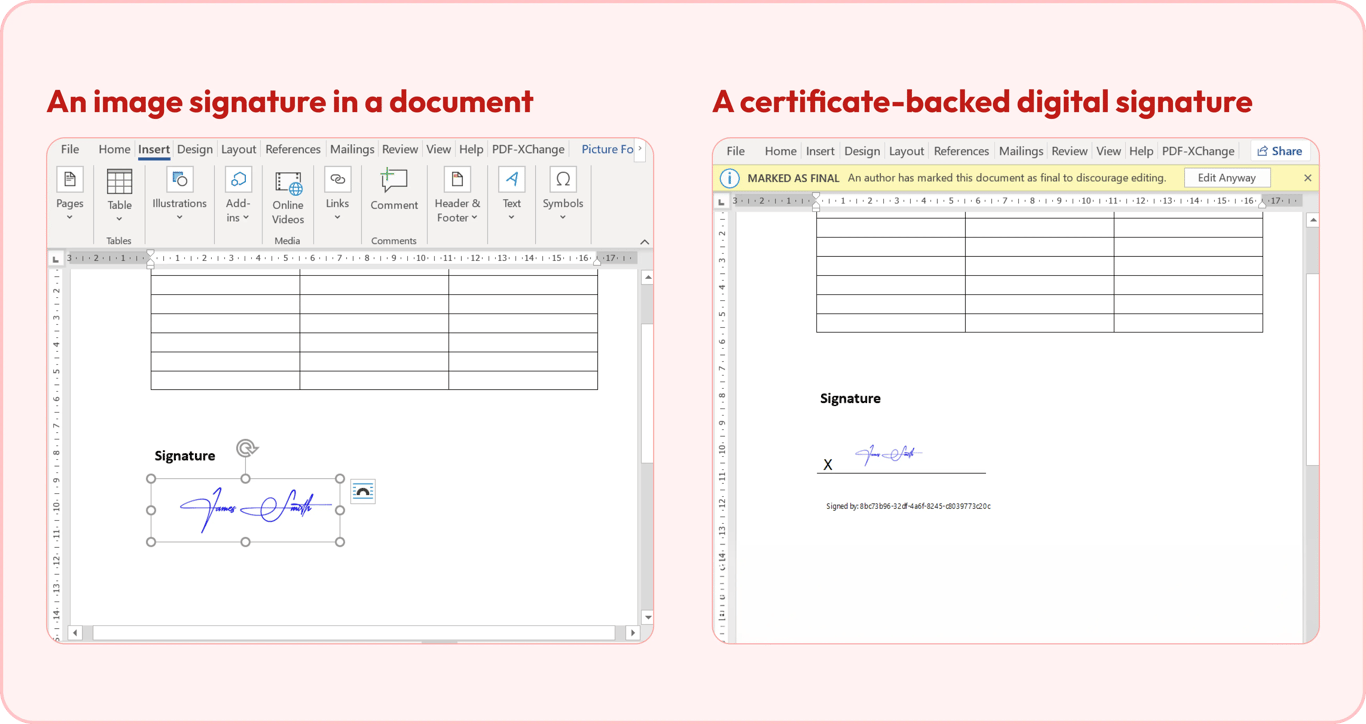
When people look up how to electronically sign a Word document, they usually mean an electronic signature, or e-sign for short: a picture of a handwritten signature or a typed name. It looks like a signature, but nothing in the file proves who put it there. Anyone who opens the Word doc can drag it to another spot or delete it.
A digital signature is an electronic signature backed by a certificate. To digitally sign a Word document, you need a certificate tied to your identity, and Word removes the signature or shows it as invalid if the file changes after you sign. For an internal memo, the first is enough; for a contract where someone could dispute who signed or what changed, use the second.
For most US business documents, both can count legally: under the ESIGN Act, a signature can't be denied legal effect "solely because it is in electronic form." Wills, family-law papers, and court filings are exceptions, and the other party or an agency can still ask for a specific method. The difference is what you can prove later.
Method | Picture of your signature |
|---|---|
What it adds to the page | An image anyone can move or delete |
Shows who signed | No |
Works on a Mac | Yes |
Method | Drawing on the Draw tab |
|---|---|
What it adds to the page | Ink strokes anyone can move or delete |
Shows who signed | No |
Works on a Mac | Yes, in Microsoft 365 and Office 2019 or later |
Method | Signature line |
|---|---|
What it adds to the page | A line with the signer's name, then a signature and a certificate |
Shows who signed | Yes, once signed |
Works on a Mac | No |
Method | Invisible digital signature |
|---|---|
What it adds to the page | Nothing on the page; a Signatures button in Word |
Shows who signed | Yes |
Works on a Mac | No |
Method | Signed PDF |
|---|---|
What it adds to the page | A drawn, typed, or image signature on the PDF page |
Shows who signed | No |
Works on a Mac | Yes, in a browser |
How to add a handwritten signature to a Word document
A handwritten signature in Word is still a picture or a drawing. Both ways to sign a signature in Word below, and the shortcut for reusing it, give you an electronic signature, not a certificate.
Insert a picture of your signature
This is the most common way to sign your name on a Word document.
Step 1. Sign your name with a dark pen on a blank sheet of white paper.
Step 2. Scan it or photograph it in even light. At 300 DPI, a signature 2.5 inches wide comes out 750 pixels wide, which prints sharply at full size.
Step 3. In Word, select Insert > Pictures, pick the file, and trim the edges with Picture Format > Crop.
Step 4. Select Picture Format > Color > Set Transparent Color, then click the white background around the signature.
A photo of a signature comes with a white rectangle around it, and on a colored letterhead, everyone can see it. Set Transparent Color clears only one color, so gray shading from a phone photo can stay. A PNG with a transparent background avoids the problem.
❌ A JPG phone photo with a gray-white box on a blue letterhead
✅ A PNG with a transparent background that sits cleanly on any color
Draw the signature right in Word
Step 1. Switch to Print Layout; you can draw only in that view.
Step 2. Open the Draw tab. On a touchscreen, it's on by default; otherwise, turn it on in File > Options > Customize Ribbon.
Step 3. Pick a pen and sign with your finger or a stylus.
This works well on a tablet or a touchscreen laptop. With a mouse, a smooth signature is close to impossible. On a MacBook, Microsoft suggests drawing on the trackpad with your finger instead.
Save the signature for reuse
Step 1. Select the inserted signature together with your typed name and job title.
Step 2. Go to Insert > Quick Parts > Save Selection to Quick Part Gallery, name the block, and set Gallery to AutoText.
Step 3. Next time, Insert > Quick Parts > AutoText adds the whole block without searching for the image file again.
On a Mac, use Insert > AutoText > New.
How to add a signature line
A signature line isn't really for signing yourself. It shows another person where to sign, with their name and title printed under the line.
Step 1. Click where the line should go.
Step 2. Select Insert > Signature Line > Microsoft Office Signature Line. In newer Microsoft 365 versions, the button can read Add a Signature Line.
Step 3. In Signature Setup, fill in Suggested signer and Suggested signer's title, then select OK.
Step 4. The signer double-clicks the line, types a name or picks an image, and selects Sign.
Signing the line also adds a digital signature, so the signer needs a certificate. The printed name is typed by the document's author, so check the certificate in the Signatures pane, not the name.
Word for Mac doesn't have this command. Signature lines and certificate signatures are Windows features: Microsoft's Mac instructions for signing cover only the picture, and the US General Services Administration warns that Office for Mac may have no option for a digital signature. On a Mac, use a picture, the Draw tab, or a PDF.
How to add an invisible digital signature
An invisible digital signature adds nothing to the page. Instead, Word shows a Signatures button, records that the file is signed and unchanged since, and makes it read-only. You need a signing certificate first; without one, Word has nothing to sign with.
Step 1. Select File > Info > Protect Document > Add a Digital Signature.
Step 2. Choose a Commitment Type, such as "created and approved this document."
Step 3. Check that the Signing as field shows your certificate, then select Sign.
If you need to know how to digitally sign a Word document with CAC, the steps are the same: in US government work, the certificate often sits on a smart card such as a CAC card, and once the card is in the reader, Word lists it like any other certificate, and Windows asks for the card's PIN when you sign.
Follow the finish-then-sign rule. According to GSA's Word signing playbook, editing a signed document makes Word remove the digital signature.
❌ Sign, then fix a typo, and the signature is gone
✅ Fix everything, save under the final file name, then sign
How to sign a Word document on iPhone or Android
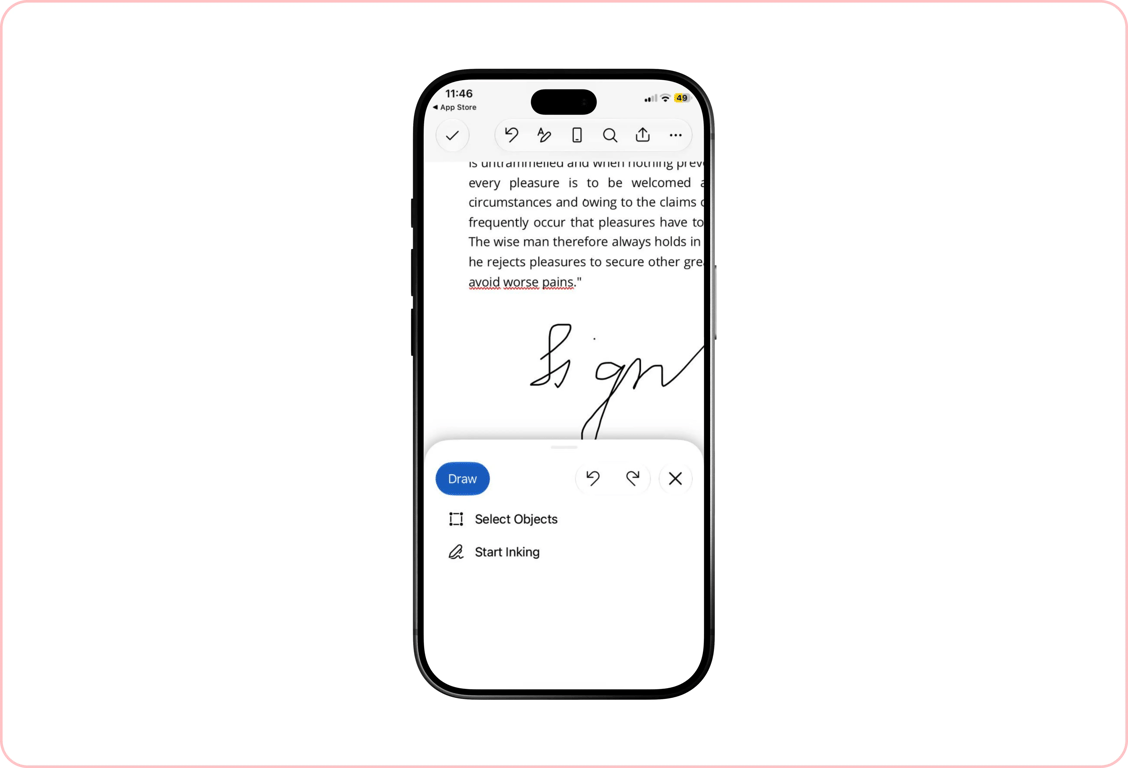
The Word app on a phone has the Draw tab, so you can sign with your finger: open the document, go to Draw, pick a pen, and sign on the line. What the app doesn't have is the Signature Line command or certificate signatures. Microsoft documents both only for the desktop app.
As on a computer, the ink stays a separate object that the next person can move or delete.
To sign a Word document on Android or an iPhone and send it back as a finished page, the shorter option is to convert it to a PDF in your phone's browser, then open the PDF in our signing tool, choose Sign (on a phone, it's under the arrow at the right end of the toolbar), and draw on the Draw tab with your finger. The next section has the links. A finger on a touchscreen gives a better signature than a mouse does.
Sign the document as a PDF instead
You can sign a Word document without printing it, signing it by hand, and scanning it back in: the signature goes into the file itself.
First, save the document as a PDF. On a computer, Word can do it with File > Save a Copy, with PDF as the format. On an iPhone, the Word app can export a PDF too (File > Export > PDF). On Android, or anywhere without Word, use our Word to PDF converter: select Upload to convert, keep PDF selected, and select Convert.
Then sign the PDF by drawing your signature, uploading an image of it, or typing your name, or choose Someone else needs to sign to send it to the other person. If the document also has blanks such as a date or an address, fill in the form and sign it in one pass.
This is more reliable than a picture in Word, where the signature can shift when the text around it moves. A PDF doesn't reflow, so the layout looks the same on most computers and the signature stays next to its line.
What can go wrong
Here are four common problems and what to do about each:
The signature moves when someone else opens the file. The cause is text wrapping: the picture's position depends on the text around it, and that text can reflow in another version of Word. Set the picture to In Line with Text so it moves with its line; if the document isn't meant to be edited, send a PDF.
A white box shows around the signature. Use Set Transparent Color or a PNG with a transparent background, as described in the picture method above.
Add a Digital Signature won't sign. Word has no certificate to sign with. Get one from your organization or a certificate authority; on a Mac, the command isn't available.
You can't edit the document after signing. That's by design: a digitally signed document is read-only. To change it, remove the signature, make the edit, and sign again.
Conclusion: Choose the signature by what it has to prove
If the signature only has to look right, as on a cover letter, a transparent PNG saved as AutoText is ready every time. If it may be disputed, finish the document and sign it with a certificate in Word for Windows. If the reader just needs a signed page, send a PDF.
Key takeaways
A picture or a drawing is an electronic signature: it looks like one, but anyone can move or delete it.
Only a certificate-backed digital signature shows who signed and whether the file changed, and it needs Word for Windows plus a certificate.
The finish-then-sign rule saves rework, because any edit after a digital signature removes it.
On a Mac or a phone, signing a PDF copy is the shortest way to a signed page.
Start with one signature: sign a sheet of white paper once, save it as a transparent PNG, and store it in Quick Parts before your next letter goes out.
FAQ
Is a picture of my signature legally binding?
It depends on the document and where it’s used. Some agreements accept a signature image, while others require a digital signature linked to a verified identity. If you’re unsure, check the requirements for your document before signing.
How do I send a Word doc for someone else to sign?
Add a signature line in Word and send the file, or save it as a PDF and use our Sign tool to send it to someone else for signing.
Can I sign an NDA or a cover letter the same way?
Yes. The signing steps are the same for any type of document.
Can I remove a signature after signing?
Yes. Once you remove the signature, the document becomes editable again.