Your iPhone already has a document scanner. It's in the Notes app and the Files app, and both save a multi-page PDF. Good light and a tight crop matter more than the iPhone model.
The scanner finds the page edges, then lets you perform other actions, such as adjusting the corners and applying filters. In Notes, the PDF stays inside the note; in Files, it becomes a separate file. You can save several pages as one PDF.
This article covers each way to scan a document to PDF on an iPhone.
Scan a document with the Notes app
The quickest way to scan to PDF on an iPhone is with the Notes app.
The following steps are for iOS 26 and later:
Step 1. Tap the paperclip (Attachments) button.
Step 2. Select Scan Documents.
Step 3. Hold the page in view. In Auto mode, the iPhone captures it automatically; place the next sheet down to scan more pages.
Step 4. Press Done when you've captured every page. The scan is added to the note as a PDF.
Your iPhone will automatically find the edges and scan the copy. If it takes a picture too early, switch auto capture to manual mode and control the process yourself.
Scan from the Files app
The Files app offers another method if you don't want to create a new note on your phone and need to do everything quickly:
Step 1. Open the menu by tapping the three dots.
Step 2. Select Scan Documents.
Step 3. Point the camera at the page. In Auto mode, it captures by itself.
Step 4. Tap Done, choose a folder, and tap Save.
The final file will be saved directly to the chosen folder as a PDF, unlike Notes, which stores the scan within a note.
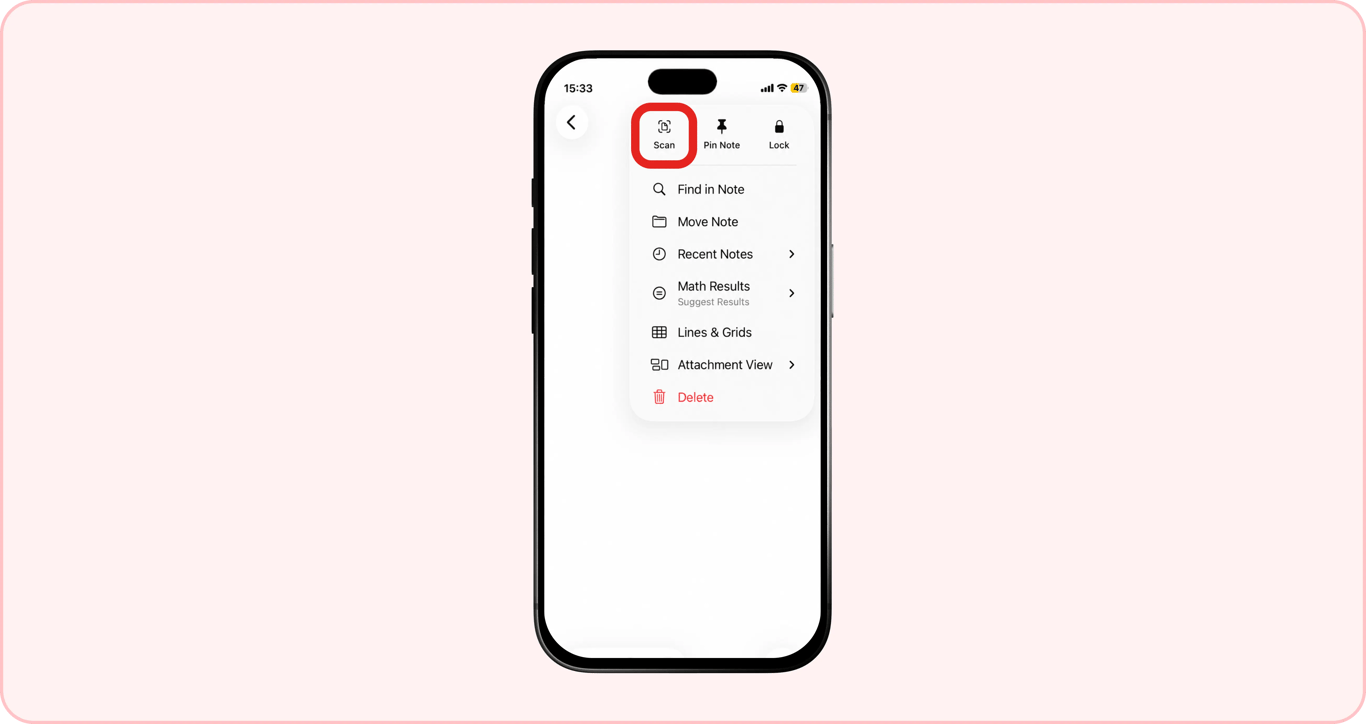
iOS 26 added a third built-in route, the Preview app: tap Scan Documents on the main screen.
Scan several pages into one PDF
The camera stays open after each page, so put the next sheet down and it captures that one too. For a thick multi-page document, scan 10-15 pages per batch so a retake or a wrong order is easy to fix. Pages are saved in the order you capture them. To fix the order, open the PDF in the Preview app, touch and hold a page thumbnail, then drag it to its correct position. If you have separately scanned files, upload and merge PDF into a single document with our tool by moving their thumbnails.
Edit and fix the scan before saving
Before you save, tap a page thumbnail to fix it. You can edit it and crop the edges if there's an unnecessary background. Switch the filter to Color, Grayscale, Black & White, or Photo, rotate the page if it's sideways, and tap Retake to redo a poorly captured page without starting over. Black-and-white usually gives a smaller file and works best for text-only pages without photos.
Save the scan as a PDF
To scan as a PDF on an iPhone and save it: open the note > tap the scan > Share > Save to Files > pick a folder > rename the file > Save. The PDF lives inside the note. To email or upload it, open the share sheet with the Share button. Save it to Files only when another app needs to pick it from a folder.
Make a scanned PDF searchable
Notes can find words in a scan, but the PDF you save may not provide other apps with selectable text because each page is an image. Nonetheless, you can handle this by running it through OCR PDF (optical character recognition). The process adds an invisible text layer. In the OCR PDF dialog, choose PDF ("Selectable and searchable text") to keep a PDF; WORD and TXT give text files.
Fix blurry or crooked scans
Most bad scans come from four problems, and each has a quick fix:
The camera doesn't detect the edges. Place the sheet on a surface of a contrasting color so the iPhone can distinguish the paper from the background.
There's a darker spot from the shadow on a digital copy. Capture scans with even, diffused lighting and don't hold a phone between a lamp and a sheet.
The page looks like a trapezoid. Make sure you hold the iPhone straight above the paper, and drag the corners to fit the page before tapping Keep Scan.
The page is blurry or crooked. Hold steady until auto capture fires, or switch to manual and tap the shutter. Then tap the thumbnail and Retake only that page.
Scan straight to email
Send your PDF right after scanning and saving it on the iPhone. It's done easily by tapping Share and selecting your email app. Compression fits when the recipient's mailbox or a portal caps the size; if the file exceeds the mailbox limits, compress the PDF on our platform. Instead of splitting the PDF into multiple files to send, it's easier to reduce its size.
What to do with the scan next
What you need | Scan pages with a camera |
|---|---|
Notes and Files | Yes |
PDFAid | No |
What you need | Crop and straighten the image |
|---|---|
Notes and Files | Yes |
PDFAid | Crop only |
What you need | Make the text in the document searchable |
|---|---|
Notes and Files | In Notes; Preview on iOS 27 |
PDFAid | Yes |
What you need | Reduce the size before sending |
|---|---|
Notes and Files | Yes (in Preview)* |
PDFAid | Yes |
What you need | Remove an extra page from the scan |
|---|---|
Notes and Files | Yes |
PDFAid | Yes |
* In the Preview app, Export can shrink a PDF with a size slider on iOS 26, or with Optimize Images for Screen on iOS 27.
When you scan with Notes or Files, you get a PDF of page images. To make the text searchable or reduce the file size, use PDFAid.
FAQ
Do I need an app to scan on an iPhone?
No. You can scan documents with the tools already on your iPhone, like the Notes or Files app.
Can I scan a handwritten note?
Yes, but text recognition doesn’t always work well with handwriting, so the recognized text may contain mistakes. Check it carefully before using it.
Why is my scan so large?
Color filters and high resolution increase the file size. Switch to the black-and-white filter for text documents, or reduce the file size with our Compress PDF tool.
Can I add a page to a scan later?
Yes. Open the scan, then add a page using the thumbnails on the screen.